In today’s digital-first world, your computer webcam isn’t just an accessory; it’s your digital handshake, your window to the world, and often the first impression you make. Whether you’re a seasoned streamer captivating audiences on Twitch, a content creator building your brand on YouTube, a remote professional in back-to-back virtual meetings, or a student attending online classes, a high-quality computer webcam is indispensable. It transforms blurry, grainy visuals into crisp, professional imagery, making you look and feel your best. Gone are the days when any built-in camera would suffice; modern demands call for superior clarity, smooth motion, and intelligent features that elevate your online presence. This comprehensive guide will navigate you through the best live webcams available, ensuring you make an informed choice that perfectly aligns with your needs and budget.
Webcams: What Are They and Why Do You Need a Quality One?
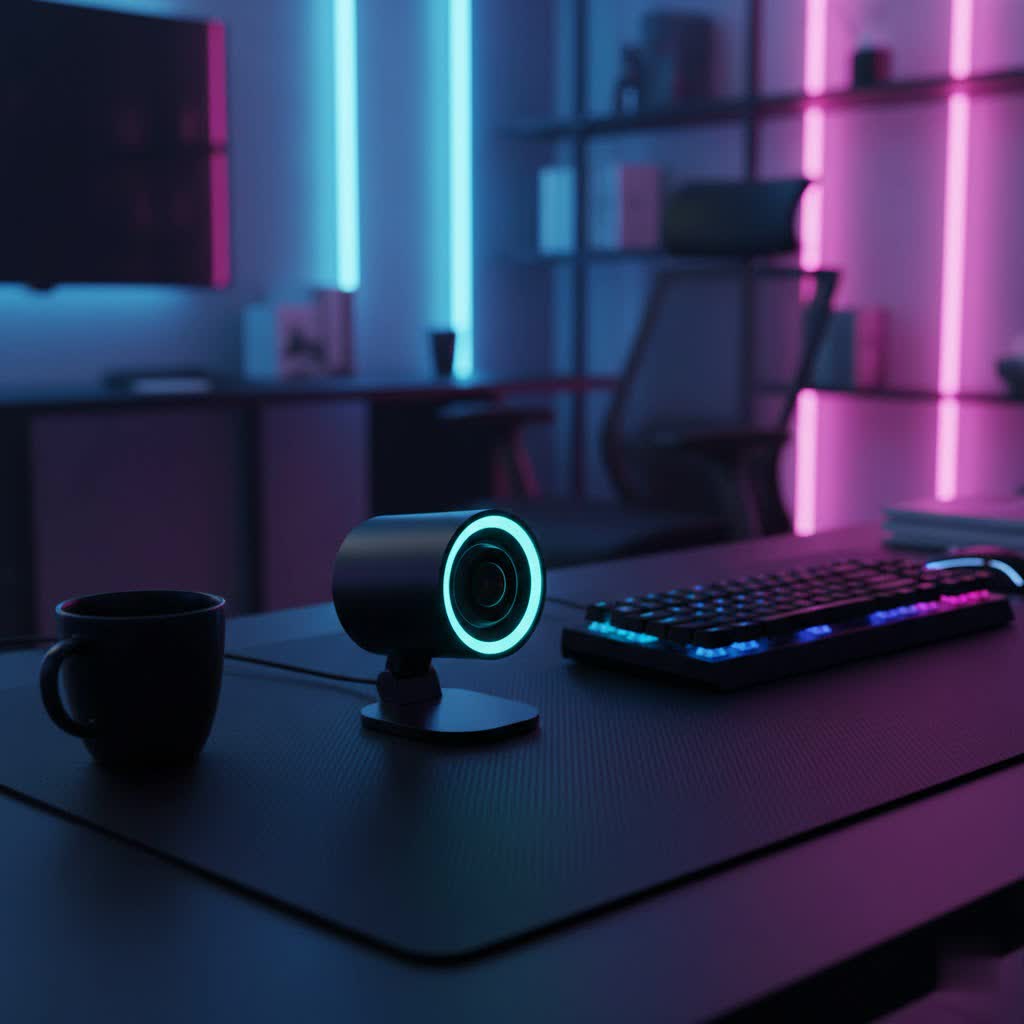
A computer webcam is a digital camera that connects to a computer, capturing and transmitting video and often audio. While basic in function, its importance has skyrocketed with the rise of virtual communication and content creation. You’ll find yourself relying on a webcam for myriad activities, from daily team meetings and interactive online courses to engaging in live gaming streams, hosting webinars, or connecting with loved ones across distances.
The benefits of upgrading to a quality computer webcam are immediate and profound. A superior camera not only enhances your appearance with sharper resolution and better color reproduction but also ensures smoother motion, which is crucial for dynamic content like gaming or presentations. It projects professionalism, boosts confidence, and significantly improves the overall viewing experience for your audience or participants. Imagine clearer presentations, more engaging streams, and a professional edge that helps you stand out in a crowded digital landscape.
Types of Computer Webcams
When considering a computer webcam, you’ll encounter a few main types, each with distinct advantages and disadvantages. Understanding these differences is the first step toward finding your ideal match.
-
Integrated Webcams: These are built directly into laptops, monitors, and all-in-one PCs.
- Pros: Convenient, portable, and always ready to use.
- Cons: Often compromise on quality, featuring lower resolutions, poor low-light performance, and basic microphones. They are generally not optimized for the demands of serious streaming or content creation.
-
External (USB) Webcams: These are standalone devices that connect to your computer, typically via a USB port. This category is the focus for most users seeking a performance upgrade.
- Pros: Offer significantly better image quality, higher resolutions (1080p, 4K), faster frame rates (60fps), and advanced features. They provide flexibility in placement and often come with proprietary software for fine-tuning settings.
- Cons: Require a separate purchase and setup, and some may lack built-in microphones, necessitating an external audio solution.
-
Specialized Webcams (e.g., AI Tracking Webcams): A sub-category of external webcams, these are designed with specific advanced features in mind, such as artificial intelligence-powered auto-tracking, gimbals, or advanced optics for superior image processing. They cater to users who require intelligent framing or specific creative control.
Key Factors When Choosing Your Next Computer Webcam
Selecting the right computer webcam involves more than just picking a popular model. A few critical technical specifications and features will dictate its performance and suitability for your specific use case.
Resolution: 720p, 1080p, 4K – Which Should You Choose?
Resolution defines the sharpness and detail of your video, measured in pixels.
- 720p (HD): This is the minimum acceptable resolution for casual video calls and budget-conscious users. While it gets the job done, details may appear soft, and quality will suffer when viewed on larger screens.
- 1080p (Full HD): The current standard for most streamers and professionals. 1080p delivers crisp, clear video that looks excellent on most platforms and monitors. Many top-tier webcams offer uncompressed 1080p capture, ensuring artifact-free streams.
- 4K (Ultra HD): For those who demand the absolute best in detail and have the bandwidth to support it, 4K webcams offer unparalleled clarity. While not all streaming platforms fully utilize 4K yet, it provides significant future-proofing and superior quality for recording high-resolution content. Keep in mind that 4K streaming often requires a robust internet connection and processing power.
|
Our Picks for the Best Computer Webcam in 2026
As an Amazon Associate I earn from qualifying purchases.
|
||
| Num | Product | Action |
|---|---|---|
| 1 | TRAUSI 1080P Webcam with Active Light Correction, Privacy Cover, Plug and Play USB Webcam for PC/Desktop/Laptop |

|
| 2 | Shcngqio 1080P HD Webcam with Microphone, Noise Cancellation, Privacy Cover, Wide-Angle Lens, Auto Light Correction, Plug & Play USB Webcam for Laptop, Desktop, PC, Mac, Zoom, Skype, Streaming (Black) |
|
| 3 | Logitech C270 HD Webcam, 720p, Widescreen HD Video Calling, Light Correction, Noise-Reducing Mic, Works with Zoom, Nintendo Switch 2’s New GameChat Mode, PC/Mac/Laptop/MacBook/Tablet - Black |
|
| 4 | RUWBY Full HD 1080P Webcam with Built-in Dual Mics, Wide-Angle Lens, Privacy Cover, Tripod Stand, Autofocus Computer Camera, Plug and Play for Desktop PC or Laptop |
|
| 5 | EMEET 1080P Webcam with Microphone, C960 Web Cam, 2 Mics, 90° FOV, USB Type-A & A-to-C Adapter, Plug&Play Computer Camera for Online Calling, Zoom/Teams/Facetime, Switch 2 Camera Support, 2025 Version |
|
| 6 | Logitech Brio 101 Full HD 1080p Webcam for Meetings, Streaming, Desktop, Laptop, PC - Built-in Mic, Shutter, Works with Zoom, Microsoft Teams, Nintendo Switch 2’s New GameChat Mode, USB-A,-Black |
|
| 7 | Logitech C920e HD 1080p Mic-Enabled Webcam, Certified for Zoom, Microsoft Teams Compatible, TAA Compliant |
|
| 8 | Logitech C920x HD Pro PC Webcam, Full HD 1080p/30fps Video, Clear Audio, HD Light Correction, Works with Microsoft Teams, Google Meet, Zoom, Nintendo Switch 2’s New GameChat Mode, Mac/Tablet- Black |
|
| 9 | NexiGo N60 1080P Webcam with Microphone, Software Control & Privacy Cover, USB HD Computer Web Camera, Plug and Play, for Zoom/Skype/Teams, Conferencing and Video Calling |
|
| 10 | Gohero Full HD 1080P Video Webcam, Noise Cancellation, Privacy Cover, Wide-Angle Lens, Auto Light Correction, Plug & Play USB Webcam for Laptop, Desktop, PC, Mac, Zoom, Skype Pro Series |
|
Frame Rate (FPS): How Smooth Should Your Video Be?
Frames Per Second (FPS) determines the fluidity of your video. A higher FPS results in smoother, more natural motion.
- 30 FPS: Adequate for streams and video calls where movement is minimal, such as talking head videos or static presentations. Most basic webcams operate at this frame rate.
- 60 FPS: Essential for dynamic content like gaming, fitness instructions, or any scenario involving rapid motion. A 60fps webcam ensures your movements are captured smoothly, enhancing viewer engagement and providing a more professional feel.
Field of View (FOV): How Much Do You Want to Show?
The field of view dictates how much of the scene your webcam can capture. It’s measured in degrees and typically ranges from 50 to 120 degrees.
- Narrow FOV (e.g., 50-70 degrees): Ideal if you’re the sole subject and want to minimize background distractions, providing a tight focus on your face.
- Medium FOV (e.g., 78-90 degrees): A versatile choice, suitable for one or two people in the frame, or for showing a small portion of your workspace without being overly wide. This is a popular sweet spot for many streamers.
- Wide FOV (e.g., 90-120+ degrees): Best for capturing larger groups, presenting in spacious rooms, or if you want to include more of your background for vlogging or educational content.
Microphone Quality: Is Built-in Good Enough?
Many webcams include built-in microphones, but their quality varies greatly.
- For casual calls, an integrated microphone with noise-canceling features might suffice.
- For professional streaming or content creation, a dedicated external microphone is almost always recommended. Some high-end webcams, like certain Elgato models, intentionally omit built-in microphones, assuming users will opt for a superior audio solution. Prioritize webcams that offer clear, distortion-free audio if you plan to rely on the integrated mic.
Additional Features: Enhancing Your Webcam Experience
Beyond the core specs, consider these extra features that can significantly improve your video quality and user experience:
- Autofocus: Ensures you remain sharp and in focus, even if you move around. Essential for a professional look.
- Automatic Light Correction/Low-Light Performance: Adapts to varying lighting conditions, brightening dim environments and balancing exposure to prevent overexposure. Look for features like Logitech’s RightLight or large sensors for superior low-light handling.
- AI Tracking: Advanced webcams, such as the Insta360 Link or OBSBOT Tiny series, can automatically follow your movements, keeping you perfectly framed without manual adjustments. This is revolutionary for presenters or active streamers.
- Privacy Shutter: A physical cover for the lens, offering peace of mind when the webcam is not in use.
- HDR (High Dynamic Range): Enhances contrast and color vibrancy, especially in challenging lighting.
- Software Customization: Proprietary software (e.g., Elgato Camera Hub, Razer Synapse) allows you to fine-tune settings like white balance, exposure, contrast, and zoom, giving you precise control over your image.
Top Picks: Best Computer Webcams for Live Streaming
Navigating the market for the best live webcams can be daunting, but certain models consistently rise to the top, catering to different needs and budgets. Here’s a look at some of the most acclaimed options across various categories:
-
Best Overall/Premium for Uncompromising Quality:
- Elgato Facecam Pro / Elgato Facecam MK.2: Elgato, a brand synonymous with streaming, offers webcams designed specifically for content creators. The Facecam Pro boasts true 4K at 60fps, a rarity, providing unparalleled detail and smoothness. The MK.2 offers superb 1080p/60fps uncompressed video, an excellent Sony STARVIS sensor for great low-light performance, and extensive customization via the Camera Hub software. Neither includes a microphone, signaling their pro-creator focus.
- Insta360 Link: This 4K webcam stands out with its innovative AI-powered gimbal, offering precise auto-tracking, whiteboard mode, and overhead shot capabilities. Its excellent image quality and intelligent features make it a favorite for presenters and those needing dynamic framing.
- Logitech MX Brio Ultra / Logitech Brio 4K Pro: These premium 4K offerings from Logitech provide exceptional image quality with HDR support, advanced autofocus, and strong low-light performance. They’re built for professionals demanding the best for both streaming and video conferencing.
-
Best Value/Mid-Range for Balanced Performance:
- Razer Kiyo Pro / Razer Kiyo Pro Ultra: Known for their large sensors and excellent low-light capabilities, these webcams deliver impressive image quality. The Kiyo Pro offers 1080p at 60fps, while the Ultra pushes to 4K. They are often praised for their vibrant colors and optional HDR, though some users report occasional software quirks.
- Logitech StreamCam: A versatile choice offering crisp 1080p at 60fps, perfect for content creation. It features intelligent auto-framing and exposure, along with flexible mounting options including a desktop tripod, making it an excellent all-rounder for aspiring streamers.
- OBSBOT Meet 2: A compact 4K webcam that supports both portrait and landscape orientation, ideal for creating vertical content. It features good color accuracy and a magnetic privacy cover.
-
Best Budget-Friendly for Reliable Streaming:
- Logitech C920 / C920S HD Pro: The venerable C920 series remains a top recommendation for its incredible value. It offers reliable 1080p/30fps video, solid autofocus, and decent light correction at an affordable price. The C920S adds a privacy shutter. It’s a workhorse that has served countless streamers and professionals well for years.
- Logitech Brio 100: An excellent entry-level option providing 1080p/30fps performance for under $50. It’s a straightforward, no-frills solution ideal for those just starting out or on a very tight budget.
- Streamplify Cam: This webcam delivers 1080p at 60fps at a very competitive price point, along with the convenience of a built-in privacy shield, making it a great budget choice for streamers.
Computer Webcam Buying Guide: Making the Right Choice
With so many excellent options, how do you pinpoint the perfect computer webcam for you? Follow these steps to make a decision tailored to your unique situation.
-
Identify Your Primary Needs: Begin by clearly defining what you’ll use the webcam for most often. Are you primarily streaming high-action gaming, hosting professional webinars, engaging in casual family video calls, or recording high-quality YouTube content? Your main purpose will guide your priorities for resolution, frame rate, and advanced features. For instance, a gamer needs 60fps, while a remote worker might prioritize clear 1080p and a good microphone.
-
Set a Realistic Budget: Webcam prices range significantly. While a budget-friendly 1080p option might cost under $50, premium 4K models with advanced AI features can run several hundred dollars. Determine how much you’re willing to invest, keeping in mind that a good webcam is a long-term investment in your digital presence.
-
Consider Brand Reputation and Software Support: Reputable brands like Logitech, Elgato, Razer, and OBSBOT not only offer reliable hardware but also provide robust software for customizing settings and regular firmware updates. Good software can unlock additional features and optimize your video quality, which is crucial for a smooth user experience.
-
Where to Buy: You can purchase webcams both online and in physical stores. Online retailers often provide a wider selection and competitive pricing, while brick-and-mortar stores allow you to see the product firsthand. Always check return policies regardless of where you buy.
-
Check Compatibility: Before finalizing your purchase, ensure the webcam is compatible with your computer’s operating system (Windows, macOS, Linux) and the specific applications you plan to use (Zoom, OBS Studio, Twitch Studio, Google Meet, Microsoft Teams). Most modern webcams are plug-and-play, but it’s always wise to verify.
Maximizing Your Computer Webcam’s Performance and Lifespan
Owning a great computer webcam is only half the battle; knowing how to optimize its use and care for it properly will ensure you get the best possible image quality and longevity.
-
Proper Setup and Positioning:
- Eye Level: Position your webcam at eye level to create a more engaging and natural look. Using a monitor mount or a small tripod can help achieve this.
- Arm’s Length: Aim for a distance of roughly an arm’s length from your face. Too close, and the wide-angle lens can distort your features; too far, and you’ll appear small in the frame.
- Centering: Center yourself in the frame, leaving a bit of headroom, to create a balanced and professional composition. AI tracking webcams can do this automatically.
-
Lighting Optimization: Good lighting is paramount, even with the best webcam.
- Frontal Lighting: Position a key light (your main light source) in front of you, slightly above eye level, or at a 45-degree angle to your face.
- Soft and Diffused: Use soft, diffused lighting to avoid harsh shadows and unflattering glare. Ring lights or softboxes are excellent tools for this. Avoid strong backlighting, which can silhouette you.
-
Software Settings Adjustments: Take advantage of your webcam’s accompanying software.
- White Balance: Adjust white balance to ensure accurate color representation, avoiding unnatural color casts.
- Exposure: Fine-tune exposure to prevent your image from being too dark or too bright.
- Bitrate (for streaming): If your streaming software allows, set the bitrate to match your internet upload speed for optimal quality without buffering.
- Noise Reduction: Enable any available noise reduction features to clean up background visual noise, especially in lower light.
-
Cleaning and Maintenance:
- Clean the Lens: Regularly wipe the webcam lens with a soft, lint-free cloth, ideally a microfiber cloth, to remove dust, smudges, and fingerprints that can degrade image quality.
- Store Properly: When not in use, especially if it’s an external webcam, store it in a clean, dry place. Using a privacy shutter also protects the lens from dust.
Conclusion
Choosing the best computer webcam for live streaming and content creation is an investment in your digital presence. From the crisp 4K clarity of a premium model like the Elgato Facecam Pro to the dependable 1080p performance of a budget-friendly Logitech C920, there’s a perfect fit for every user and every need. By prioritizing resolution, frame rate, field of view, and considering intelligent features like autofocus and AI tracking, you can ensure your online interactions are always presented with clarity and professionalism. Remember that optimal lighting and proper software adjustments will further enhance even the most advanced hardware, allowing you to maximize your webcam’s potential. What features are most crucial for your next computer webcam upgrade?
Frequently Asked Questions
Do I need a 4K webcam for streaming?
While 4K webcams offer the highest level of detail and are excellent for future-proofing, they are not strictly necessary for most streamers. Many popular platforms stream at 1080p, and a high-quality 1080p/60fps webcam often provides more than sufficient clarity and smoothness. Consider a 4K webcam if you prioritize the absolute best image quality, record high-resolution content, or have a robust internet connection and powerful computer.
Are integrated laptop webcams good enough for live streaming?
Generally, no. Integrated laptop webcams typically offer lower resolution, poor low-light performance, and basic image sensors compared to external webcams. While they are convenient for casual video calls, they usually fall short in delivering the professional-grade video quality required for engaging live streaming or high-quality content creation. An external computer webcam is almost always a significant upgrade.
