In today’s interconnected world, a high-quality video presence is no longer a luxury but a necessity for desktop computer users. Whether you’re connecting with colleagues in a virtual meeting, attending online classes, or sharing your passion through live streams, a superior computer webcam can dramatically enhance your communication and impact. While most laptops come with integrated cameras, desktop computers rarely do, and even if they did, the quality often falls short of professional or even everyday expectations. Investing in a dedicated external webcam for your desktop can transform your digital interactions, offering crystal-clear visuals and pristine audio that make a lasting impression. This guide will walk you through everything you need to know about choosing, using, and maintaining the best camera for your desktop computer, ensuring you always look and sound your best.
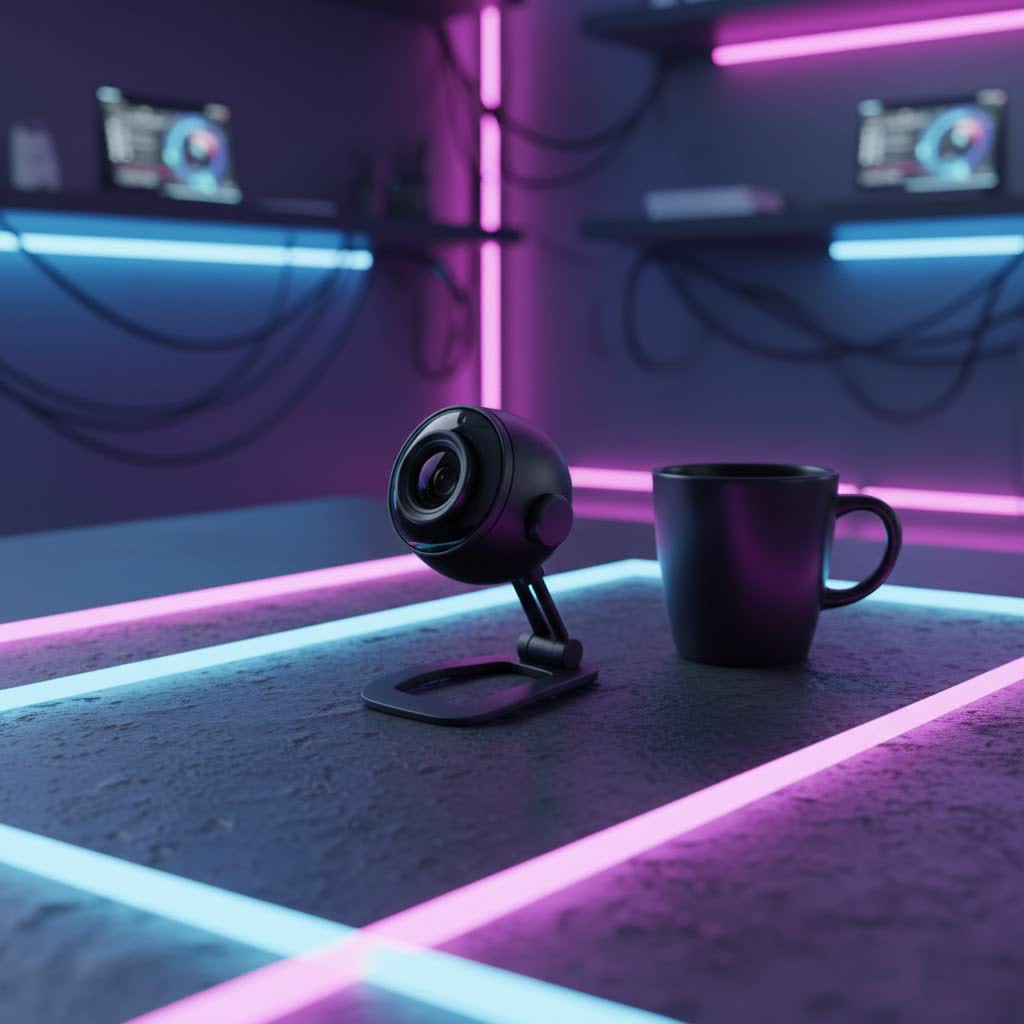
What is a Webcam? Why Do You Need One?
At its core, a computer webcam is a digital video camera that connects to your desktop, designed to capture and transmit video and often audio. Unlike traditional cameras that store footage internally, webcams are primarily built for real-time communication over the internet. They serve as your eyes and ears in the digital realm, enabling you to participate visually and audibly in various online activities.
The applications for a reliable computer webcam are extensive and constantly growing. For students and professionals, they are indispensable tools for:
- Online Learning: Participating in virtual classrooms, collaborating on group projects, and presenting assignments.
- Virtual Meetings: Engaging in video conferences, client presentations, and team collaborations with colleagues across the globe.
- Live Streaming & Content Creation: Broadcasting gameplay, hosting webinars, producing video blogs, and creating engaging content for platforms like Twitch, YouTube, and TikTok.
- Social Connections: Staying in touch with family and friends through video calls, bridging distances with a personal touch.
The benefits of upgrading to a quality computer webcam are immediate and profound. You gain superior image clarity, better color reproduction, improved low-light performance, and often significantly better audio quality compared to any basic integrated solution. This translates to a more professional appearance, clearer communication, and a more engaging online presence, whether for work, education, or personal connections.
Popular Types of Computer Webcams
When it comes to cameras for desktop computers, you primarily encounter two main categories: integrated and external. While integrated webcams are a common feature in laptops, desktop users almost exclusively rely on external models, which offer a broader range of performance and features.
-
Integrated Webcams: These are built directly into the display bezel of laptops. While convenient, they are typically designed to be compact and cost-effective, often resulting in lower resolutions (commonly 720p) and poor performance in challenging lighting conditions. They lack the flexibility and advanced features found in dedicated external units, making them less than ideal for anyone serious about their video quality.
-
External (USB) Webcams: This is the go-to option for desktop computer users. These cameras connect via a USB cable and can be mounted on top of your monitor, on a tripod, or placed independently. They come in a vast array of specifications and price points, offering significant upgrades in resolution, frame rate, lens quality, and microphone performance. The versatility in placement allows for optimal camera angles that an integrated camera simply cannot match.
-
Specialized Webcams (for Streaming & Professional Use): A subset of external webcams, these are designed for users with specific, high-demand needs. They often feature:
- 4K Resolution and High Frame Rates (60fps): For ultra-sharp video and smooth motion, essential for professional streaming and recording.
- Advanced Low-Light Performance: Larger sensors and sophisticated image processing to maintain clear video even in dim environments.
- AI-Powered Features: Auto-framing, gesture control, and intelligent tracking to keep you perfectly centered and in focus, even if you move.
- Swivel and Tilt Capabilities (PTZ): Robotic pan, tilt, and zoom functions for dynamic shot composition.
- Enhanced Microphones: Often stereo mics with noise cancellation for superior audio capture.
Each type serves different needs, but for desktop computer users, an external webcam is virtually always the superior choice, offering the flexibility and performance to meet diverse requirements.
Key Factors When Choosing a Computer Webcam
Selecting the right computer webcam involves understanding several critical technical specifications and features. Focusing on these will ensure your choice aligns perfectly with your needs and budget.
-
Resolution: 720p, 1080p, 4K – Which to Choose?
Resolution dictates the sharpness and detail of your video.- 720p (HD): The lowest common resolution for external webcams. Suitable for basic video calls, but video can appear grainy. Generally budget-friendly.
- 1080p (Full HD): The “sweet spot” for most users, offering clear, crisp video ideal for virtual meetings, online learning, and casual streaming. Many popular models offer excellent 1080p performance.
- 2K (Quad HD): Offers a noticeable step up in detail from 1080p, useful for better clarity or if you plan to digitally zoom slightly.
- 4K (Ultra HD): The highest resolution available, providing exceptional detail. Perfect for content creators who need to crop or zoom into their footage without significant quality loss, or for professionals demanding the absolute best image. Keep in mind 4K requires more bandwidth and processing power from your computer.
-
Frame Rate (FPS): How Does it Affect Video Smoothness?
Frame rate refers to the number of individual images (frames) displayed per second. A higher FPS results in smoother, more fluid video.- 30fps: The standard for most video calls and general use. It provides sufficiently smooth motion for most interactions.
- 60fps: Offers noticeably smoother video, which is crucial for fast-paced streaming (e.g., gaming), recording action-oriented content, or simply providing a more premium visual experience.
-
Field of View (FOV): Wide or Narrow?
FOV describes how much of the scene your camera captures.- Narrow (e.g., 60-80 degrees): Ideal if you’re the only person in the frame and want to focus tightly on yourself, minimizing background distractions.
- Wide (e.g., 90-110+ degrees): Suitable for including multiple people in the frame (e.g., group meetings), showcasing more of your background, or allowing you more freedom of movement. Some webcams allow you to adjust the FOV.
-
Microphone: Is the Built-in Quality Good Enough?
Most webcams include built-in microphones. The quality varies significantly.- Many mid-range to high-end computer webcams feature stereo microphones with noise-canceling capabilities that can provide clear, natural-sounding audio for video calls.
- However, for professional streaming, podcasting, or critical presentations, an external dedicated microphone often provides superior sound fidelity and control, minimizing background noise more effectively.
-
Additional Features:
- Autofocus: Automatically adjusts the lens to keep you sharp, even if you move closer or further from the camera. Essential for a consistently clear image.
- Automatic Light Correction (HDR): Adapts to changing light conditions, preventing you from being underexposed in dim rooms or overexposed in bright ones. High Dynamic Range (HDR) helps balance bright and dark areas.
- Privacy Shutter: A physical cover for the lens, offering peace of mind by ensuring your camera cannot accidentally record when not in use.
- AI Tracking & Auto-framing: Advanced features that use artificial intelligence to follow your movements and keep you centered in the frame.
- Mounting Options: Check if it comes with a versatile clip for monitors and a standard tripod thread for more flexible positioning.
- Software Control: Companion software can offer fine-tuning of settings like exposure, white balance, zoom, and filters, giving you greater control over your image.
Comparison Table of the Best Computer Webcam Models Today
Choosing from the myriad of computer webcams available can be daunting. Here’s a comparison of some highly-rated models, highlighting their strengths and ideal use cases.
| Model | Resolution | FPS | FOV | Key Features | Pros | Cons | Ideal Use Case |
|---|---|---|---|---|---|---|---|
| Logitech C920s Pro | 1080p | 30 | 78° | Autofocus, light correction, stereo mics, privacy shutter | Reliable, excellent value, widely compatible | Fixed FOV, 30fps max | Everyday video calls, online learning |
| Anker PowerConf C200 | 2K | 30 | 78°-95° | Autofocus, dual stereo mics, adjustable FOV, privacy shutter | Sharp 2K image, good audio, flexible FOV | Not 4K, 30fps max | Mid-range business meetings, hybrid work |
| Obsbot Tiny 2 | 4K | 30 | 85.5° | AI tracking, auto-framing, gesture control, mechanical pan/tilt, voice control | Exceptional AI features, superior image quality, flexible positioning | Premium price, AI can be sensitive at times | Professional streaming, dynamic presentations |
| Insta360 Link 2C | 4K | 30 | Adjustable | AI tracking, gimbal stabilization, whiteboard mode, desk mode, powerful software | Outstanding 4K quality, intelligent tracking, versatile modes | 30fps at 4K, higher price point | Content creation, interactive online teaching |
| Elgato Facecam Pro | 4K | 60 | Up to 90° | Sony STARVIS sensor, uncompressed video, powerful software (Camera Hub) | Uncompressed 4K/60fps, superb image quality, low-light performance | No built-in microphone, premium price | High-end streaming, professional video production |
| Logitech MX Brio | 4K | 30/60 | Up to 90° | Light correction, dual mics, privacy shutter, Desk View mode, Show Mode | Versatile for professionals, good low-light, premium build | Expensive, Desk View can be fiddly | Business professionals, creative collaboration |
Note: Prices and exact specifications may vary. Always check the latest details before purchasing.
Computer Webcam Buying Guide
Navigating the market for a new computer webcam can be straightforward if you follow a few key steps tailored to your personal needs.
-
Identify Your Primary Use Case: This is the most crucial step.
- Casual Video Calls/Online Learning: For basic Zoom or Google Meet calls, a 1080p webcam at 30fps with a decent built-in microphone (like the Logitech C920s) will suffice.
- Professional Meetings/Hybrid Work: Look for 1080p or 2K webcams with good low-light performance, autofocus, and privacy features. Models like the Anker PowerConf C200 or Logitech MX Brio are excellent.
- Live Streaming/Content Creation: Prioritize 4K resolution (especially if you plan to crop), 60fps for smoother motion, excellent low-light capability, and possibly AI tracking or advanced software control. Elgato Facecam Pro or Obsbot Tiny 2 are strong contenders.
-
Determine Your Budget: Webcams range from under $50 to several hundred dollars.
- Entry-Level (under $70): Basic 1080p/30fps cameras.
- Mid-Range ($70-$150): Better lenses, improved low-light, possibly 2K resolution, superior microphones, and some advanced features.
- High-End (over $150): 4K resolution, 60fps, large sensors, advanced AI features, premium build quality, and comprehensive software suites.
-
Research Reputable Brands: Brands like Logitech, Obsbot, Insta360, Elgato, Razer, and Anker consistently produce high-quality computer webcams. Sticking to well-known manufacturers often guarantees better support and reliability.
-
Consider Your Setup:
- Monitor Mounting: Ensure the webcam’s clip is compatible with your monitor’s thickness.
- Tripod Compatibility: If you prefer more flexible placement, look for a webcam with a standard 1/4″ tripod thread.
- USB Port: Most webcams use USB-A, but some newer high-end models might use USB-C. Ensure your desktop has the necessary ports.
-
Read Reviews and Watch Demos: Before making a final decision, check independent reviews and watch video demos of the webcam in action. Pay attention to how it performs in various lighting conditions and listen to samples of its built-in microphone.
-
Check Compatibility: While most webcams are plug-and-play with Windows and macOS, it’s always wise to confirm compatibility, especially if you use a specific operating system or video conferencing platform.
By methodically addressing these points, you can confidently select a computer webcam that not only meets but exceeds your expectations, enhancing every aspect of your online presence.
Top Picks: Most Popular Computer Webcam Models
To simplify your choice, here are some top recommendations spanning different needs and price points for your desktop computer.
Best Overall & Value for Most Users: Logitech C920s Pro
The Logitech C920s Pro remains a benchmark for good reason. It offers reliable 1080p Full HD video at 30fps, solid autofocus, and decent automatic light correction. Its integrated stereo microphones are surprisingly capable for general use, and the included privacy shutter adds peace of mind. For its consistent performance and affordable price, it’s an excellent all-rounder for everyday video calls, online learning, and casual streaming.
Best for Professionals & Hybrid Work: Logitech MX Brio
For those who demand a premium experience, the Logitech MX Brio delivers. This 4K webcam offers exceptional image quality, even in challenging lighting conditions, thanks to its advanced sensor and RightLight 5 technology. Its dual noise-reducing microphones ensure your voice is clear, and innovative features like “Show Mode” (for quickly presenting physical objects on your desk) make it a versatile tool for professionals. “The MX Brio is a game-changer for serious remote workers, offering crystal-clear video and thoughtful features that truly enhance virtual collaboration,” notes a leading tech reviewer. While an investment, its performance justifies the cost for critical communications.
Best for AI-Powered Tracking: Obsbot Tiny 2
If you’re looking for a webcam that moves with you, the Obsbot Tiny 2 is unmatched. This 4K webcam features a built-in gimbal and advanced AI algorithms that automatically track your movement, keeping you perfectly framed. Gesture control and voice commands add a futuristic touch, allowing you to manage the camera without leaving your seat. It’s an ideal computer webcam for presenters, educators, and streamers who need freedom of movement without sacrificing video quality. The image quality is superb, especially in well-lit environments.
Best for High-End Streaming & Content Creation: Elgato Facecam Pro
Designed specifically for creators, the Elgato Facecam Pro delivers uncompressed 4K video at a smooth 60 frames per second. Its large Sony STARVIS sensor excels in various lighting conditions, producing vibrant, detailed images. While it lacks a built-in microphone (streamers typically use dedicated audio setups), its powerful Camera Hub software offers extensive control over every aspect of the image, from exposure to color grading. This is the computer webcam to choose when uncompromising video quality for your broadcasts or recordings is paramount.
Best Budget 2K Option: Anker PowerConf C200
For users seeking a significant upgrade from 1080p without breaking the bank, the Anker PowerConf C200 is a fantastic choice. It delivers crisp 2K QHD video, boasts dual stereo microphones with noise cancellation, and offers an adjustable field of view, allowing you to switch between a narrow focus and a wider shot. The integrated privacy shutter is a thoughtful addition. It’s an excellent value proposition for sharper video and better audio in everyday desktop computer use.
Tips for Using and Maintaining Your Computer Webcam
Optimizing your computer webcam’s performance and ensuring its longevity involves more than just plugging it in. Here are some essential tips for both usage and maintenance.
Cài đặt và Cấu hình Webcam Đúng Cách (Setting Up and Configuring Your Webcam Correctly)
|
Our Picks for the Best Computer Webcam in 2026
As an Amazon Associate I earn from qualifying purchases.
|
||
| Num | Product | Action |
|---|---|---|
| 1 | Logitech C270 HD Webcam, 720p, Widescreen HD Video Calling, Light Correction, Noise-Reducing Mic, Works with Zoom, Nintendo Switch 2’s New GameChat Mode, PC/Mac/Laptop/MacBook/Tablet - Black |

|
| 2 | NexiGo N60 1080P Webcam with Microphone, Software Control & Privacy Cover, USB HD Computer Web Camera, Plug and Play, for Zoom/Skype/Teams, Conferencing and Video Calling |
|
| 3 | Gohero Full HD 1080P Video Webcam, Noise Cancellation, Privacy Cover, Wide-Angle Lens, Auto Light Correction, Plug & Play USB Webcam for Laptop, Desktop, PC, Mac, Zoom, Skype Pro Series |
|
| 4 | EMEET 1080P Webcam with Microphone, C960 Web Cam, 2 Mics, 90° FOV, USB Type-A & A-to-C Adapter, Plug&Play Computer Camera for Online Calling, Zoom/Teams/Facetime, Switch 2 Camera Support, 2025 Version |
|
| 5 | Logitech Brio 101 Full HD 1080p Webcam for Meetings, Streaming, Desktop, Laptop, PC - Built-in Mic, Shutter, Works with Zoom, Microsoft Teams, Nintendo Switch 2’s New GameChat Mode, USB-A,-Black |
|
| 6 | Logitech C920x HD Pro PC Webcam, Full HD 1080p/30fps Video, Clear Audio, HD Light Correction, Works with Microsoft Teams, Google Meet, Zoom, Nintendo Switch 2’s New GameChat Mode, Mac/Tablet- Black |
|
| 7 | RUWBY Full HD 1080P Webcam with Built-in Dual Mics, Wide-Angle Lens, Privacy Cover, Tripod Stand, Autofocus Computer Camera, Plug and Play for Desktop PC or Laptop |
|
| 8 | Shcngqio 1080P HD Webcam with Microphone, Noise Cancellation, Privacy Cover, Wide-Angle Lens, Auto Light Correction, Plug & Play USB Webcam for Laptop, Desktop, PC, Mac, Zoom, Skype, Streaming (Black) |
|
| 9 | TRAUSI 1080P Webcam with Active Light Correction, Privacy Cover, Plug and Play USB Webcam for PC/Desktop/Laptop |
|
| 10 | Logitech C920e HD 1080p Mic-Enabled Webcam, Certified for Zoom, Microsoft Teams Compatible, TAA Compliant |
|
- Placement is Key: Mount your webcam at eye level, ideally on top of your monitor. This creates a natural, direct gaze during video calls, making you appear more engaged. Avoid placing it too low (which can result in an unflattering “up-the-nose” shot) or too high.
- Plug and Play (Mostly): Most modern external webcams are plug-and-play via USB. Your operating system should automatically detect and install basic drivers.
- Install Companion Software: If your webcam comes with dedicated software (e.g., Logitech Capture, Elgato Camera Hub, Obsbot TinyCam), install it. This software often unlocks advanced features, allows for fine-tuning of image settings (white balance, exposure, zoom), and may provide firmware updates for improved performance.
- Select in Applications: Always ensure your desired webcam is selected as the primary video and audio input device within your video conferencing or streaming applications (Zoom, Microsoft Teams, OBS Studio, etc.).
Điều Chỉnh Ánh Sáng và Góc Quay để có Hình Ảnh Đẹp Nhất (Adjusting Lighting and Angle for the Best Image)
- Frontal Lighting is Your Friend: The most impactful improvement you can make is to ensure you have good, soft light coming from in front of you, directly onto your face. Avoid strong backlighting (like a window behind you) or overhead lighting, which can create harsh shadows. A ring light or softbox placed behind your monitor can work wonders.
- Background Matters: Keep your background clean, uncluttered, and well-lit. A simple, professional backdrop or a well-chosen virtual background can significantly enhance your presence.
- Camera Angle: Aim for a straight-on or slightly elevated angle. This is generally the most flattering and professional perspective.
- Test Before You Go Live: Always use your webcam’s preview function or a test call to check your lighting, angle, and audio before joining an important meeting or starting a stream.
Vệ Sinh Webcam Thường Xuyên để Đảm Bảo Chất Lượng Hình Ảnh (Regular Webcam Cleaning for Image Quality)
- Gentle Lens Cleaning: Over time, dust and fingerprints can accumulate on the webcam lens, degrading image quality. Use a microfiber cloth specifically designed for optics (like those for eyeglasses) to gently wipe the lens. For stubborn smudges, a small amount of lens cleaning fluid applied to the cloth, not directly to the lens, can be used.
- Avoid Harsh Chemicals: Never use abrasive cleaners, paper towels, or household cleaning sprays, as these can scratch or damage the lens coating.
Bảo Quản Webcam Đúng Cách Khi Không Sử Dụng (Proper Webcam Storage When Not in Use)
- Use a Privacy Shutter: If your computer webcam has one, always close the privacy shutter when not in use. This not only ensures privacy but also protects the lens from dust and scratches.
- Disconnect if Portable: If you have a portable external webcam, gently disconnect it and store it in a protective pouch or case to prevent physical damage, especially if you travel with it.
- Cable Management: Keep the USB cable neatly coiled to prevent kinks or damage, which can affect connectivity and performance.
By following these simple guidelines, you can maximize your computer webcam’s potential, ensure a professional online appearance, and extend its lifespan.
Conclusion
In an era defined by digital connection, having a reliable and high-performing computer webcam is more crucial than ever for desktop users. From enhancing the professionalism of your virtual meetings to enriching your online learning experience and elevating your content creation, a dedicated external webcam serves as a vital bridge to your digital audience. By understanding key factors like resolution, frame rate, field of view, and additional smart features, you can confidently navigate the market and select a camera that perfectly matches your specific needs and budget. Remember, the investment in a quality computer webcam is an investment in your digital presence, ensuring you always look and sound your best, no matter the online endeavor. What aspect of your digital life will you enhance first with a new computer webcam?
Frequently Asked Questions
Why is an external webcam better than a laptop’s built-in one for a desktop computer user?
External webcams offer significantly superior performance due to larger sensors, higher resolutions (1080p to 4K), better lenses, and dedicated image processors. They provide enhanced low-light performance, clearer audio with noise cancellation, and greater flexibility in positioning, which integrated laptop cameras simply cannot match. For desktop users, an external webcam is the only option, providing a vast upgrade over no camera at all.
What resolution is best for a webcam for my desktop computer?
For most desktop computer users, 1080p (Full HD) is the ideal resolution, offering a sharp, clear image that’s perfect for video calls, online meetings, and casual streaming without excessive bandwidth demands. However, if you’re a content creator or professional requiring the utmost detail or the ability to crop your video, a 4K webcam is recommended.
Do I need a 4K webcam for my desktop computer?
Not necessarily for everyone. A 4K webcam is beneficial if you’re a serious streamer, content creator, or professional who needs to crop, zoom, or record high-definition video. For typical video conferencing and online learning, 1080p is generally sufficient and more budget-friendly. Consider your internet speed and computer processing power, as 4K demands more resources.
How important is the microphone in a computer webcam?
The microphone is very important for clear communication. While many mid-to-high-end computer webcams feature good built-in stereo microphones with noise cancellation, a dedicated external microphone will almost always provide superior audio quality for professional streaming or critical presentations. For general use, a good webcam mic is perfectly adequate.
Can I use a single computer webcam for both work and streaming?
Absolutely! Many modern external computer webcams are versatile enough to handle both professional video calls and streaming needs. Look for models with good resolution (1080p or 4K), reliable autofocus, decent low-light performance, and potentially an adjustable field of view to adapt to different scenarios. Features like AI tracking can also be beneficial for dynamic presentations or engaging streams.
