In today’s interconnected world, a reliable computer webcam is no longer just a luxury; it’s a fundamental tool for communication, collaboration, and creativity. Whether you’re a student attending virtual classes, a professional leading online meetings, a content creator engaging with your audience, or simply staying in touch with loved ones, a high-quality webcam ensures you’re seen and heard with exceptional clarity. This comprehensive guide will navigate you through everything you need to know about computer webcams, helping you choose the perfect device to enhance your digital interactions.
What is a Computer Webcam? Why Do You Need One?
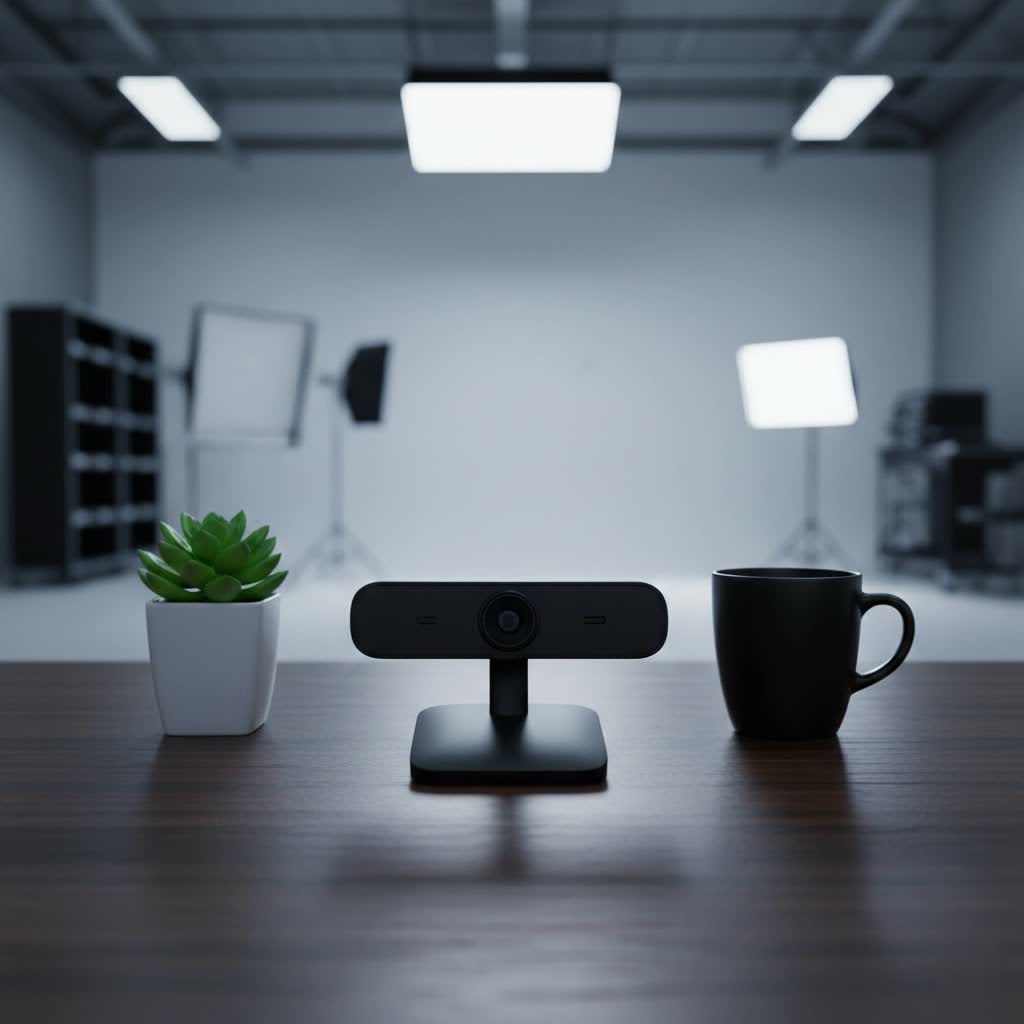
A computer webcam is essentially a video camera specifically designed to capture and stream video or images to a computer or over a computer network. Its primary function is to facilitate real-time visual communication, transforming your computer into a powerful hub for video telephony and conferencing.
Beyond basic video calls, webcams serve a multitude of purposes. Students rely on them for online learning, enabling face-to-face interaction with instructors and classmates. Professionals utilize them for remote work, participating in virtual meetings and presentations from anywhere. For content creators, webcams are vital for live streaming, recording vlogs, and connecting with their audience on platforms like Twitch and YouTube. Some sophisticated webcams even find applications in security surveillance and computer vision. The benefits of using a quality webcam are clear: improved communication, enhanced professional presence, and more engaging personal connections.
Common Types of Computer Webcams
When considering a computer webcam, you’ll primarily encounter two main categories: integrated and external. Each comes with its own set of advantages and disadvantages, catering to different user needs and preferences.
Integrated Webcams
Integrated webcams are built directly into your computer, most commonly found in laptops and All-in-One (AIO) desktop PCs. They are typically located at the top center of the display bezel, often accompanied by a small LED indicator that lights up when the camera is active.
- Pros:
- Convenience: Always available and ready to use without extra setup.
- Portability: No additional hardware to carry or connect, ideal for on-the-go use with laptops.
- Seamless Design: Blends aesthetically with the computer’s overall look.
- Cons:
- Limited Quality: Historically, integrated webcams have offered lower resolution and poorer low-light performance compared to external options, though quality is rapidly improving in newer models.
- Fixed Position: The camera angle is dictated by your computer’s screen position, which may not always be ideal.
- Upgrade Difficulty: Cannot be easily upgraded; replacing it usually means replacing the entire device.
|
Our Picks for the Best Computer Webcam in 2026
As an Amazon Associate I earn from qualifying purchases.
|
||
| Num | Product | Action |
|---|---|---|
| 1 | NexiGo N60 1080P Webcam with Microphone, Software Control & Privacy Cover, USB HD Computer Web Camera, Plug and Play, for Zoom/Skype/Teams, Conferencing and Video Calling |

|
| 2 | Logitech C920e HD 1080p Mic-Enabled Webcam, Certified for Zoom, Microsoft Teams Compatible, TAA Compliant |
|
| 3 | EMEET 1080P Webcam with Microphone, C960 Web Cam, 2 Mics, 90° FOV, USB Type-A & A-to-C Adapter, Plug&Play Computer Camera for Online Calling, Zoom/Teams/Facetime, Switch 2 Camera Support, 2025 Version |
|
| 4 | TRAUSI 1080P Webcam with Active Light Correction, Privacy Cover, Plug and Play USB Webcam for PC/Desktop/Laptop |
|
| 5 | Logitech Brio 101 Full HD 1080p Webcam for Meetings, Streaming, Desktop, Laptop, PC - Built-in Mic, Shutter, Works with Zoom, Microsoft Teams, Nintendo Switch 2’s New GameChat Mode, USB-A,-Black |
|
| 6 | Gohero Full HD 1080P Video Webcam, Noise Cancellation, Privacy Cover, Wide-Angle Lens, Auto Light Correction, Plug & Play USB Webcam for Laptop, Desktop, PC, Mac, Zoom, Skype Pro Series |
|
| 7 | RUWBY Full HD 1080P Webcam with Built-in Dual Mics, Wide-Angle Lens, Privacy Cover, Tripod Stand, Autofocus Computer Camera, Plug and Play for Desktop PC or Laptop |
|
| 8 | Logitech C920x HD Pro PC Webcam, Full HD 1080p/30fps Video, Clear Audio, HD Light Correction, Works with Microsoft Teams, Google Meet, Zoom, Nintendo Switch 2’s New GameChat Mode, Mac/Tablet- Black |
|
| 9 | Shcngqio 1080P HD Webcam with Microphone, Noise Cancellation, Privacy Cover, Wide-Angle Lens, Auto Light Correction, Plug & Play USB Webcam for Laptop, Desktop, PC, Mac, Zoom, Skype, Streaming (Black) |
|
| 10 | Logitech C270 HD Webcam, 720p, Widescreen HD Video Calling, Light Correction, Noise-Reducing Mic, Works with Zoom, Nintendo Switch 2’s New GameChat Mode, PC/Mac/Laptop/MacBook/Tablet - Black |
|
External (USB) Webcams
External webcams are standalone devices that connect to your computer, typically via a USB port. They offer greater flexibility and often boast superior image and audio quality.
- Pros:
- Superior Quality: Generally feature higher resolutions (1080p, 4K), better lenses, larger sensors, and advanced image processing for clearer, more vibrant video.
- Flexibility: Can be positioned independently of your screen, allowing for optimal angles and framing.
- Upgradeability: Easily replaced or upgraded as technology advances or your needs change.
- Advanced Features: Often include features like autofocus, advanced light correction, wider fields of view, and privacy shutters.
- Cons:
- Portability: Requires carrying and setting up an additional device, adding clutter.
- Cost: Higher-quality external webcams can be a significant investment.
- Compatibility: Some require specific drivers or software, though many are plug-and-play.
Specialized Webcams
Beyond the common types, some webcams are designed for specific uses:
- Professional/Streaming Webcams: These are high-end external webcams offering 4K resolution, advanced optics, and features like customizable fields of view, background replacement, and studio-grade microphones.
- Document Cameras: While not traditional webcams, these devices are used to display physical documents or objects in online settings, often found in educational or presentation environments.
- Smartphone as Webcam: Applications like DroidCam allow users to temporarily turn their Android devices into webcams, offering a convenient solution if a dedicated webcam isn’t available or if you wish to leverage your phone’s superior camera quality.
Key Factors When Choosing Your Computer Webcam
Selecting the right computer webcam involves more than just picking the first one you see. Several technical specifications and features directly impact your video quality and overall experience.
Resolution: 720p, 1080p, 4K – Which to Choose?
Resolution refers to the number of pixels in the image the webcam captures. Higher resolution means a sharper, more detailed image.
- 720p (HD): Once standard, 720p is now considered entry-level. It’s sufficient for basic video calls but might lack detail for professional use or streaming.
- 1080p (Full HD): This is the current sweet spot for most users. 1080p webcams deliver crisp, clear images, making them ideal for professional meetings, online learning, and casual streaming. Many modern laptops and quality external webcams offer this resolution.
- 4K (Ultra HD): Offering four times the pixels of 1080p, 4K webcams provide exceptional detail and clarity. They are best suited for serious content creators, high-stakes professional presentations, or users who demand the absolute best image quality, assuming their internet connection and computer hardware can support it.
Frame Rate (FPS): How It Affects Video Smoothness
Frame rate, measured in frames per second (FPS), indicates how many individual images the webcam captures per second. A higher FPS results in smoother, more fluid video.
- 30 FPS: This is the standard for most webcams and is generally adequate for video calls and everyday use.
- 60 FPS: For fast-moving content, gaming streams, or anyone desiring ultra-smooth video, a 60 FPS webcam is preferable. It provides a noticeably more natural and less “choppy” motion, enhancing the viewer’s experience.
Field of View (FoV): Wide or Narrow?
Field of View refers to the width of the area the camera can capture.
- Narrow FoV (e.g., 60-70 degrees): Ideal for individual use, focusing solely on you and minimizing background distractions.
- Wide FoV (e.g., 78-90+ degrees): Better for showing multiple people, a larger portion of a room, or presentations where you need to move around. Some webcams offer adjustable FoV or digital pan/tilt features.
Microphone: Is Built-in Good Enough?
A webcam’s microphone quality is just as crucial as its video. While most webcams include built-in microphones, their quality can vary widely.
- Basic Built-in Mics: Often sufficient for casual calls but may pick up significant background noise and deliver average voice clarity.
- Advanced Built-in Mics: Many premium webcams and modern laptops (e.g., HP Spectre, MacBook Pro) now feature dual-array or even studio-quality microphones, often enhanced with AI noise reduction to filter out ambient sounds, ensuring your voice comes through crystal clear.
- External Mics: For truly professional audio, especially for streaming or podcasting, an external USB microphone or a dedicated headset mic is recommended.
Additional Features to Consider
Modern webcams come with a host of additional features that can significantly enhance your experience:
- Autofocus: Ensures you remain sharp and in focus, even if you move closer or further from the camera.
- Automatic Light Correction: Adjusts exposure and white balance to compensate for poor lighting conditions, making you look better in dimly lit rooms.
- Privacy Shutter: A physical cover for the lens, offering peace of mind by preventing accidental or unauthorized camera activation.
- Windows Hello Integration: Allows for secure, biometric login to your Windows computer using facial recognition.
- AI-Powered Features:
- Auto-Framing: Keeps you centered in the frame as you move.
- Background Blur/Replacement: Digitally blurs or changes your background without a green screen, enhancing privacy and professionalism.
- Eye Contact Correction: Digitally adjusts your gaze to appear as if you’re looking directly at the camera, even when reading notes on screen.
Best Computer Webcams: A Comparison
The market offers a wide array of excellent computer webcams, both integrated into laptops and as standalone external devices. Here’s a look at some top contenders across different categories.
Top Laptops with Excellent Integrated Webcams
Modern high-end laptops are increasingly prioritizing webcam quality, often featuring 1080p sensors and AI enhancements.
| Laptop Model | Webcam Resolution | Key Features | Best For |
|---|---|---|---|
| HP Spectre x360 13.5 | 5MP (1080p) | Auto-framing, low-light performance | Overall best, hybrid users |
| MacBook Pro (M3/M4) | 1080p FaceTime HD | Studio-quality mics, exceptional clarity | Creators, Apple ecosystem users |
| Lenovo ThinkPad X1 Carbon Gen 11/12 | 1080p (optional MIPI interface) | Excellent for business, privacy shutter, AI noise reduction | Business professionals |
| Microsoft Surface Pro 9/11 | 12MP front-facing | High detail, great for 2-in-1 versatility | Versatility, tablet users |
| HP Dragonfly G4 | 5MP (1080p) | Enhanced security features, crisp video | Business, security-conscious |
Many of these laptops also integrate advanced microphones with AI noise cancellation, which is crucial for clear communication in any environment. For example, the HP Omen 16 (2024 Edition) offers an HP True Vision 1080p webcam and quad-array microphones with AI noise reduction for clear visuals and audio during streaming or meetings.
Top External Webcams
For those seeking to upgrade their desktop experience or enhance an existing laptop, external webcams provide a significant boost in quality and features.
| External Webcam | Resolution | Frame Rate | Key Features | Ideal For |
|---|---|---|---|---|
| Logitech Brio 4K | 4K | 30/60 FPS | HDR, RightLight 3, Windows Hello, adjustable FoV | High-end professionals, streamers |
| Razer Kiyo Pro | 1080p | 60 FPS | STARLIGHT Sensor for low light, uncompressed video | Streamers, gamers, low-light environments |
| Elgato Facecam | 1080p | 60 FPS | Optimized for streaming, fixed focus lens, DSLR-like control | Content creators, streamers |
| Logitech C920s Pro HD | 1080p | 30 FPS | Autofocus, light correction, privacy shutter | Budget-friendly, general use |
| AnkerWork C310 | 4K | 30 FPS | AI framing, privacy cover, adjustable FoV | Hybrid work, advanced features |
These external webcams often surpass integrated options in terms of sensor size, lens quality, and software features, providing a truly professional video experience.
Buying Guide: How to Purchase Your Computer Webcam
Choosing and buying a computer webcam should be a structured process to ensure you get the best fit for your specific needs.
1. Identify Your Usage Needs
Before anything else, define why you need a webcam.
- Casual Video Calls: For family chats or occasional virtual hangouts, a basic 720p or 1080p integrated webcam might suffice.
- Professional Meetings/Remote Work: Prioritize 1080p resolution, good low-light performance, and clear audio (either advanced built-in mics or a plan for an external mic). Features like auto-framing and privacy shutters are a bonus.
- Online Learning: Similar to professional use, clarity and reliable audio are key. Integrated options in modern laptops are usually good enough.
- Live Streaming/Content Creation: Aim for 1080p at 60 FPS or 4K. Look for advanced features like HDR, manual controls, and excellent low-light capabilities. An external webcam is almost always preferred here.
- Gaming: If you’re streaming gameplay, 1080p 60 FPS is ideal. Consider a webcam with a wide FoV if you want to show your gaming setup.
2. Set Your Budget
Webcams range from under $50 to several hundred dollars.
- Budget-Friendly ($30-$70): Basic 1080p 30 FPS external webcams or standard integrated laptop webcams.
- Mid-Range ($70-$150): Enhanced 1080p 30/60 FPS external webcams with better lenses, autofocus, and improved low-light. Many premium laptops fall into this quality tier for their integrated cameras.
- High-End ($150+): 4K webcams, professional streaming cameras, or premium laptops with top-tier integrated options, often packed with AI features and superior optics.
3. Choose a Reputable Brand
Sticking with well-known brands generally ensures better quality, reliability, and customer support.
- Webcam Brands: Logitech, Razer, Elgato, AnkerWork, Microsoft, Dell, HP.
- Computer Brands with Good Integrated Webcams: Apple, HP, Dell, Lenovo, Microsoft Surface.
4. Decide Where to Buy
- Online Retailers (Amazon, Best Buy, Manufacturer Websites): Offer the widest selection, competitive pricing, and user reviews. Great for research and direct comparisons.
- Brick-and-Mortar Stores (Best Buy, Micro Center): Allows you to see products in person and get immediate assistance, though selection might be smaller.
5. Check Product Specifications and Reviews
Always double-check the resolution, frame rate, microphone type, and other features. Read recent user reviews and professional critiques to get a balanced view of real-world performance. Pay attention to comments on low-light performance and microphone quality.
Top Picks: Most Popular Computer Webcams
Based on performance, features, and user feedback, here are some highly-rated computer webcam options:
For the Everyday User: Logitech C920s Pro HD
This webcam remains a perennial favorite for its excellent balance of price and performance. It delivers crisp 1080p video at 30 FPS, features reliable autofocus, and includes automatic light correction. The integrated stereo microphones are decent for most calls, and it comes with a privacy shutter. It’s a plug-and-play workhorse perfect for remote work, online classes, and casual video chats.
For Professionals and Hybrid Workers: AnkerWork C310
The AnkerWork C310 offers a compelling package with 4K resolution, AI auto-framing, and a wide 120-degree field of view that can be adjusted. Its dual noise-canceling microphones ensure clear audio, and the included privacy cover adds a layer of security. It’s an excellent choice for dynamic presentations and ensuring you always look your best, even in challenging lighting.
For Serious Streamers and Content Creators: Elgato Facecam
Designed specifically for content creation, the Elgato Facecam provides uncompressed 1080p video at 60 FPS, delivering incredibly smooth and detailed footage. It boasts a high-quality prime lens and a large sensor optimized for indoor lighting. While it has no built-in microphone, it offers DSLR-like controls via its companion software, making it a favorite among professional streamers who use separate audio setups.
For Mac Users Seeking Integrated Excellence: MacBook Pro (M3/M4)
If you’re in the Apple ecosystem, the latest MacBook Pro models feature a 1080p FaceTime HD camera paired with studio-quality three-mic arrays. These integrated webcams offer stunning detail, excellent color accuracy, and superior audio, making them ideal for video conferencing and content creation without the need for external peripherals.
Tips for Using and Maintaining Your Computer Webcam
Even the best webcam can underperform without proper setup and care. Here are some tips to maximize your webcam experience:
1. Proper Setup and Configuration
- Positioning: For external webcams, position it at eye level or slightly above to create a flattering angle. Avoid placing it too low, which can result in an awkward upward angle.
- Connection: Connect your external webcam to a high-speed USB port (USB 3.0 or later) for optimal performance.
- Driver Installation: Most modern webcams are plug-and-play, with drivers installing automatically. If prompted, install any manufacturer-specific software, as it often provides access to advanced features and settings.
- Privacy Settings: In Windows (Settings > Privacy & Security > Camera) or macOS (System Settings > Privacy & Security > Camera), ensure camera access is enabled for the applications you intend to use. This is a common fix if your webcam isn’t detected.
- Default Camera: If you have multiple cameras (integrated and external), set your preferred one as the default in your video conferencing or streaming application’s settings.
2. Optimize Lighting and Background
- Lighting: Good lighting is paramount. Position a light source (like a ring light or window) in front of you, not behind, to avoid silhouetting. Natural light is often the most flattering.
- Background: Choose a clean, uncluttered background. If your webcam or software offers background blur or replacement features, utilize them for a professional look.
- Angle: Experiment with your webcam’s angle to find what looks best. A slight downward angle can often be more flattering.
3. Regular Cleaning and Maintenance
- Clean the Lens: Gently wipe the webcam lens with a soft, lint-free microfiber cloth to remove dust or smudges. Avoid harsh chemicals.
- Software Updates: Keep your webcam’s software and drivers updated. Manufacturers often release updates that improve performance, add features, or fix bugs.
- Storage: If using an external webcam, store it in a protective pouch or case when not in use to prevent damage and dust accumulation.
Conclusion
A computer with a quality webcam is an indispensable asset in our increasingly digital lives, bridging distances and fostering connections. From integrated cameras in the latest laptops that offer impressive clarity to feature-rich external devices designed for professional streaming, the options are vast and varied. By understanding your specific needs, evaluating key technical factors like resolution and frame rate, and leveraging smart features, you can confidently choose a webcam that elevates your communication and ensures you always present your best self. What will you create or connect with first using your enhanced computer webcam setup?
Frequently Asked Questions
What is the average resolution of a good computer webcam today?
A good computer webcam today typically offers a resolution of 1080p (Full HD). While 720p is still available, 1080p provides a significantly clearer and more detailed image, making it suitable for most professional and personal video conferencing needs. Some high-end webcams also offer 4K resolution for ultimate clarity.
Can I use an external webcam with my laptop that already has a built-in one?
Yes, absolutely. You can connect an external webcam to your laptop via a USB port. In most cases, your operating system and video conferencing applications will allow you to select which camera you want to use, giving you the flexibility to switch between your built-in webcam and the higher-quality external option.
How important is the microphone in a webcam?
The microphone is very important for effective communication. While many webcams include built-in microphones, their quality varies. For casual calls, they might be sufficient. However, for professional meetings or streaming, a webcam with an advanced noise-canceling microphone or a dedicated external microphone/headset will provide significantly clearer audio and reduce background distractions.
Do all computer webcams have automatic light correction?
Most modern computer webcams, especially those in the mid-range to high-end categories, do feature some form of automatic light correction. This technology helps to adjust exposure and white balance to make your image look better in various lighting conditions, from dimly lit rooms to bright, backlit environments, though performance can vary.
How can I tell if my desktop computer has a built-in webcam?
Unlike laptops, most traditional desktop computers do not have built-in webcams. If your desktop is an All-in-One (AIO) PC, it likely has one, usually located at the top center of the screen. For standard desktops, you would typically need to purchase and connect an external webcam to your monitor or PC via a USB port.
