In today’s digital landscape, the ability to connect and share your passions live has never been more vital. Whether you’re a seasoned streamer captivating thousands or just starting your journey into the exciting world of online content, the quality of your broadcast can make or break your audience’s experience. At the heart of a compelling live stream lies a crucial piece of equipment: the Computer Webcam. This comprehensive guide will navigate you through everything you need to know, from understanding what makes a great streaming webcam to choosing, setting up, and optimizing the perfect one for your unique needs.
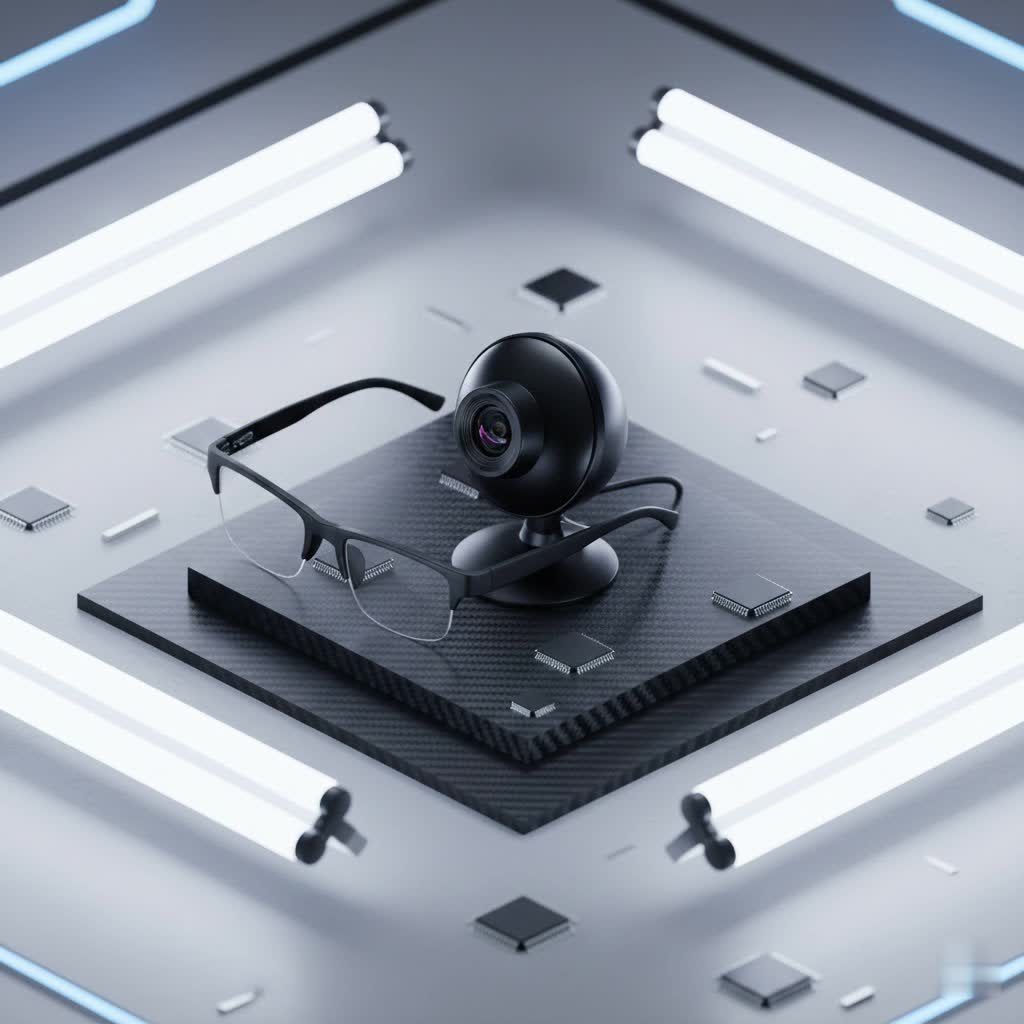
Webcam: What It Is and Why You Need One for Live Streaming
A webcam, short for web camera, is essentially a small digital camera connected to a computer, typically via a USB port. While many laptops come with integrated webcams, these are often basic and lack the advanced features required for professional-grade live streaming. External Computer Webcams, on the other hand, are specifically designed to offer superior video and audio quality, transforming your setup into a true broadcasting studio.
For live streamers, a high-quality Computer Webcam is indispensable. It’s your audience’s window into your world, whether you’re hosting an interactive Q&A, showcasing gameplay, teaching a class, or performing live music. A clear, smooth, and well-lit image ensures your viewers stay engaged, enhancing the overall production value of your content and helping you stand out in a crowded digital space. It’s about more than just showing your face; it’s about conveying professionalism and building a strong connection with your community.
Types of Computer Webcams for Streamers
The market offers a diverse range of Computer Webcams, each with specific advantages and drawbacks, especially when viewed through the lens of live streaming.
- Integrated Laptop Webcams: These are built directly into your laptop’s screen. While convenient and portable, they typically offer lower resolution, poor low-light performance, and limited customization options. For serious live streaming, they are generally inadequate as they fail to deliver the crisp, vibrant image quality that viewers expect.
- External USB Webcams: The most common choice for streamers, these standalone devices connect to your computer via USB. They come in various resolutions and feature sets, offering significantly better image quality, enhanced low-light capabilities, and more control over settings compared to integrated options. They are also highly portable and easy to set up.
- Dedicated Streaming Webcams: These are a specialized subset of external webcams, explicitly designed with live content creators in mind. They often boast higher resolutions (1080p and 4K), faster frame rates (60fps), advanced autofocus, superior optics, and robust software for fine-tuning image settings. Some even include built-in ring lights or AI-powered tracking features. While often pricier, they deliver broadcast-quality video ideal for professional streaming setups.
Choosing between these largely depends on your budget, streaming goals, and how serious you are about the visual fidelity of your live broadcasts. For aspiring and established streamers, investing in a quality external or dedicated streaming webcam is almost always recommended.
Key Factors When Choosing a Computer Webcam
Selecting the right Computer Webcam can feel overwhelming, but focusing on these crucial factors will help you make an informed decision that elevates your live streaming experience.
Resolution: Clarity and Detail
Resolution dictates the sharpness and clarity of your video. For live streaming, this is paramount for a professional appearance.
- 720p (HD): This is the minimum acceptable resolution for basic streaming on a budget. While functional, it might not offer the crispness desired by many viewers.
- 1080p (Full HD): The industry standard for most live streamers, 1080p delivers sharp, clear images suitable for professional video calls and content creation. Most popular streaming platforms comfortably support this resolution, offering an excellent balance of quality and performance.
- 4K (Ultra HD): For streamers who demand the highest image quality and want to future-proof their setup, 4K webcams provide exceptional detail. However, they require more processing power and higher internet bandwidth, and not all streaming platforms fully support 4K at high frame rates.
|
Our Picks for the Best Computer Webcam in 2026
As an Amazon Associate I earn from qualifying purchases.
|
||
| Num | Product | Action |
|---|---|---|
| 1 | Gohero Full HD 1080P Video Webcam, Noise Cancellation, Privacy Cover, Wide-Angle Lens, Auto Light Correction, Plug & Play USB Webcam for Laptop, Desktop, PC, Mac, Zoom, Skype Pro Series |

|
| 2 | Logitech C920x HD Pro PC Webcam, Full HD 1080p/30fps Video, Clear Audio, HD Light Correction, Works with Microsoft Teams, Google Meet, Zoom, Nintendo Switch 2’s New GameChat Mode, Mac/Tablet- Black |
|
| 3 | Logitech C270 HD Webcam, 720p, Widescreen HD Video Calling, Light Correction, Noise-Reducing Mic, Works with Zoom, Nintendo Switch 2’s New GameChat Mode, PC/Mac/Laptop/MacBook/Tablet - Black |
|
| 4 | Logitech C920e HD 1080p Mic-Enabled Webcam, Certified for Zoom, Microsoft Teams Compatible, TAA Compliant |
|
| 5 | EMEET 1080P Webcam with Microphone, C960 Web Cam, 2 Mics, 90° FOV, USB Type-A & A-to-C Adapter, Plug&Play Computer Camera for Online Calling, Zoom/Teams/Facetime, Switch 2 Camera Support, 2025 Version |
|
| 6 | Shcngqio 1080P HD Webcam with Microphone, Noise Cancellation, Privacy Cover, Wide-Angle Lens, Auto Light Correction, Plug & Play USB Webcam for Laptop, Desktop, PC, Mac, Zoom, Skype, Streaming (Black) |
|
| 7 | TRAUSI 1080P Webcam with Active Light Correction, Privacy Cover, Plug and Play USB Webcam for PC/Desktop/Laptop |
|
| 8 | Logitech Brio 101 Full HD 1080p Webcam for Meetings, Streaming, Desktop, Laptop, PC - Built-in Mic, Shutter, Works with Zoom, Microsoft Teams, Nintendo Switch 2’s New GameChat Mode, USB-A,-Black |
|
| 9 | NexiGo N60 1080P Webcam with Microphone, Software Control & Privacy Cover, USB HD Computer Web Camera, Plug and Play, for Zoom/Skype/Teams, Conferencing and Video Calling |
|
| 10 | RUWBY Full HD 1080P Webcam with Built-in Dual Mics, Wide-Angle Lens, Privacy Cover, Tripod Stand, Autofocus Computer Camera, Plug and Play for Desktop PC or Laptop |
|
Frame Rate (FPS): Smoothness and Fluidity
Frame rate, measured in frames per second (FPS), determines how smooth and fluid your video appears. A higher FPS results in more natural motion, which is especially important for dynamic content like gaming or active presentations.
- 30 FPS: This is the standard frame rate for most webcams and is generally sufficient for talking-head streams or less action-intensive content.
- 60 FPS: For gaming streamers, fast-paced content, or simply a more polished, cinematic look, 60 FPS is highly recommended. It provides a noticeably smoother experience, reducing motion blur and making your stream more engaging.
Field of View (FOV): Framing Your Shot
The field of view refers to how much of the scene your webcam can capture.
- Narrow FOV (e.g., 60-70 degrees): Ideal for single-person streams where you want the focus squarely on you, minimizing background distractions.
- Wide FOV (e.g., 80-90+ degrees): Useful if you stream with multiple people, want to show more of your background setup, or need more flexibility for movement within the frame.
Microphone: Integrated vs. External Audio
While many webcams include built-in microphones, their audio quality often falls short for professional live streaming. Integrated microphones can pick up ambient noise and typically lack the clarity and richness of dedicated audio equipment.
- Recommendation: For superior sound, always consider investing in a separate, high-quality USB microphone or an XLR microphone with an audio interface. Clear, crisp audio is just as important as good video for viewer engagement.
Additional Features to Consider
- Autofocus: A fast and precise autofocus system ensures you remain sharp and clear, even if you move within the frame. Manual focus options can also be valuable for precise control.
- Low-Light Performance: Many webcams struggle in dimly lit environments, producing grainy images. Look for models with large sensors and advanced light correction features if you stream in less-than-ideal lighting.
- Automatic Light Correction: This feature helps the webcam adapt to varying lighting conditions, optimizing exposure and color balance.
- Lens Type: Glass lenses generally offer better image quality and durability than plastic ones, leading to sharper and clearer video.
- Software Compatibility and Control: Robust accompanying software allows you to fine-tune settings like white balance, exposure, contrast, and digital zoom, giving you greater creative control over your stream’s visuals.
- Privacy Shutter: A physical shutter provides peace of mind, ensuring your camera is blocked when not in use.
Comparison Table: Top Computer Webcams for Live Streaming
To help you navigate the options, here’s a comparison of some of the best Computer Webcams currently favored by streamers, balancing performance, features, and price.
| Webcam Model | Resolution / FPS | Key Features | Ideal For | Price Range (Approx.) |
|---|---|---|---|---|
| Elgato Facecam Pro | 4K @ 60fps | Exceptional image quality, uncompressed video, robust software, wide FOV, optimized for streaming | Professional streamers, high-end setups | $$$ |
| Insta360 Link | 4K @ 30fps | AI-powered gimbal for tracking, great image quality, versatile modes (desk view, overhead) | Content creators, dynamic presenters | $$$ |
| Logitech C920 HD Pro | 1080p @ 30fps | Affordable, reliable, good image quality for the price, decent low-light correction | Budget streamers, beginners | $ |
| Razer Kiyo Pro Ultra | 4K @ 30fps | Large sensor, wide aperture for natural background blur (bokeh), excellent low-light performance | Low-light environments, cinematic look | $$$ |
| Obsbot Meet 2 | 4K @ 30fps | AI auto-framing, gesture control, privacy shutter, compact design | Interactive streamers, presentations | $$ |
| Logitech MX Brio Ultra | 4K @ 30fps (or 1080p 60fps) | High-end optics, RightLight 5 for superior image quality, customizable FOV, privacy shutter, dual noise-reducing mics | Professional use, content creation | $$$ |
Price Guide: $ = Budget-friendly, $$ = Mid-range, $$$ = High-end.
Computer Webcam Buying Guide: Making the Right Choice
Making the right decision for your streaming setup involves a thoughtful process. Follow these steps to ensure you pick a Computer Webcam that truly meets your needs.
- Define Your Needs: What type of content will you stream? Gaming, tutorials, just chatting, musical performances? This will dictate your resolution, frame rate, and FOV requirements. A gaming streamer might prioritize 60fps, while a vlogger might prefer superior low-light performance.
- Set Your Budget: Webcams range from under $50 to several hundred dollars. Determine how much you’re willing to invest, keeping in mind that higher quality often comes with a higher price tag. Remember, sometimes a slightly pricier webcam with better features can save you from upgrades later.
- Research Brands: Reputable brands like Elgato, Logitech, Razer, and Insta360 consistently produce high-quality webcams with reliable software support. Explore their offerings and read reviews from other streamers.
- Consider Your Existing Setup: Do you have ample lighting? Is your internet connection stable enough for 4K streaming? Does your computer have the processing power to handle higher resolutions and frame rates without performance issues? Your webcam should complement your entire streaming ecosystem.
- Software Compatibility: Ensure the webcam is compatible with your operating system (Windows, macOS) and your preferred streaming software (OBS Studio, Streamlabs Desktop, Twitch Studio). Good software integration allows for seamless control and optimization.
- Read Reviews and Watch Demos: Before purchasing, check out expert reviews and, if possible, watch video demos on YouTube to see the webcam’s performance in real-world streaming scenarios. Pay attention to how it handles different lighting conditions and motion.
- Purchase from Reputable Retailers: Buy from trusted online or brick-and-mortar stores to ensure you receive a genuine product with warranty and return options.
Tips for Using and Maintaining Your Computer Webcam for Live Streaming
Once you have your Computer Webcam, proper setup and maintenance are key to maximizing its performance and longevity.
Optimizing Your Webcam Setup
- Position at Eye Level: Place your webcam at or slightly above eye level. This creates a natural, flattering angle and helps you maintain direct eye contact with your audience. Avoid placing it below your eye line, which can be unflattering.
- Mind Your Background: A clean, uncluttered, and well-lit background keeps the focus on you. Consider adding subtle branding or decor that aligns with your content.
- Framing and Composition: Frame yourself from the chest up, ensuring your entire head is visible with a little headroom. Using the “rule of thirds” to position yourself slightly off-center can create a more dynamic and engaging shot.
- Lighting is Paramount: This is arguably the most critical factor for webcam quality.
- Three-Point Lighting: For professional results, aim for a three-point lighting setup: a main “key light” to one side of your face, a softer “fill light” on the other to reduce shadows, and a “backlight” behind you to separate you from the background.
- Natural Light: If possible, position yourself facing a window for soft, natural illumination. Avoid direct sunlight which can create harsh shadows.
- Ring Lights: A popular and affordable solution, ring lights provide even, flattering light that minimizes shadows on your face.
- Adjust Settings: Good lighting allows you to use lower ISO/gain settings on your webcam, reducing noise and improving image quality.
“A basic webcam in a well-lit environment will look far better than an expensive camera in a poorly lit room. Prioritize your lighting first.”
Advanced Webcam Settings and Software
- Turn Off Auto Settings: In your streaming software (e.g., OBS Studio, Streamlabs Desktop), disable automatic exposure, gain, and white balance settings on your webcam. Manual control prevents your video from flickering or changing appearance unpredictably.
- Manual Focus: Lock the focus manually on your face to prevent the camera from “hunting” for focus if you move slightly.
- Custom White Balance: Set a custom white balance to ensure accurate skin tones and consistent colors under your specific lighting conditions.
- Optimize Resolution and FPS: In your streaming software, set your webcam’s resolution and frame rate to match your stream’s output settings. If your webcam supports 1080p 60fps, but your stream is 720p 30fps, you can downscale in software to save processing power.
- Audio Configuration: Even with a separate microphone, ensure it’s selected as your primary audio input in your streaming software and test levels thoroughly before going live. Enable noise suppression if needed.
Maintenance for Longevity
- Clean the Lens: Use a microfiber cloth specifically designed for optics to gently clean your webcam lens. Avoid harsh chemicals or abrasive materials that can scratch the surface.
- Proper Storage: When not in use, keep your webcam covered or stored in a dust-free environment. A privacy shutter doubles as a lens protector.
- Software Updates: Regularly check for and install firmware and software updates for your webcam to ensure optimal performance and access to new features.
Conclusion
Choosing and optimizing a Computer Webcam for live streaming is a critical step towards creating engaging, professional-quality content that captivates your audience. By understanding the different types of webcams, prioritizing key features like resolution and frame rate, and mastering your lighting and software settings, you can transform a simple device into a powerful broadcasting tool. Remember, a great stream isn’t just about the games you play or the topics you discuss; it’s about the clear, crisp connection you forge with your viewers. So, take the time to invest wisely and refine your setup. What upgrade will you make to your streaming setup today to elevate your content?
Frequently Asked Questions
What resolution is best for streaming?
For most live streamers, 1080p (Full HD) at 30 or 60 frames per second is the ideal balance of quality and performance, offering clear visuals without overly taxing your internet or computer. While 4K provides superior detail, it requires more bandwidth and processing power, and not all platforms fully support it for live broadcasts.
Do I need a separate microphone for live streaming?
Yes, for the best audio quality, a separate, dedicated microphone is highly recommended. While most Computer Webcams have built-in microphones, their quality is often basic and can pick up unwanted background noise. A good external microphone will significantly enhance your stream’s professionalism and viewer experience.
How important is lighting for my webcam stream?
Lighting is exceptionally important, often more so than the webcam itself. Proper lighting can drastically improve even a basic webcam’s image quality, making you look clearer and more professional. Good lighting minimizes graininess, enhances colors, and helps your webcam perform its best, even in challenging environments.
Can I use my laptop’s built-in webcam for live streaming?
You can use your laptop’s built-in webcam for casual or very basic live streaming, but it’s generally not recommended for professional or high-quality broadcasts. Integrated webcams typically offer lower resolutions, poorer low-light performance, and fewer customizable settings compared to external Computer Webcams, resulting in a less polished stream.
