In today’s interconnected world, a reliable computer webcam is no longer a luxury but a necessity. Whether you’re attending virtual meetings, engaging in online learning, streaming content, or simply connecting with loved ones, the quality of your video can significantly impact your communication. As an expert with over a decade in IT and a deep understanding of webcam technology, I’m here to guide you through the intricate world of PC webcams, ensuring you make an informed decision that perfectly suits your needs. This comprehensive guide will explore everything from basic definitions to advanced features, helping you discover the ideal camera for your desktop or laptop.
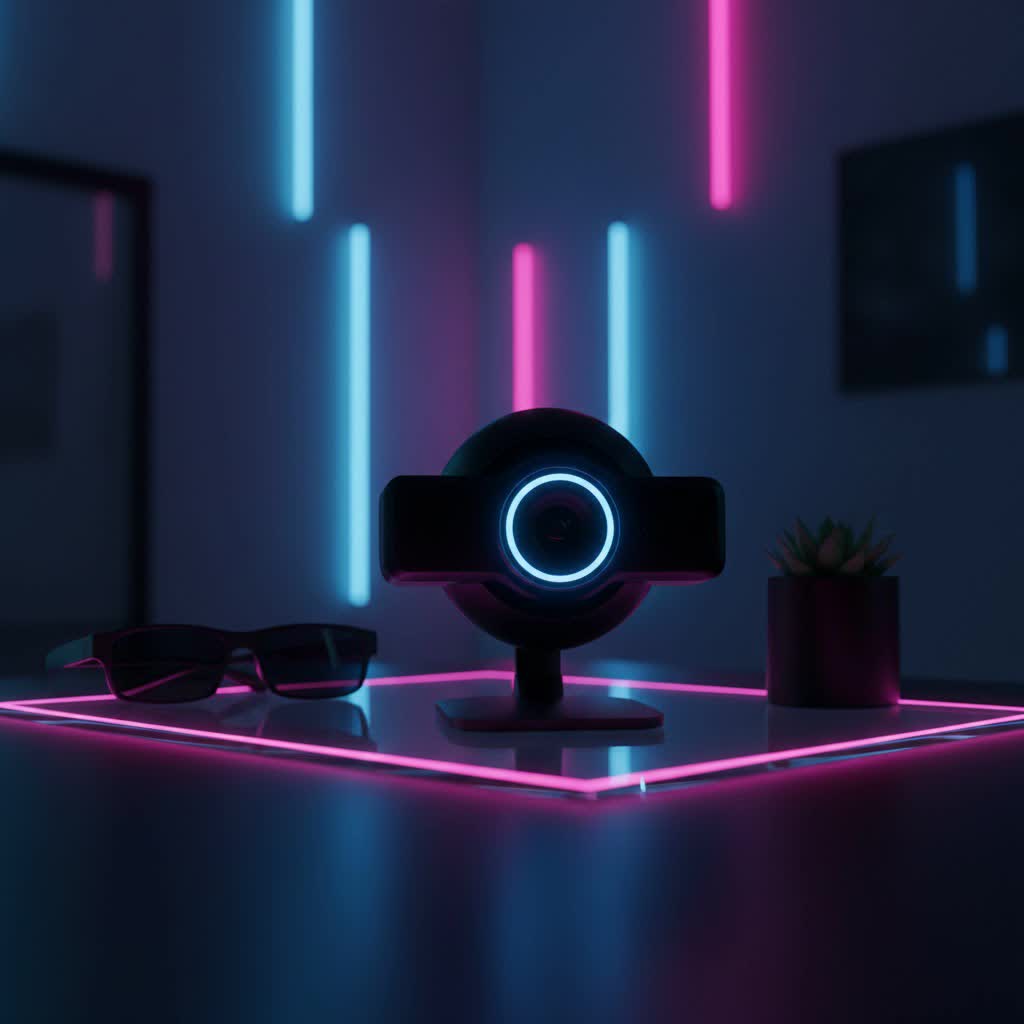
What is a Computer Webcam and Why Do You Need One?
A computer webcam, or web camera, is a video camera that feeds or streams an image or video in real-time to a computer network or the internet. While many laptops come with integrated cameras, external webcams for PCs offer significantly superior performance, clearer visuals, and enhanced features that elevate your online presence.
The utility of a high-quality webcam spans various crucial scenarios. For professionals, it ensures crisp, clear video conferencing, making a strong impression in remote meetings. Students benefit from improved clarity in online classes, facilitating better engagement and understanding. Content creators and streamers rely on advanced webcams for producing high-definition, smooth video, capturing their audience’s attention with professional-grade visuals and audio. Investing in a dedicated webcam can dramatically improve how you look and sound, providing better clarity, color accuracy, and low-light performance than most built-in options.
Types of Computer Webcams for PC
The world of computer webcams offers diverse options, each catering to specific needs and preferences. Understanding these types is the first step toward choosing the right device for your setup.
- Integrated Webcams: These are built directly into your laptop’s screen or all-in-one PC. While convenient, their small sensors and lenses often result in lower image quality, especially in challenging lighting conditions. They are suitable for basic, casual use where video quality isn’t a top priority.
- External USB Webcams: The most common type for desktop PCs and a popular upgrade for laptops, these connect via a USB cable. They typically feature larger sensors, better lenses, and more advanced processing capabilities than integrated cameras, offering superior resolution, frame rates, and additional features like autofocus.
- Specialized Streaming Webcams: Designed for content creators and live streamers, these webcams often boast 4K resolution, high frame rates (e.g., 1080p at 60fps), advanced low-light performance, and software suites for extensive customization. Some even include AI-powered features like auto-tracking and background replacement, providing a more professional production quality.
Choosing an external or specialized webcam allows for flexible positioning, enabling you to achieve the most flattering and professional camera angle, a significant advantage over fixed laptop cameras.
Essential Factors When Choosing a Computer Webcam
Selecting the best computer webcam requires careful consideration of several technical specifications and features. Each element plays a vital role in determining video and audio quality, as well as overall usability.
Resolution: 720p, 1080p, 4K – Which to Choose?
Resolution dictates the sharpness and detail of your video. Higher resolution means more pixels and a clearer image.
- 720p (HD): This offers a basic standard for visual quality. While suitable for simple video conferencing, it often appears grainy and lacks detail, especially compared to more modern options. Most integrated laptop webcams fall into this category.
- 1080p (Full HD): This is the sweet spot for most users, providing excellent clarity for video calls, online classes, and general use. Many popular conferencing platforms like Zoom and Microsoft Teams transmit at a maximum of 1080p, making this resolution more than sufficient for professional communication.
- 2K (Quad HD): A less common but flexible middle ground, 2K webcams offer more detail than 1080p, allowing for digital zooming or cropping without significant quality loss.
- 4K (Ultra HD): Offering the highest level of detail, 4K webcams are ideal for professional content creators, streamers, or users who demand the absolute best image quality. However, they are more expensive, and typically cap at 30 frames per second (fps) at 4K resolution.
|
Our Picks for the Best Computer Webcam in 2026
As an Amazon Associate I earn from qualifying purchases.
|
||
| Num | Product | Action |
|---|---|---|
| 1 | Shcngqio 1080P HD Webcam with Microphone, Noise Cancellation, Privacy Cover, Wide-Angle Lens, Auto Light Correction, Plug & Play USB Webcam for Laptop, Desktop, PC, Mac, Zoom, Skype, Streaming (Black) |

|
| 2 | Logitech C920x HD Pro PC Webcam, Full HD 1080p/30fps Video, Clear Audio, HD Light Correction, Works with Microsoft Teams, Google Meet, Zoom, Nintendo Switch 2’s New GameChat Mode, Mac/Tablet- Black |
|
| 3 | TRAUSI 1080P Webcam with Active Light Correction, Privacy Cover, Plug and Play USB Webcam for PC/Desktop/Laptop |
|
| 4 | RUWBY Full HD 1080P Webcam with Built-in Dual Mics, Wide-Angle Lens, Privacy Cover, Tripod Stand, Autofocus Computer Camera, Plug and Play for Desktop PC or Laptop |
|
| 5 | Logitech C270 HD Webcam, 720p, Widescreen HD Video Calling, Light Correction, Noise-Reducing Mic, Works with Zoom, Nintendo Switch 2’s New GameChat Mode, PC/Mac/Laptop/MacBook/Tablet - Black |
|
| 6 | Logitech C920e HD 1080p Mic-Enabled Webcam, Certified for Zoom, Microsoft Teams Compatible, TAA Compliant |
|
| 7 | Gohero Full HD 1080P Video Webcam, Noise Cancellation, Privacy Cover, Wide-Angle Lens, Auto Light Correction, Plug & Play USB Webcam for Laptop, Desktop, PC, Mac, Zoom, Skype Pro Series |
|
| 8 | NexiGo N60 1080P Webcam with Microphone, Software Control & Privacy Cover, USB HD Computer Web Camera, Plug and Play, for Zoom/Skype/Teams, Conferencing and Video Calling |
|
| 9 | EMEET 1080P Webcam with Microphone, C960 Web Cam, 2 Mics, 90° FOV, USB Type-A & A-to-C Adapter, Plug&Play Computer Camera for Online Calling, Zoom/Teams/Facetime, Switch 2 Camera Support, 2025 Version |
|
| 10 | Logitech Brio 101 Full HD 1080p Webcam for Meetings, Streaming, Desktop, Laptop, PC - Built-in Mic, Shutter, Works with Zoom, Microsoft Teams, Nintendo Switch 2’s New GameChat Mode, USB-A,-Black |
|
Frame Rate (FPS): How it Impacts Video Smoothness
Frame rate, measured in frames per second (fps), determines how smoothly your video appears.
- 30fps: This is the standard frame rate for most webcams and video conferencing, providing a generally smooth experience.
- 60fps: A 60fps webcam delivers noticeably smoother and more realistic motion, which is crucial for fast-paced streaming, gaming, or when showcasing dynamic content. However, achieving 60fps often comes with a trade-off, sometimes requiring a lower resolution (e.g., 1080p at 60fps vs. 4K at 30fps).
Field of View (FOV): Wide or Narrow for Your Needs?
The field of view refers to how much of the scene your webcam can capture.
- Narrow FOV (e.g., 65-78 degrees): Ideal for individual users who want to focus on their face and minimize background distractions. This is great for personal calls or professional one-on-one meetings.
- Wide FOV (e.g., 90+ degrees): Suitable for capturing multiple people in a meeting room, or for streamers who want to include more of their environment, such as a studio setup or a musical instrument.
Microphone Quality: Is Integrated Good Enough?
While most webcams include built-in microphones, their quality varies significantly. Basic webcams might offer mediocre audio, often picking up background noise. Many higher-end webcams feature dual stereo microphones with noise-canceling technology, which can significantly improve voice clarity.
> “For serious recording, streaming, or professional video calls, a dedicated USB microphone or a gaming headset with a boom mic will almost always provide superior sound quality compared to any integrated webcam microphone.” – Admin, ReviewMBAs.com
If crystal-clear audio is a priority, consider pairing your webcam with a separate, high-quality microphone.
Additional Features to Look For
Modern webcams come packed with features designed to enhance your video experience.
- Autofocus: This ensures you remain sharp and clear even if you move closer or further from the camera. Advanced AI autofocus can even track your face, keeping you centered in the frame.
- Automatic Light Correction: Essential for dimly lit environments, this feature adjusts exposure and white balance to make you look well-lit and natural.
- Privacy Shutter: A physical cover for your lens, offering peace of mind by preventing accidental or unauthorized video capture.
- AI-Powered Features: Beyond autofocus and tracking, some webcams offer AI for background blur, replacement, or auto-framing, streamlining your setup.
- Lens Material: Glass lenses generally offer better image clarity and durability than plastic lenses. Look for a lower f-number (e.g., f/2.0) for a wider aperture, which allows more light to reach the sensor, improving low-light performance.
Comparison Table: Top Computer Webcams for PC
To help you navigate the market, here’s a comparison of some highly-rated computer webcams, highlighting their key specifications and ideal use cases.
| Model | Resolution | Frame Rate | Field of View | Microphone | Key Features | Ideal Use Case | Price Range (Approx.) |
|---|---|---|---|---|---|---|---|
| Logitech MX Brio | 4K UHD | 30fps (4K), 60fps (1080p) | 90° | Dual noise-reducing | HDR, AI auto-exposure, Desk View mode | Professionals, content creators, high-end streaming | $199 – $229 |
| Obsbot Tiny 2 | 4K UHD | 30fps (4K), 60fps (1080p) | 85.5° | Dual noise-reducing | AI tracking, gesture/voice control, mechanical pan/tilt | Live streamers, educators, dynamic presentations | $249 – $299 |
| Logitech C920x HD Pro | 1080p Full HD | 30fps | 78° | Dual stereo | Autofocus, light correction, privacy shutter | Everyday use, budget-conscious users, video calls | $60 – $80 |
| Elgato Facecam MK.2 | 1080p Full HD | 60fps | 84° | (None included) | DSLR-level controls, fixed focus, high-quality lens | Content creators, serious streamers (with dedicated mic) | $120 – $150 |
| Anker PowerConf C200 | 2K Quad HD | 30fps | 95° | Dual stereo, noise-canceling | Privacy shutter, autofocus, wide FOV | Remote work, small group calls, budget 2K option | $60 – $80 |
Note: Prices are approximate and subject to change.
Your Definitive Buying Guide for Computer Webcams
Choosing the perfect computer webcam involves a structured approach to ensure you get the best value and performance for your specific requirements.
1. Identify Your Primary Use Case
Start by clearly defining why you need a webcam.
- Video Conferencing/Online Meetings: For professional calls, prioritize 1080p resolution, good low-light correction, and a clear microphone. Autofocus and a moderate field of view (78-90 degrees) are beneficial.
- Online Learning/Remote Education: Similar to conferencing, 1080p is sufficient. Good audio and ease of use are key.
- Live Streaming/Content Creation: Aim for 4K resolution (if your internet and platform support it) or 1080p at 60fps for smoother motion. Look for advanced features like AI tracking, wide FOV, and compatibility with streaming software. A dedicated microphone is highly recommended.
- Casual Calls with Friends & Family: A reliable 1080p webcam with decent audio will suffice, often without needing many advanced features.
2. Set Your Budget
Webcams range widely in price, from under $50 for basic models to over $250 for high-end, feature-rich devices. Determine how much you’re willing to spend, keeping in mind that higher prices generally correlate with better image quality, more robust features, and superior build.
3. Research Reputable Brands
Focus on brands known for quality and reliability in the webcam market.
- Logitech: A market leader, offering a wide range of webcams for various budgets and uses, known for robust software and reliable performance.
- Obsbot: Specializes in AI-powered tracking webcams, perfect for dynamic presentations or content creation.
- Razer: Popular among gamers and streamers, offering high-resolution and advanced features.
- Elgato: Favored by content creators for its emphasis on exceptional video quality and professional controls.
- Insta360: Known for innovative camera technology, including AI-gimbal webcams.
- Anker: Provides solid performance and features at competitive price points, often a great budget-friendly option.
4. Consider Compatibility
Ensure the webcam is compatible with your computer’s operating system (Windows, macOS, Linux) and your preferred video conferencing or streaming software (Zoom, Microsoft Teams, Google Meet, OBS Studio, Streamlabs). Most modern USB webcams are plug-and-play, but it’s always wise to check specifications.
5. Where to Buy and What to Check
You can purchase webcams online from major retailers like Amazon, Best Buy, and Newegg, or at local electronics stores.
- Online: Offers a wider selection and competitive pricing, but you can’t physically inspect the product.
- Offline: Allows you to see and potentially test the webcam, though selection might be limited.
Before finalizing your purchase, read recent reviews, especially those from verified buyers. Look for consistent feedback on video clarity, audio quality, low-light performance, and software reliability.
Top Picks: Most Popular Computer Webcams
Based on performance, features, and user feedback, here are some of the most consistently recommended webcams across different categories.
-
Best Overall for Professionals: Logitech MX Brio
This 4K webcam is a top choice for its crisp image quality, excellent low-light performance, and a suite of companion apps. Its HDR and AI auto-exposure ensure you always look your best, and the innovative Desk View mode is great for sharing physical documents. While pricey, it’s a solid investment for those who demand premium quality for calls and streams. -
Best for Content Creators & Dynamic Presenters: Obsbot Tiny 2
The Obsbot Tiny 2 stands out with its 4K video, mechanical pan and tilt, and highly effective AI movement tracking. It can be controlled by voice or gestures, making it incredibly versatile for presentations, teaching, or dynamic streaming setups where you move around. -
Best Budget-Friendly Option: Logitech C920x HD Pro
Despite being an older model, the Logitech C920x remains a favorite for its consistent 1080p video quality at an affordable price. It features reliable autofocus and good stereo microphones, making it an excellent upgrade over most integrated laptop cameras for everyday video calls. -
Best for Serious Streamers (Video Quality Focus): Elgato Facecam MK.2
The Elgato Facecam MK.2 delivers superb 1080p at 60fps, designed with content creators in mind. It boasts DSLR-like controls and a high-quality lens, making it an ideal choice for those who prioritize video fidelity and already use a dedicated external microphone. -
Great Mid-Range 2K Option: Anker PowerConf C200
Offering a strong 2K picture quality, wide 95-degree field of view, and an integrated privacy shutter, the Anker PowerConf C200 is an impressive webcam for its price. It’s a fantastic value for remote workers needing more than 1080p without breaking the bank.
Tips for Using and Maintaining Your Computer Webcam
Maximizing your webcam’s performance and longevity requires proper setup and care.
1. Proper Installation and Configuration
- Placement: Position your webcam at eye level, ideally slightly above your monitor or laptop screen, for a more flattering and natural angle.
- Connectivity: Plug your USB webcam directly into a high-speed USB port on your PC, if possible, rather than through a USB hub, to ensure stable data transfer.
- Software: Install any manufacturer-provided software or drivers. These often unlock advanced features and provide more control over settings like exposure, white balance, and autofocus.
2. Optimize Lighting and Camera Angles
Good lighting is paramount for clear video.
- Frontal Lighting: Position a light source (like a window or ring light) directly in front of you, facing your face, to eliminate shadows. Avoid backlighting from a window behind you, which can silhouette your image.
- Adjust Angles: Experiment with your camera’s angle to find the most flattering view. Avoid extreme up-close or wide-angle shots that can distort your appearance.
- Background: Choose a clean, uncluttered background, or utilize software-based background blur/replacement features.
3. Regular Cleaning for Clear Images
Dust and smudges on the lens can degrade image quality.
- Lens Cleaning: Gently wipe the lens with a microfiber cloth specifically designed for optics. Avoid harsh chemicals or abrasive materials.
- Body Cleaning: Use a soft, dry cloth to clean the body of the webcam.
4. Smart Storage Practices
When not in use, especially if you have a detachable webcam:
- Disconnect and Store: Disconnect it from your PC and store it in a protective pouch or case to prevent physical damage and keep dust off the lens.
- Privacy: Always use the privacy shutter if your webcam has one, or disconnect it when not in use for enhanced security.
Conclusion
Choosing the right computer webcam can profoundly impact your digital interactions, from professional meetings to casual conversations. By understanding the different types, crucial technical factors like resolution and frame rate, and considering additional features such as AI tracking or advanced microphones, you can confidently select a device that aligns with your specific needs and budget. Whether you’re upgrading from an integrated laptop camera or building a dedicated streaming setup, a high-quality webcam is an investment in clearer communication and a more professional online presence.
What features do you prioritize most when searching for a new computer webcam, and how has a good webcam improved your daily digital life?
Frequently Asked Questions
What is the primary difference between a laptop’s built-in camera and an external computer webcam?
An external computer webcam typically offers significantly superior image quality, higher resolution (1080p, 4K), better low-light performance, and more advanced features like autofocus and improved microphones compared to the often basic built-in cameras found in laptops. This results in a clearer, more professional video output.
Do I need a 4K computer webcam, or is 1080p sufficient?
For most general uses like video conferencing, online learning, and casual calls, a 1080p computer webcam is more than sufficient, as many platforms transmit at this resolution. A 4K webcam is primarily beneficial for professional content creation, high-fidelity streaming, or if you require extensive digital zooming or cropping without quality loss.
How important is the microphone quality in a computer webcam?
Microphone quality is crucial for clear communication. While many webcams include built-in microphones, their performance varies. For optimal audio, especially for professional settings or content creation, investing in a dedicated external microphone or a headset with a good mic is recommended, as it will significantly enhance your sound quality over most integrated webcam mics.
