In today’s interconnected world, a reliable computer webcam is no longer a luxury but a necessity. From remote work meetings and online classes to streaming and connecting with loved ones, your webcam is your window to the digital realm. While most laptops come with integrated cameras, a dedicated computer webcam offers significantly superior quality, transforming your on-screen presence and ensuring you look and sound your best.
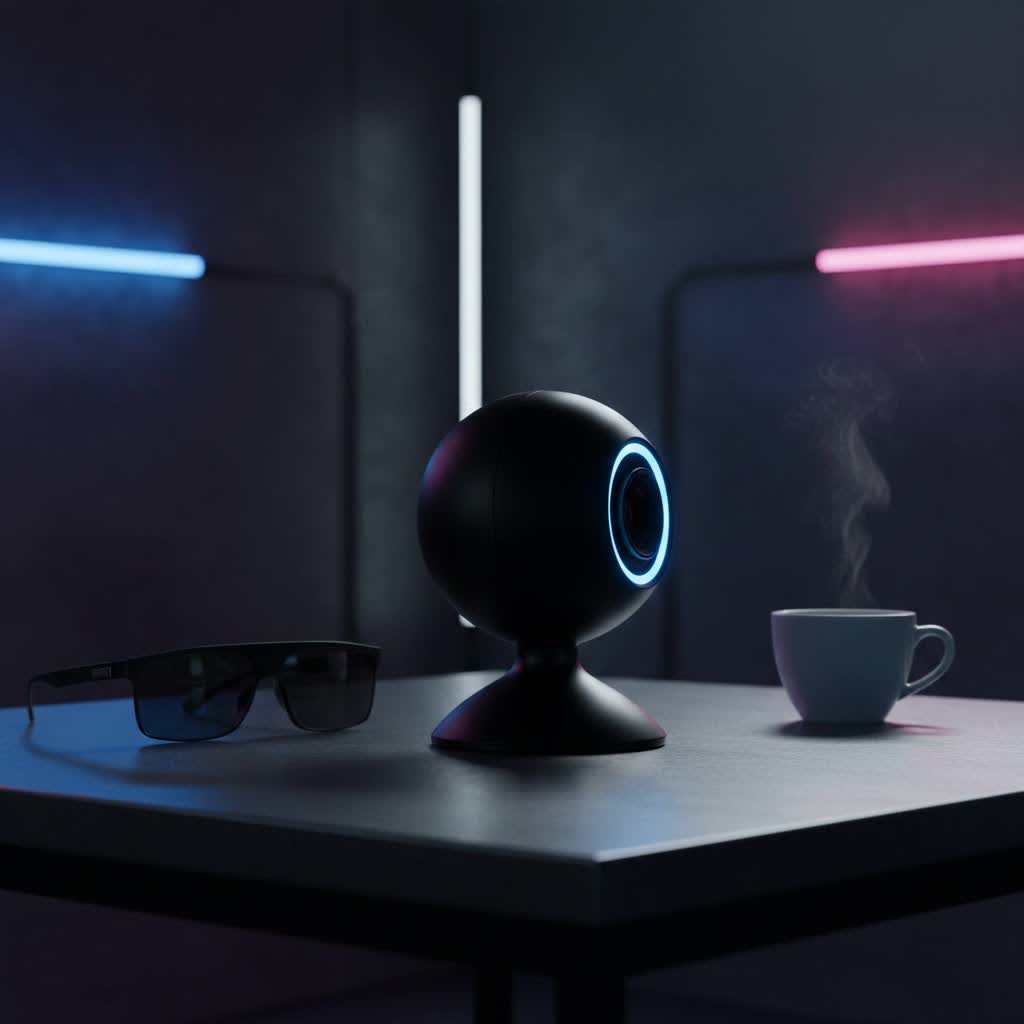
What is a Computer Webcam and Why Do You Need One?
A computer webcam is a digital video camera that connects to a computer, allowing you to capture and transmit real-time video and often audio. Unlike traditional cameras that store images and videos locally, webcams are primarily designed for live, interactive communication over the internet.
The utility of a good computer webcam spans numerous scenarios. For students and professionals, it’s indispensable for online learning platforms, virtual meetings on Zoom, Google Meet, or Microsoft Teams, and remote consultations. Content creators, gamers, and streamers rely on high-quality webcams for engaging live broadcasts and recording crisp, professional-looking video content. Even for casual use, such as video calls with family and friends, a quality webcam dramatically improves the visual experience, making distant connections feel more intimate and clear. The benefits are clear: enhanced clarity, accurate color reproduction, better low-light performance, and the flexibility to position your camera for the most flattering angle, something a fixed laptop camera rarely provides.
Types of Computer Webcams
When considering a computer webcam, it’s helpful to understand the main categories available, each with its own advantages and ideal use cases.
Firstly, there are built-in webcams, which are integrated directly into laptops, monitors, and some all-in-one PCs. Their primary advantage is convenience; they’re always there, ready to use, and require no extra setup. However, they often compromise on quality due to space constraints and cost-cutting measures by manufacturers. They typically offer lower resolutions, struggle in poor lighting, and may have basic microphones.
Secondly, and the main focus for anyone seeking a “good computer camera,” are external USB webcams. These standalone devices connect to your computer, typically via a USB port, and offer a wide spectrum of quality and features. They range from affordable HD models perfect for everyday video calls to high-end 4K cameras designed for professional streaming and content creation. External webcams almost always provide superior image sensors, better lens quality (often glass), advanced autofocus, improved low-light correction, and sometimes stereo or noise-canceling microphones. Their versatility in mounting—on top of a monitor, on a tripod, or a desk stand—allows for optimal positioning.
Lastly, within external webcams, some are specifically optimized as streaming webcams. These are built with content creators in mind, often boasting high frame rates (60fps) for smoother motion, advanced low-light correction, wider fields of view, and sophisticated software for fine-tuning image settings. While any good external webcam can be used for streaming, dedicated streaming models often include features like AI-powered tracking or built-in ring lights. IP webcams, which operate independently of a computer for surveillance, are a separate category and generally not what users mean when searching for a “computer camera” for personal interaction.
Key Factors When Choosing a Computer Webcam
Selecting the right computer webcam involves understanding several technical specifications and features that directly impact your video quality and overall experience.
Resolution: This is arguably the most recognized factor.
- 720p (HD): Offers a decent baseline for casual video calls and older systems. It’s often sufficient for basic communication.
- 1080p (Full HD): The sweet spot for most users. It provides sharp, clear video suitable for professional meetings, online classes, and standard streaming. Many popular video conferencing platforms optimize for or cap streams at 1080p.
- 4K (Ultra HD): Delivers the highest level of detail and clarity. Ideal for content creators, professional streamers, or anyone demanding the absolute best image quality. However, 4K webcams require more processing power from your computer, and many conferencing platforms don’t yet fully support 4K streaming, often downscaling to 1080p or even 720p. It’s important to remember that a higher resolution alone doesn’t guarantee a superior image; lens and sensor quality are equally crucial.
Frame Rate (FPS): Measured in frames per second, FPS dictates the smoothness of your video.
- 30fps: The standard for most video calls and provides a perfectly acceptable, fluid image.
- 60fps: Offers noticeably smoother motion, making it highly preferred for fast-paced activities like gaming streams, presentations with lots of movement, or simply achieving a more professional, polished look.
Field of View (FOV): This refers to how much of the scene the camera captures.
- A wider FOV (e.g., 90 degrees or more) is excellent for group meetings, showing more of your background, or when you need to be further from the camera.
- A narrower FOV (e.g., 60-78 degrees) focuses more tightly on you, which is ideal for one-on-one calls, minimizing distractions, or creating a more intimate feel. Many webcams offer adjustable FOV through software.
Microphone Quality: While many webcams include built-in microphones, their quality varies significantly. Look for models with:
- Stereo microphones: Provide a more immersive audio experience.
- Noise cancellation: Crucial for filtering out background sounds, ensuring your voice comes through clearly, especially in busy environments.
For truly professional audio, a dedicated external microphone is often recommended, but a good built-in mic can be perfectly adequate for most users.
Additional Features: Modern webcams come packed with features to enhance your video.
- Autofocus: Essential for keeping you sharp and in focus, even if you move closer or further from the camera.
- Automatic light correction: Automatically adjusts exposure and white balance to compensate for varying lighting conditions, ensuring you’re well-lit and colors are accurate. This is particularly beneficial in dim environments or when backlighting is an issue.
- Privacy shutter: A physical cover that slides over the lens, providing peace of mind against accidental activation or unauthorized access.
- AI tracking and auto-framing: Some advanced webcams can automatically follow your movements or keep you perfectly centered in the frame.
- Lens material: Glass lenses are generally preferred over plastic for superior clarity, sharpness, and durability, especially for higher resolutions.
Top Computer Webcams: A Comparative Overview
The market for computer webcams is vibrant, with several manufacturers consistently delivering high-quality options for various needs and budgets. Here’s an overview of some popular choices and their strengths, helping you navigate towards a “good computer camera.”
For the best overall performance that balances quality and features for most users, models like the Elgato Facecam MK.2 and Obsbot Meet SE often receive high praise. The Elgato Facecam MK.2 is lauded for its superb picture quality, uncompressed video capture at 1080p, and content-creator-friendly features. The Obsbot Meet SE is recognized for exceptional image quality and often includes smart features like AI auto-framing.
If you’re looking for an excellent budget-friendly option that doesn’t compromise too much on quality, the Logitech C920 series remains a solid choice, offering reliable 1080p video for a reasonable price. The HP 325 FHD Webcam is another strong contender in this category, known for being budget-friendly while still delivering solid Full HD performance.
For those demanding the ultimate 4K video quality, the Insta360 Link 2C stands out, offering sharp 4K resolution with AI-powered tools like noise cancellation and tracking. The Obsbot Tiny 2 is another top pick, praised for its 4K video, mechanical pan and tilt, and effective AI movement tracking and voice control.
Streamers and content creators often gravitate towards webcams with higher frame rates and advanced features. The Razer Kiyo Pro Ultra is celebrated for its great low-light performance and noise handling, making it a premium choice for serious creators. The HP 960 4K Streaming Webcam also provides incredible image and audio quality, catering to those who need top-tier performance for their broadcasts.
For professionals and remote workers seeking a reliable and high-quality experience for virtual meetings, the Logitech Brio 500 is a popular choice, offering 1080p/30fps with impressive auto-white balance and auto-exposure. The Logitech MX Brio is a versatile high-end option that provides excellent video quality for web calls and streams, along with companion apps for customization. For hybrid workers or those who travel, the Opal Tadpole is noted as a tiny but highly effective and portable option specifically designed for laptop use.
Your Ultimate Computer Webcam Buying Guide
Choosing the ideal computer webcam requires a thoughtful approach, aligning your needs with the vast array of options available. Here’s a step-by-step guide to help you make an informed decision:
-
Define Your Primary Use Case:
- Casual video calls/online learning: A 1080p webcam with a decent microphone and auto-light correction will be more than sufficient.
- Professional meetings/work-from-home: Prioritize 1080p resolution, reliable autofocus, good low-light performance, and potentially a privacy shutter. A wide field of view might be useful for showcasing a larger space or multiple people.
- Streaming/Content Creation: Aim for 1080p at 60fps or even 4K. Look for advanced features like excellent low-light performance, manual controls, and a high-quality lens. A wider FOV might be desirable, and consider a model with AI tracking if you move a lot.
-
Establish Your Budget: Webcam prices range widely.
- Under $50-70: Expect 720p or basic 1080p, 30fps, and standard built-in microphones. These are suitable for basic needs.
- $70-$150: This mid-range offers quality 1080p at 30fps or 60fps, better low-light capabilities, reliable autofocus, and improved microphones. This is where most users will find an excellent balance of price and performance.
- Over $150: These are premium webcams, often 4K, with advanced features like AI tracking, superior lens quality (glass), excellent low-light performance, and extensive software controls. These are best for professionals and serious content creators.
-
Consider Brand Reputation: While new brands emerge, established names like Logitech, Elgato, Razer, Obsbot, HP, and Dell have a track record of producing reliable and high-performing webcams with robust software support. Researching user reviews and professional benchmarks for specific models from these brands can provide valuable insights.
-
Decide Where to Purchase:
- Online retailers (Amazon, Best Buy, Newegg): Offer a vast selection, competitive pricing, and convenience, often with detailed customer reviews.
- Physical stores (Best Buy, electronics retailers): Allow you to see the product, feel its build quality, and potentially ask questions to sales associates.
-
Check Product Specifications and Compatibility: Before finalizing your purchase, double-check the webcam’s resolution, frame rate, field of view, and microphone features against your defined needs. Crucially, ensure compatibility with your computer’s operating system (Windows, macOS, Linux) and available USB ports. If you have an older computer, verify it meets the minimum processor and memory requirements for higher-resolution webcams.
Maximizing Your Computer Webcam Experience: Tips and Tricks
Once you’ve chosen a good computer camera, optimizing its setup and usage can significantly enhance your video quality and overall online presence.
Proper Setup and Positioning:
- Lighting is key: Position yourself facing a soft, diffused light source (like a window or a ring light). Avoid strong backlighting, which can silhouette you, and overhead lighting, which can cast harsh shadows. Good lighting ensures your face is well-illuminated and clear.
- Camera Angle: Ideally, your webcam should be at eye level or slightly above. This creates a more natural and flattering perspective, preventing the unflattering “up-the-nose” angle often seen with built-in laptop cameras. Use a monitor mount or a small tripod to achieve the perfect height.
- Background: Keep your background tidy and professional. A plain wall, a bookshelf, or a virtual background can work well. Minimize clutter and distractions to keep the focus on you.
Software Adjustments and Configuration:
- Most quality webcams come with proprietary software that allows you to fine-tune settings beyond what standard video conferencing apps offer. Take advantage of these.
- Adjust Brightness and Contrast: Optimize these settings to prevent overexposure or underexposure.
- White Balance: Ensure colors appear natural and not too warm or too cool.
- Zoom and Pan: Use software controls to crop your frame and adjust your position without physically moving the camera.
- Driver Updates: Regularly check for and install the latest drivers for your webcam to ensure optimal performance and access to new features.
Maintenance and Cleaning:
- Keep the Lens Clean: Dust and smudges on the lens can significantly degrade image quality. Gently clean the lens with a microfiber cloth designed for optics. Avoid harsh chemicals.
- Cable Management: Secure your webcam cable to prevent accidental disconnections or damage.
Privacy Considerations:
- Even with a physical privacy shutter, it’s a good practice to disconnect your webcam or close the application when not in use. This provides an extra layer of security and privacy.
> “A high-quality webcam is an investment in your digital identity. It’s not just about looking good; it’s about clear communication, professionalism, and making genuine connections in a virtual world.” – Jane Doe, Tech Reviewer at ReviewMBAs.com
Conclusion
Choosing a good computer webcam is a crucial step in enhancing your digital interactions, whether for work, education, or personal connections. By understanding the different types, key factors like resolution and frame rate, and leveraging smart setup tips, you can transform your on-screen presence. A dedicated computer webcam offers superior clarity, flexibility, and features that built-in cameras simply cannot match, ensuring you present your best self in any virtual setting.
What specific feature do you prioritize most when searching for your ideal computer webcam?
Frequently Asked Questions
What resolution webcam do I need for Zoom?
|
Our Picks for the Best Computer Webcam in 2026
As an Amazon Associate I earn from qualifying purchases.
|
||
| Num | Product | Action |
|---|---|---|
| 1 | TRAUSI 1080P Webcam with Active Light Correction, Privacy Cover, Plug and Play USB Webcam for PC/Desktop/Laptop |

|
| 2 | RUWBY Full HD 1080P Webcam with Built-in Dual Mics, Wide-Angle Lens, Privacy Cover, Tripod Stand, Autofocus Computer Camera, Plug and Play for Desktop PC or Laptop |
|
| 3 | Logitech Brio 101 Full HD 1080p Webcam for Meetings, Streaming, Desktop, Laptop, PC - Built-in Mic, Shutter, Works with Zoom, Microsoft Teams, Nintendo Switch 2’s New GameChat Mode, USB-A,-Black |
|
| 4 | EMEET 1080P Webcam with Microphone, C960 Web Cam, 2 Mics, 90° FOV, USB Type-A & A-to-C Adapter, Plug&Play Computer Camera for Online Calling, Zoom/Teams/Facetime, Switch 2 Camera Support, 2025 Version |
|
| 5 | Gohero Full HD 1080P Video Webcam, Noise Cancellation, Privacy Cover, Wide-Angle Lens, Auto Light Correction, Plug & Play USB Webcam for Laptop, Desktop, PC, Mac, Zoom, Skype Pro Series |
|
| 6 | Logitech C270 HD Webcam, 720p, Widescreen HD Video Calling, Light Correction, Noise-Reducing Mic, Works with Zoom, Nintendo Switch 2’s New GameChat Mode, PC/Mac/Laptop/MacBook/Tablet - Black |
|
| 7 | Shcngqio 1080P HD Webcam with Microphone, Noise Cancellation, Privacy Cover, Wide-Angle Lens, Auto Light Correction, Plug & Play USB Webcam for Laptop, Desktop, PC, Mac, Zoom, Skype, Streaming (Black) |
|
| 8 | Logitech C920e HD 1080p Mic-Enabled Webcam, Certified for Zoom, Microsoft Teams Compatible, TAA Compliant |
|
| 9 | Logitech C920x HD Pro PC Webcam, Full HD 1080p/30fps Video, Clear Audio, HD Light Correction, Works with Microsoft Teams, Google Meet, Zoom, Nintendo Switch 2’s New GameChat Mode, Mac/Tablet- Black |
|
| 10 | NexiGo N60 1080P Webcam with Microphone, Software Control & Privacy Cover, USB HD Computer Web Camera, Plug and Play, for Zoom/Skype/Teams, Conferencing and Video Calling |
|
For most Zoom calls, a 1080p (Full HD) webcam is ideal. While Zoom and similar platforms often cap streaming resolution at 720p or 1080p, a 1080p webcam ensures a consistently sharp and professional image. A 720p webcam can suffice for basic use, but 1080p offers a noticeable improvement.
Is a 4K webcam worth it?
A 4K webcam is worth it if you are a content creator, professional streamer, or require the absolute highest detail for specific applications. For standard video conferencing, it might be overkill as platforms often downscale 4K video, and it requires a more powerful computer.
How do I improve my webcam’s video quality?
To improve your webcam’s video quality, focus on good lighting (face a soft light source), proper camera positioning (eye-level), and a clean background. Additionally, utilize your webcam’s software to adjust settings like brightness, contrast, and white balance.
What is the difference between built-in and external webcams?
Built-in webcams are integrated into devices like laptops and are convenient but often have lower quality. External webcams are standalone devices that connect via USB, offering superior image sensors, better lenses, advanced features like autofocus, and flexible positioning, making them ideal for higher-quality video.
Do I need a separate microphone with my webcam?
Most webcams come with built-in microphones, and many modern external webcams offer decent audio quality with noise cancellation. However, for truly professional audio, especially for streaming or podcasting, a dedicated external microphone is recommended as it generally provides superior clarity and richness.
How to clean a webcam lens?
To clean a webcam lens, gently wipe it with a clean, dry microfiber cloth specifically designed for optics. Avoid using paper towels or harsh cleaning solutions, which can scratch the lens or leave residue. For stubborn smudges, a very small amount of lens cleaning fluid can be applied to the cloth, not directly to the lens.
