Stepping into the world of live streaming, whether for gaming, educational content, or simply connecting with your audience, demands more than just passion and a good internet connection. At the core of a professional-looking stream lies an essential piece of equipment: a high-quality computer webcam. A great webcam transforms blurry, pixelated visuals into crisp, engaging content, making a significant difference in how your audience perceives you. Let’s explore the best webcams available today to elevate your streaming setup.
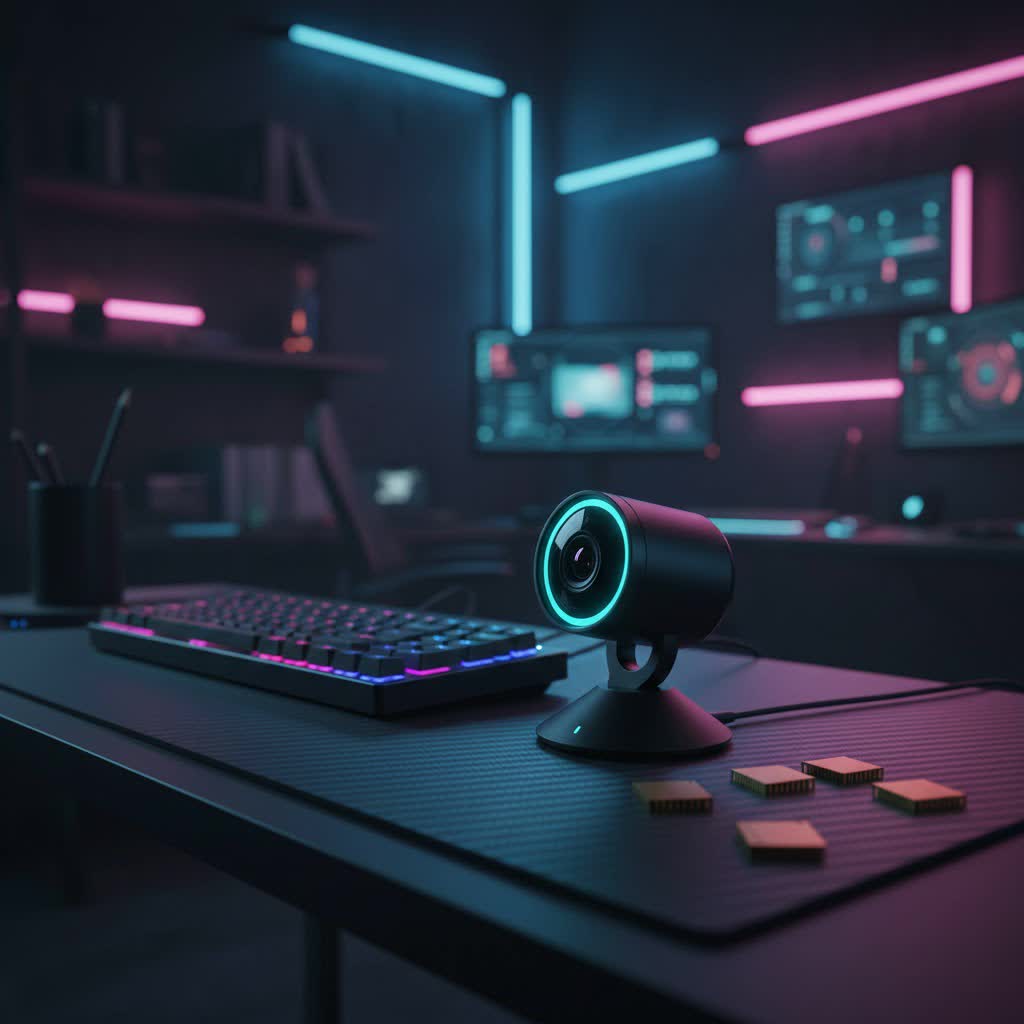
What is a Computer Webcam? Why Do You Need One for Streaming?
A computer webcam is a digital camera that connects to your computer, enabling real-time video capture. While many laptops come with integrated webcams, these are often basic and lack the quality, features, and control required for professional streaming. For streamers, a dedicated external webcam is crucial because it offers superior image resolution, better low-light performance, and advanced features that enhance production value. Whether you’re hosting virtual meetings, teaching online courses, or building a community on Twitch or YouTube, a high-quality webcam ensures you look sharp, vibrant, and professional, directly impacting viewer engagement and retention.
Types of Computer Webcams for Streaming
The market offers a diverse range of webcams, each suited to different streaming needs:
- Integrated Laptop Webcams: These are built directly into your laptop. While convenient for casual video calls, they generally offer lower resolutions (often 720p or 1080p at 30fps), poor low-light performance, and limited manual controls, making them unsuitable for serious streaming.
- External USB Webcams: The most common choice for streamers, these devices connect via USB and sit atop your monitor or on a tripod. They come in various resolutions (1080p, 2K, 4K) and frame rates (30fps, 60fps, even 120fps), offering advanced optics, larger sensors, and more robust software control.
- Specialized Streaming Webcams: Some webcams are specifically designed with streamers and content creators in mind. These often include features like integrated ring lights (Razer Kiyo), AI-powered gimbals for automatic tracking (Insta360 Link, Obsbot Tiny), and enhanced low-light performance, providing a more dynamic and polished stream.
Each type has its place, but for a truly impactful stream, an external or specialized streaming webcam is indispensable.
Key Factors When Choosing a Computer Webcam for Streaming
Selecting the right streaming webcam involves considering several technical specifications and features:
- Resolution: While 4K webcams offer the highest clarity, many popular streaming platforms like Twitch or YouTube primarily support 1080p streaming. A 1080p webcam at 60 frames per second often provides the best balance of quality and performance without overtaxing your internet bandwidth or computer. However, a 4K webcam can be beneficial for capturing highly detailed content or if you plan to zoom and crop your video without losing image fidelity.
- Frame Rate (FPS): For streaming, especially fast-paced content like gaming, 60 frames per second (fps) is highly recommended. A higher frame rate results in smoother, more fluid video, which is critical for viewer comfort and engagement. While 30fps is acceptable for static talking-head streams, 60fps offers a noticeably better experience.
- Field of View (FOV): This determines how much of your background the camera captures. A wider FOV (e.g., 90 degrees) is great if you want to show more of your environment or have multiple people in the frame. A narrower FOV (e.g., 78 degrees) is better for focusing tightly on your face, ideal if your background isn’t stream-ready or you want a more intimate feel.
- Microphone: Most webcams come with built-in microphones. While convenient, for serious streaming, a dedicated external microphone almost always provides superior audio quality, reducing background noise and capturing your voice with greater clarity. If you must rely on an integrated mic, look for models with dual, omni-directional, or noise-canceling capabilities.
- Additional Features:
- Autofocus: Essential for keeping you sharp, even if you move within the frame.
- Automatic Light Correction (HDR): Helps the webcam adapt to varying lighting conditions, ensuring you’re well-lit and not overexposed or too dark. Look for webcams with “RightLight” technology or HDR support.
- AI Tracking & Gimbal: Features like those found in the Insta360 Link or Obsbot Tiny 2 use AI and a motorized gimbal to automatically follow your movements, perfect for dynamic presentations or active streamers.
- Privacy Shutter: A physical cover for your lens provides peace of mind when the webcam is not in use.
- Software Control: Robust companion software allows you to fine-tune settings like exposure, white balance, ISO, and even apply digital zoom or crop the image, giving you complete control over your stream’s visual quality.
Top Picks: Best Webcams for Streaming Today
Here’s a comparison of some of the top webcams highly recommended for streamers, based on their performance, features, and value:
| Webcam Model | Resolution | Framerate | FOV | Key Features | Pros | Cons | Ideal For |
|---|---|---|---|---|---|---|---|
| Insta360 Link 2C | 4K | 30fps | 79.5° | AI tracking, 3-axis gimbal, gesture control, large sensor | Superb 4K image, excellent low light, dynamic tracking | No HDR in 4K, built-in mic needs external upgrade | Dynamic content creators, professionals |
| Elgato Facecam MK.2 | 1080p | Up to 120fps | 84° | Sony STARVIS CMOS sensor, DSLR-level controls, onboard storage | Amazing image quality (1080p), high frame rates, excellent software | No built-in mic, some AI post-processing quirks | Serious game streamers, content creators |
| Obsbot Tiny 2 | 4K | 30fps | 85.5° | AI tracking, 4K picture, gesture control, dual omni-directional mics | Outstanding 4K images, smart AI features, magnet attachment | Expensive, AI features can be a bit gimmicky | High-end streamers, quality enthusiasts |
| Logitech StreamCam | 1080p | 60fps | 78° | Landscape & portrait recording, smart autofocus, versatile mounts | Excellent 1080p/60fps quality, vibrant colors, robust software | No privacy shutter, can be pricey | Versatile streamers (gaming, tutorials, vlogging) |
| Razer Kiyo Pro Ultra | 4K | 30fps | 72°-82° | 1/1.2″ Sony Starvis 2 sensor, f1.7 aperture, shallow depth-of-field, HDR | Best image quality, exceptional low light, natural background blur | Razer Synapse software can be cumbersome, expensive, bulky | Streamers demanding superior image quality, low light |
| Anker PowerConf C200 | 2K | 30fps | 65°, 78°, 95° | Integrated privacy shutter, adjustable FOV, dual mics, auto light correction | Impressive 2K quality for the price, excellent low-light performance | No swivel, 30fps limit for smooth motion | Budget-conscious streamers, versatile use |
Buying Guide: How to Choose Your Perfect Streaming Webcam
Navigating the options can be overwhelming. Follow this guide to pinpoint the best streaming webcam for your needs:
- Define Your Streaming Purpose: Are you primarily a gamer needing smooth 60fps? A tutorial creator needing a crisp 4K image and perhaps AI tracking? Or someone just wanting a clear 1080p picture for “just chatting” streams? Your primary use case will dictate the essential features.
- Set Your Budget: Webcams range from under $100 to over $400. Determine how much you’re willing to invest. Remember, a good webcam is an investment in your stream’s quality and your brand.
- Consider Your Environment:
- Lighting: If you stream in poorly lit conditions, prioritize webcams with large sensors, wide apertures (low f-numbers), and excellent low-light correction/HDR. Even the best webcam benefits from external lighting.
- Background: If you have a busy or unkempt background, a narrower FOV or a webcam with a shallow depth-of-field feature (like the Razer Kiyo Pro Ultra) can help focus on you and naturally blur the background without software.
- Audio Setup: Plan your audio. If you have a dedicated external microphone, the webcam’s mic quality becomes less critical. If you rely solely on the webcam, ensure it has decent integrated microphones, preferably with noise reduction.
- Software Ecosystem: If you’re already using Elgato or Logitech streaming gear, sticking with the same brand might offer better integration and a unified software experience (e.g., Elgato Camera Hub, Logitech Capture).
- Read Reviews and Watch Demos: Look for real-world tests and comparison videos. Pay attention to how webcams perform in various lighting conditions and how fluid the video looks.
Tips for Using and Maintaining Your Streaming Webcam
Once you have your ideal streaming webcam, optimize its performance and longevity with these tips:
- Optimal Placement: Position your webcam at eye level or slightly above, looking directly at you. This creates a more engaging and flattering angle.
- Lighting is Key: Even the most advanced webcam performs best with good lighting. Position a key light (like a ring light or softbox) in front of you, slightly off-center. Avoid strong backlighting, which can make you appear as a silhouette.
- Adjust Software Settings: Dive into your webcam’s companion software. Manually adjust white balance, exposure, contrast, and sharpness to achieve the best image quality for your specific environment. Save these settings as profiles for quick switching.
- Keep the Lens Clean: Dust and smudges on the lens can significantly degrade image quality. Gently clean the lens with a microfiber cloth designed for optics.
- Cable Management: Ensure USB cables are not strained or kinked. Use good quality, appropriately sized cables, especially for 4K/60fps webcams that require higher bandwidth (often USB 3.0 or USB-C).
- Regular Software Updates: Keep your webcam’s firmware and software drivers updated. Manufacturers frequently release updates that improve performance, add features, or fix bugs.
- Utilize Privacy Features: Always use a physical privacy shutter or lens cover when your webcam is not in use. This simple habit prevents accidental broadcasts and protects your privacy.
Conclusion
Choosing the best webcam for streaming in 2026 involves a careful balance of resolution, frame rate, features, and budget. While a 4K webcam with AI tracking offers unparalleled quality and versatility, a solid 1080p/60fps model can still provide a professional and engaging stream, especially with good lighting and software optimization. By understanding your specific needs and focusing on the key factors discussed, you can select a computer webcam that not only meets but exceeds your streaming expectations, allowing your personality and content to shine through with crystal clarity. Remember, the goal is to create an immersive experience for your audience.
What features do you prioritize most in a streaming webcam?
Frequently Asked Questions
Do I need a 4K webcam for streaming?
|
Our Picks for the Best Computer Webcam in 2026
As an Amazon Associate I earn from qualifying purchases.
|
||
| Num | Product | Action |
|---|---|---|
| 1 | RUWBY Full HD 1080P Webcam with Built-in Dual Mics, Wide-Angle Lens, Privacy Cover, Tripod Stand, Autofocus Computer Camera, Plug and Play for Desktop PC or Laptop |

|
| 2 | Logitech C920x HD Pro PC Webcam, Full HD 1080p/30fps Video, Clear Audio, HD Light Correction, Works with Microsoft Teams, Google Meet, Zoom, Nintendo Switch 2’s New GameChat Mode, Mac/Tablet- Black |
|
| 3 | Logitech C920e HD 1080p Mic-Enabled Webcam, Certified for Zoom, Microsoft Teams Compatible, TAA Compliant |
|
| 4 | Logitech Brio 101 Full HD 1080p Webcam for Meetings, Streaming, Desktop, Laptop, PC - Built-in Mic, Shutter, Works with Zoom, Microsoft Teams, Nintendo Switch 2’s New GameChat Mode, USB-A,-Black |
|
| 5 | Shcngqio 1080P HD Webcam with Microphone, Noise Cancellation, Privacy Cover, Wide-Angle Lens, Auto Light Correction, Plug & Play USB Webcam for Laptop, Desktop, PC, Mac, Zoom, Skype, Streaming (Black) |
|
| 6 | Logitech C270 HD Webcam, 720p, Widescreen HD Video Calling, Light Correction, Noise-Reducing Mic, Works with Zoom, Nintendo Switch 2’s New GameChat Mode, PC/Mac/Laptop/MacBook/Tablet - Black |
|
| 7 | NexiGo N60 1080P Webcam with Microphone, Software Control & Privacy Cover, USB HD Computer Web Camera, Plug and Play, for Zoom/Skype/Teams, Conferencing and Video Calling |
|
| 8 | EMEET 1080P Webcam with Microphone, C960 Web Cam, 2 Mics, 90° FOV, USB Type-A & A-to-C Adapter, Plug&Play Computer Camera for Online Calling, Zoom/Teams/Facetime, Switch 2 Camera Support, 2025 Version |
|
| 9 | Gohero Full HD 1080P Video Webcam, Noise Cancellation, Privacy Cover, Wide-Angle Lens, Auto Light Correction, Plug & Play USB Webcam for Laptop, Desktop, PC, Mac, Zoom, Skype Pro Series |
|
| 10 | TRAUSI 1080P Webcam with Active Light Correction, Privacy Cover, Plug and Play USB Webcam for PC/Desktop/Laptop |
|
Probably not for most streaming platforms like Twitch or YouTube, which often cap broadcasts at 1080p. However, a 4K webcam provides superior image detail, allowing for more aggressive zooming or cropping in post-production without losing quality. It also offers excellent future-proofing.
Is 30fps or 60fps better for streaming?
For most streaming, especially gaming or any content with significant movement, 60fps is highly recommended. It results in a much smoother, more fluid video that enhances the viewer experience and makes your stream look more professional.
Should I use my laptop’s built-in microphone for streaming?
Generally, no. While convenient, built-in laptop microphones often have limited sound quality and are prone to picking up ambient noise. For serious streaming, investing in a dedicated external microphone is crucial for clear, professional-grade audio.
What is AI tracking in a webcam, and is it useful for streamers?
AI tracking uses artificial intelligence to automatically keep you centered in the frame, even if you move around. It’s incredibly useful for dynamic streamers, presenters, or educators who frequently move or interact with a whiteboard, as it eliminates the need for manual camera adjustments.
