In today’s interconnected world, a reliable computer camera is more than just a peripheral; it’s your window to colleagues, classmates, friends, and family. Whether you’re navigating remote work, excelling in online education, streaming content, or simply staying in touch, a high-quality USB computer camera ensures you’re seen and heard with exceptional clarity. Forget the grainy images and muffled audio of your laptop’s integrated webcam – an external USB camera offers a significant upgrade, transforming your virtual presence from mediocre to professional.
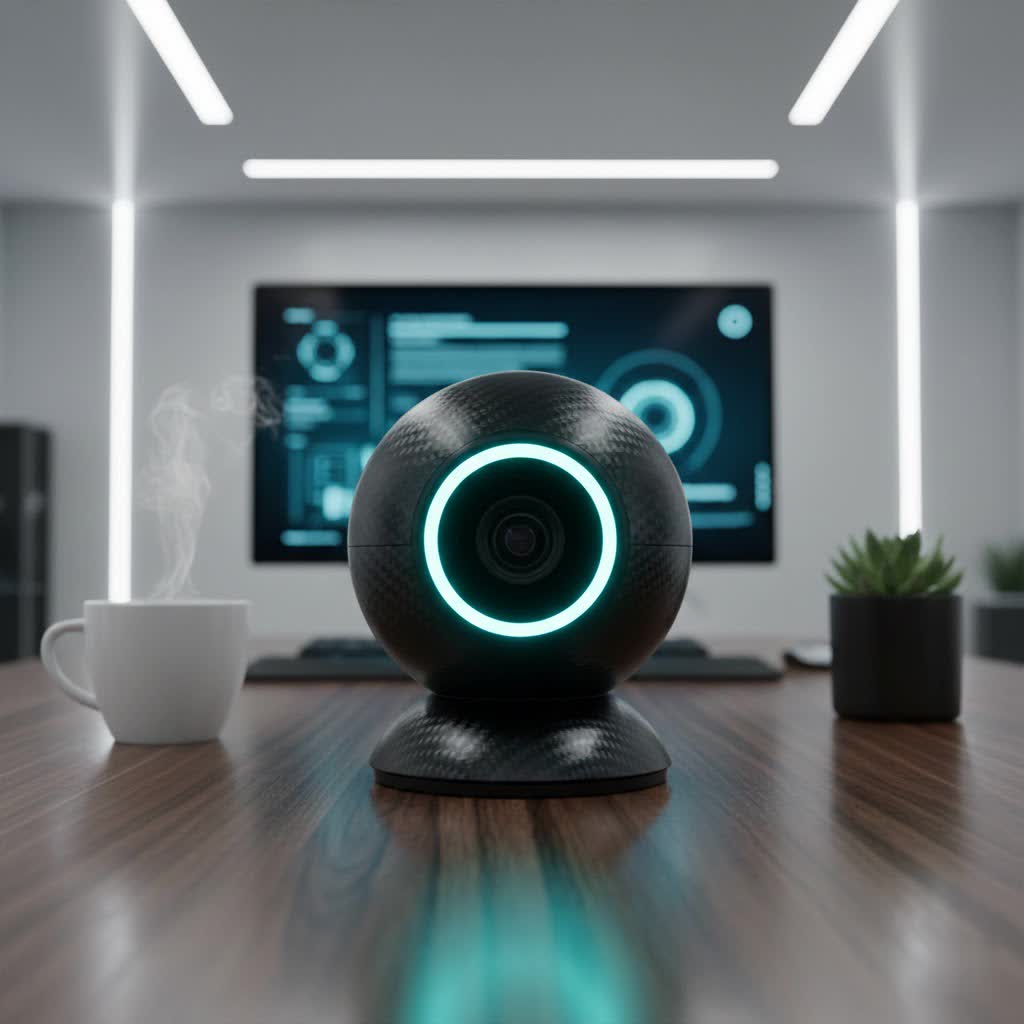
What is a USB Computer Camera and Why Do You Need One?
A USB computer camera, commonly known as a webcam, is an external digital video camera that connects to your computer, typically via a USB port. Unlike the integrated cameras often found in laptops, these standalone devices are designed with superior optics, sensors, and microphones, offering a dramatic improvement in video and audio quality. They are indispensable for various modern activities, including crucial video conferences, engaging online learning sessions, captivating live streams, and even casual video calls.
The primary advantage of an external USB camera lies in its dedicated hardware. Laptop manufacturers often compromise on built-in webcam quality to maintain competitive pricing, resulting in cameras with lower resolution, poor low-light performance, and less-than-ideal audio. A dedicated USB camera, however, priorit prioritizes these aspects, providing sharper images, more accurate colors, better performance in challenging lighting conditions, and clearer sound. This upgrade is essential for making a strong impression, reducing miscommunication, and enhancing overall engagement in any virtual interaction.
Types of USB Computer Cameras
While the term “USB computer camera” broadly refers to external webcams, there are subtle distinctions in their design and intended use:
- Standard External USB Webcams: These are the most common type, designed for general use such as video calls, online meetings, and basic content creation. They offer a wide range of resolutions and features to suit various needs and budgets.
- Specialized Streaming Webcams: Built with content creators and gamers in mind, these cameras often feature higher frame rates (60fps), advanced sensors for better low-light performance, wider fields of view, and sometimes even integrated ring lights or AI-powered tracking capabilities.
- AI-Powered Webcams: A newer category, these cameras incorporate artificial intelligence for features like auto-framing (keeping you centered in the shot), gesture control, and enhanced background removal, offering a more dynamic and interactive experience.
Compared to integrated laptop cameras, all external USB webcams offer advantages in component quality, flexibility in positioning, and advanced features.
Key Factors When Choosing a USB Computer Camera
Selecting the right USB computer camera involves balancing your specific needs with various technical specifications. Here are the crucial factors to consider:
Resolution: 720p, 1080p, or 4K?
Resolution dictates the clarity and detail of your video.
- 720p (HD): This offers a basic standard for visual quality, suitable for casual video calls where high detail isn’t critical.
- 1080p (Full HD): The current sweet spot for most users, providing crisp and clear images ideal for professional video conferencing, online learning, and general streaming. Most popular platforms like Zoom, Google Meet, and Microsoft Teams typically cap streaming resolution at 1080p, making this a practical choice.
- 2K and 4K (Ultra HD): These resolutions offer exceptional detail, perfect for content creators, serious streamers, or anyone who needs to capture the absolute sharpest image. While most platforms will downscale 4K footage for live calls, recording in 4K allows for greater flexibility in post-production and future-proofs your setup.
|
Our Picks for the Best Computer Webcam in 2026
As an Amazon Associate I earn from qualifying purchases.
|
||
| Num | Product | Action |
|---|---|---|
| 1 | RUWBY Full HD 1080P Webcam with Built-in Dual Mics, Wide-Angle Lens, Privacy Cover, Tripod Stand, Autofocus Computer Camera, Plug and Play for Desktop PC or Laptop |

|
| 2 | Logitech C920e HD 1080p Mic-Enabled Webcam, Certified for Zoom, Microsoft Teams Compatible, TAA Compliant |
|
| 3 | TRAUSI 1080P Webcam with Active Light Correction, Privacy Cover, Plug and Play USB Webcam for PC/Desktop/Laptop |
|
| 4 | NexiGo N60 1080P Webcam with Microphone, Software Control & Privacy Cover, USB HD Computer Web Camera, Plug and Play, for Zoom/Skype/Teams, Conferencing and Video Calling |
|
| 5 | Shcngqio 1080P HD Webcam with Microphone, Noise Cancellation, Privacy Cover, Wide-Angle Lens, Auto Light Correction, Plug & Play USB Webcam for Laptop, Desktop, PC, Mac, Zoom, Skype, Streaming (Black) |
|
| 6 | Logitech C920x HD Pro PC Webcam, Full HD 1080p/30fps Video, Clear Audio, HD Light Correction, Works with Microsoft Teams, Google Meet, Zoom, Nintendo Switch 2’s New GameChat Mode, Mac/Tablet- Black |
|
| 7 | Gohero Full HD 1080P Video Webcam, Noise Cancellation, Privacy Cover, Wide-Angle Lens, Auto Light Correction, Plug & Play USB Webcam for Laptop, Desktop, PC, Mac, Zoom, Skype Pro Series |
|
| 8 | EMEET 1080P Webcam with Microphone, C960 Web Cam, 2 Mics, 90° FOV, USB Type-A & A-to-C Adapter, Plug&Play Computer Camera for Online Calling, Zoom/Teams/Facetime, Switch 2 Camera Support, 2025 Version |
|
| 9 | Logitech Brio 101 Full HD 1080p Webcam for Meetings, Streaming, Desktop, Laptop, PC - Built-in Mic, Shutter, Works with Zoom, Microsoft Teams, Nintendo Switch 2’s New GameChat Mode, USB-A,-Black |
|
| 10 | Logitech C270 HD Webcam, 720p, Widescreen HD Video Calling, Light Correction, Noise-Reducing Mic, Works with Zoom, Nintendo Switch 2’s New GameChat Mode, PC/Mac/Laptop/MacBook/Tablet - Black |
|
Frame Rate (FPS): How Smooth Do You Need Your Video?
Frame rate, measured in frames per second (FPS), affects the smoothness of your video.
- 30fps: This is the standard for most webcams and provides a perfectly acceptable, fluid video experience for most applications, including video calls and online meetings.
- 60fps: For activities involving rapid movement, like gaming streams or dynamic presentations, 60fps delivers noticeably smoother, more lifelike video, creating a more engaging viewing experience.
Field of View (FOV): What Do You Want to Capture?
The field of view determines how much of your surroundings the camera can see.
- Narrow FOV (60-70 degrees): Ideal for single-person shots, focusing tightly on your face and minimizing background distractions.
- Medium FOV (78-85 degrees): A versatile option, suitable for one or two people, or if you want to include a bit more of your environment without being too wide.
- Wide FOV (90+ degrees): Best for capturing multiple people in a meeting room, showcasing a whiteboard, or for content creators who want to include more of their setup. Some cameras offer customizable FOV settings, allowing you to adjust it as needed.
Microphone Quality: Is Built-in Enough?
A good microphone is as important as good video. While most USB cameras include built-in microphones, their quality can vary significantly. Look for models with noise-canceling technology to ensure your voice comes through clearly, minimizing background distractions. For professional streaming, podcasting, or critical meetings, a dedicated external USB microphone or headset is often recommended for superior audio performance, even if your webcam has a decent built-in mic.
Lens Quality: Glass vs. Plastic
The lens is a critical component influencing image clarity and light-gathering capabilities.
- Glass Lenses: Found in higher-end webcams, glass lenses offer superior optical quality, producing sharper images with more accurate colors and significantly better performance in low-light conditions. They are also more durable and less prone to scratching.
- Plastic Lenses: More common in budget-friendly webcams, plastic lenses can still provide adequate quality for basic use, but may struggle in dim lighting and produce softer images.
Additional Features to Consider
- Autofocus: Essential for keeping you sharp and in focus, even if you move. Higher-end models offer faster and more precise autofocus.
- Automatic Low-Light Correction: This feature automatically adjusts exposure and brightness to improve image quality in dimly lit environments, making you look better without additional lighting.
- Privacy Shutter: A physical cover for the lens provides peace of mind, preventing accidental or unauthorized video capture.
- AI Tracking/Auto-Framing: Keeps you centered in the frame as you move, ideal for presenters or dynamic content creators.
- Detachable USB Cable: Offers flexibility in cable length and easy replacement if the cable is damaged.
- Mounting Options: Most webcams have universal monitor mounts, but some also include tripod threads for greater positioning flexibility.
- Companion Software: Allows for fine-tuning settings like exposure, white balance, and field of view, and may offer digital zoom or other effects.
Top USB Computer Cameras: A Comparative Overview
Choosing from the plethora of excellent USB computer cameras can be daunting. Here’s a quick look at some highly-rated models and their key specifications to help you compare:
| Model | Resolution | FPS | FOV | Microphone | Key Features | Best For |
|---|---|---|---|---|---|---|
| Logitech Brio 500 | 1080p | 30/60 | 90° | Dual noise-reducing | Auto-light correction, auto-framing, privacy shutter | Everyday use, remote work |
| Obsbot Tiny 2 | 4K | 30 | Customizable | Dual stereo | AI tracking, gesture/voice control, mechanical pan/tilt | Content creation, advanced users |
| Elgato Facecam MK.2 | 1080p | 60 | 84° | No (external recommended) | Optimized for streaming, comprehensive software | Streaming, content creation |
| Razer Kiyo Pro | 1080p | 60 | 80-103° | Omni-directional | Excellent low-light, HDR, wide FOV | Low-light environments, streaming |
| Logitech MX Brio | 4K/1080p | 30/60 | 90° | Dual beamforming | Advanced sensor, improved software, privacy shutter | Premium work, content creation |
Your USB Computer Camera Buying Guide
Navigating the options can be simpler with a structured approach. Here’s a buying guide to help you make an informed decision:
-
Identify Your Primary Use Case: What will you mostly use the camera for?
- Video Conferencing/Online Learning: 1080p resolution, 30fps, good autofocus, and a clear microphone are often sufficient.
- Live Streaming/Content Creation: Prioritize 1080p at 60fps or 4K, excellent low-light performance, customizable FOV, and compatibility with streaming software. You’ll likely need an external microphone.
- Hybrid Work/Travel: Look for compact, durable designs with easy plug-and-play functionality.
-
Set a Realistic Budget: Webcam prices range from under $50 for basic HD models to several hundred dollars for premium 4K streaming cameras with AI features. Determine what you’re willing to spend, keeping in mind that mid-range options (around $70-$150) often offer the best balance of features and value.
-
Research Brands and Reviews: Established brands like Logitech, Obsbot, Elgato, Razer, and Dell are known for quality and reliability. Read recent reviews to understand user experiences with specific models, paying attention to real-world performance in different lighting conditions.
-
Consider Connectivity: Most modern webcams use USB-A or USB-C. Ensure your computer has the appropriate port, or consider an adapter if necessary. Plug-and-play functionality is standard, meaning no complex driver installations are usually required.
-
Check for Compatibility: While most USB cameras work across Windows, macOS, and even Linux, always verify compatibility with your operating system and preferred video conferencing or streaming software.
By systematically evaluating these factors, you can confidently choose a USB computer camera that perfectly aligns with your needs and budget.
Editor’s Top Picks: Recommended USB Computer Cameras
Based on performance, features, and value, here are some top recommendations for various users:
Best All-Rounder: Logitech Brio 500
The Logitech Brio 500 is an excellent choice for most users, offering sharp 1080p video at 30/60fps. Its standout features include impressive auto-light correction, which makes you look great even in challenging lighting, and an innovative auto-framing feature that keeps you perfectly centered. It also includes a built-in privacy shutter and dual noise-reducing microphones for clear audio. This camera hits a sweet spot for quality and practical features for remote work and online meetings.
Best for Content Creators & Advanced Users: Obsbot Tiny 2
If you’re looking for cutting-edge technology, the Obsbot Tiny 2 is a game-changer. This 4K webcam features a mechanical pan and tilt gimbal, combined with advanced AI tracking and gesture/voice control. It can automatically follow your movements, keeping you perfectly in frame without manual adjustments. While it comes at a higher price point, its intelligent features and exceptional 4K clarity make it invaluable for streamers, presenters, and anyone needing dynamic camera control.
Best for Serious Streamers: Elgato Facecam MK.2
Designed explicitly for content creators, the Elgato Facecam MK.2 delivers stunning 1080p video at a super-smooth 60fps. It features a high-quality glass lens and a powerful image sensor optimized for streaming, providing excellent detail and color reproduction. While it doesn’t include a built-in microphone (encouraging the use of a dedicated audio setup), its accompanying Camera Hub software offers granular control over image settings, allowing streamers to perfectly fine-tune their look.
Tips for Using and Maintaining Your USB Computer Camera
To maximize your camera’s performance and longevity, follow these tips:
- Proper Setup and Configuration: Mount your webcam at eye level for a more natural and engaging angle. Most webcams are plug-and-play, but installing any accompanying software allows you to customize settings like brightness, contrast, and white balance to suit your environment.
- Optimize Lighting and Angle: Good lighting is crucial for video quality. Position yourself facing a soft, natural light source (like a window) rather than having bright light behind you. If natural light isn’t available, use a key light positioned in front of you. Avoid harsh overhead lighting.
- Keep it Clean: Regularly clean the lens with a microfiber cloth to prevent smudges and dust from affecting image clarity. Ensure the privacy shutter (if applicable) is clean as well.
- Secure and Store Properly: When not in use, engage the privacy shutter or unplug the camera. If you frequently travel, ensure it’s stored in a protective case to prevent damage.
Conclusion
Investing in a high-quality USB computer camera is a pivotal step towards enhancing your virtual presence. From crystal-clear video calls to professional-grade content creation, the right webcam can significantly elevate your digital interactions. By understanding key factors like resolution, frame rate, field of view, and lens quality, and considering renowned models from brands like Logitech, Obsbot, and Elgato, you can confidently select a device that meets your unique needs. Don’t settle for less when it comes to how you’re seen and heard online.
What improvements in virtual communication are you most excited to achieve with your new USB computer camera?
Frequently Asked Questions
Do I need to install special drivers for a USB computer camera?
Generally, no. Most modern USB computer cameras are plug-and-play, meaning your operating system (Windows, macOS) will automatically recognize and install the necessary generic drivers when you connect them. However, manufacturers often provide optional software that unlocks advanced features and customization options, which you may choose to install.
Can I use a USB computer camera with a Mac?
Yes, the vast majority of USB computer cameras are compatible with macOS, as well as Windows. They function seamlessly with popular video conferencing applications and other software on Apple computers. Always check the product specifications for explicit macOS compatibility if you are unsure.
What’s the main difference between a USB camera and a laptop’s built-in camera?
The main difference lies in quality and flexibility. USB computer cameras typically feature larger, higher-quality sensors, superior glass lenses, and better microphones compared to the compact, budget-constrained components found in most integrated laptop cameras. Additionally, USB cameras offer flexible positioning and advanced features like higher resolutions, faster frame rates, and improved low-light performance.
