In today’s interconnected world, where virtual meetings, online learning, and content creation are everyday norms, your digital presence is more crucial than ever. A built-in laptop camera often falls short, leaving your image pixelated, poorly lit, and ultimately, unprofessional. This is where a dedicated computer webcam steps in, transforming your virtual interactions into clear, engaging experiences. Specifically, a 1080p webcam has emerged as the industry standard, offering a perfect balance of quality, performance, and accessibility for a wide range of users. This guide will walk you through everything you need to know about 1080p webcams, helping you choose the best device to project your best self.
What is a Computer Webcam and Why Do You Need One?
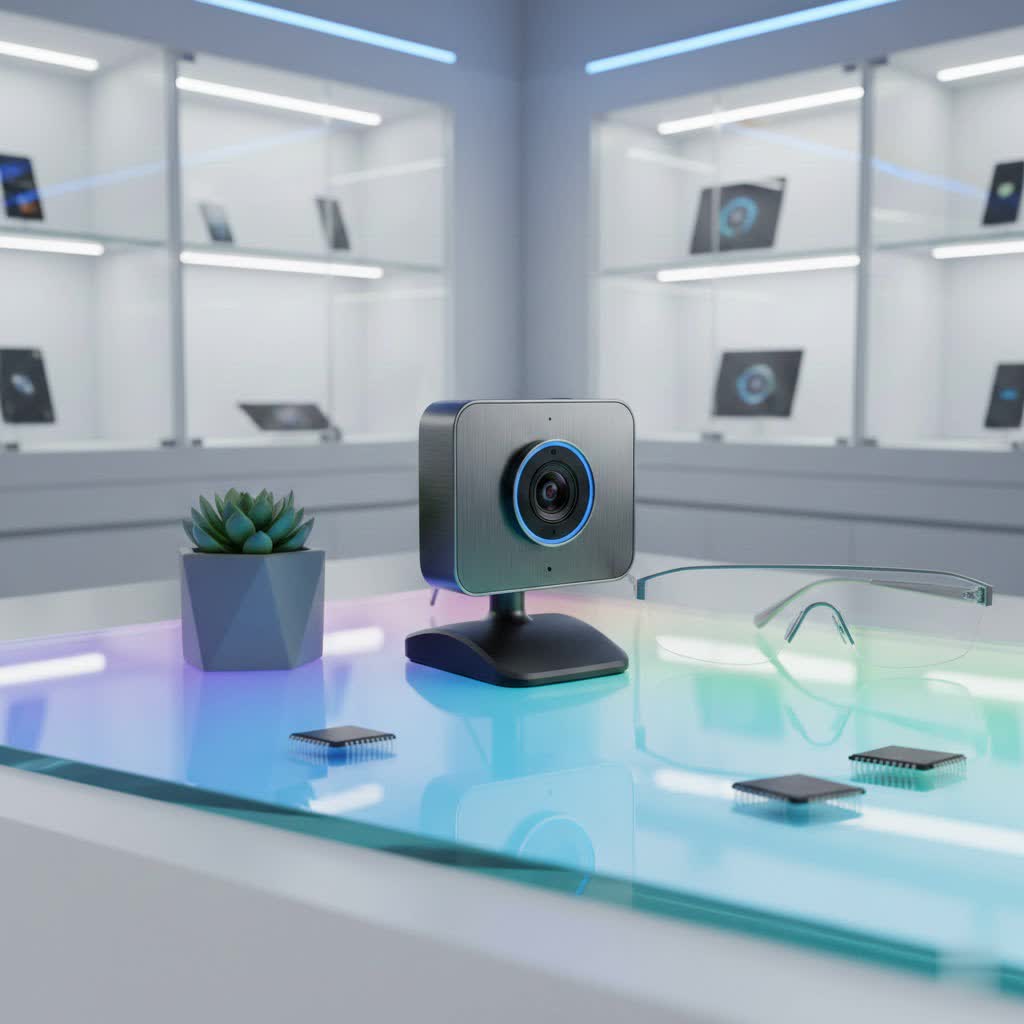
A computer webcam is a digital camera that captures images and videos, transmitting them directly to your computer or over the internet. While many laptops come equipped with integrated cameras, these are often basic and lack the advanced features necessary for high-quality video. An external webcam, typically connecting via USB, offers superior resolution, better low-light performance, and more control over your image.
Webcams have become indispensable tools for numerous applications. For students and educators, they facilitate clear communication in online classrooms and virtual lectures. Professionals rely on them for crisp, reliable video conferencing, client presentations, and remote team collaborations. For aspiring streamers and content creators, a high-quality webcam is foundational for engaging live broadcasts and recording polished videos. The benefits are clear: a good webcam enhances clarity, improves communication, and helps build stronger connections in any virtual setting.
Types of Computer Webcams
The webcam market offers a variety of options, each with its own advantages and disadvantages. Understanding these types will help you narrow down your choices.
- Integrated Webcams: These are built directly into laptops and some monitors. While convenient, they often have lower resolution (often 720p or less), poor low-light performance, and fixed angles, making them less ideal for professional use.
- External USB Webcams: The most common type, these standalone devices connect to your computer via a USB port. They offer a significant upgrade in image quality, features, and flexibility compared to integrated cameras. Many 1080p webcams fall into this category, providing excellent value and performance for general use, video calls, and casual streaming.
- Specialized Streaming Webcams: Designed with content creators in mind, these webcams often boast higher frame rates (60fps or more), advanced manual controls, better low-light sensors, and sometimes even integrated ring lights or advanced AI tracking features. While some offer 4K resolution, many top-tier streaming webcams still provide exceptional 1080p quality at higher frame rates.
Essential Factors When Choosing a 1080p Computer Webcam
Selecting the perfect 1080p webcam involves evaluating several key technical specifications and features to ensure it meets your specific needs.
Resolution: 720p, 1080p, 4K – Which One to Choose?
|
Our Picks for the Best Computer Webcam in 2026
As an Amazon Associate I earn from qualifying purchases.
|
||
| Num | Product | Action |
|---|---|---|
| 1 | NexiGo N60 1080P Webcam with Microphone, Software Control & Privacy Cover, USB HD Computer Web Camera, Plug and Play, for Zoom/Skype/Teams, Conferencing and Video Calling |

|
| 2 | TRAUSI 1080P Webcam with Active Light Correction, Privacy Cover, Plug and Play USB Webcam for PC/Desktop/Laptop |
|
| 3 | Logitech C270 HD Webcam, 720p, Widescreen HD Video Calling, Light Correction, Noise-Reducing Mic, Works with Zoom, Nintendo Switch 2’s New GameChat Mode, PC/Mac/Laptop/MacBook/Tablet - Black |
|
| 4 | EMEET 1080P Webcam with Microphone, C960 Web Cam, 2 Mics, 90° FOV, USB Type-A & A-to-C Adapter, Plug&Play Computer Camera for Online Calling, Zoom/Teams/Facetime, Switch 2 Camera Support, 2025 Version |
|
| 5 | RUWBY Full HD 1080P Webcam with Built-in Dual Mics, Wide-Angle Lens, Privacy Cover, Tripod Stand, Autofocus Computer Camera, Plug and Play for Desktop PC or Laptop |
|
| 6 | Logitech C920x HD Pro PC Webcam, Full HD 1080p/30fps Video, Clear Audio, HD Light Correction, Works with Microsoft Teams, Google Meet, Zoom, Nintendo Switch 2’s New GameChat Mode, Mac/Tablet- Black |
|
| 7 | Logitech Brio 101 Full HD 1080p Webcam for Meetings, Streaming, Desktop, Laptop, PC - Built-in Mic, Shutter, Works with Zoom, Microsoft Teams, Nintendo Switch 2’s New GameChat Mode, USB-A,-Black |
|
| 8 | Logitech C920e HD 1080p Mic-Enabled Webcam, Certified for Zoom, Microsoft Teams Compatible, TAA Compliant |
|
| 9 | Shcngqio 1080P HD Webcam with Microphone, Noise Cancellation, Privacy Cover, Wide-Angle Lens, Auto Light Correction, Plug & Play USB Webcam for Laptop, Desktop, PC, Mac, Zoom, Skype, Streaming (Black) |
|
| 10 | Gohero Full HD 1080P Video Webcam, Noise Cancellation, Privacy Cover, Wide-Angle Lens, Auto Light Correction, Plug & Play USB Webcam for Laptop, Desktop, PC, Mac, Zoom, Skype Pro Series |
|
For professional and high-quality personal use, 1080p (Full HD) resolution is the definitive baseline standard. It provides a clear, sharp, and polished image with 1920 x 1080 pixels, ensuring you appear crisp during video calls and recordings. While 720p might suffice for extremely casual use, it often results in a less detailed and somewhat pixelated image that may not convey professionalism.
4K (Ultra HD) webcams offer even greater detail, with 3840 x 2160 pixels, allowing for more cropping flexibility and a future-proof setup. However, many common video conferencing platforms like Zoom and Google Meet don’t fully support resolutions higher than 1080p, meaning you might not leverage the full potential of a 4K camera. Moreover, 4K demands higher bandwidth and is generally more expensive. For the vast majority of users, a high-quality 1080p webcam is more than sufficient and provides excellent value.
Frame Rate (FPS): How Does it Affect Video Smoothness?
Frame Rate, measured in frames per second (FPS), determines how smooth and fluid your video appears, particularly when there’s movement.
- 30fps: This is the standard for most video conferencing and is perfectly adequate for typical meetings and static presentations. It provides a natural-looking video without excessive choppiness.
- 60fps: For more dynamic presentations, streaming, or if you frequently make gestures, a 60fps webcam delivers a noticeably smoother and more lifelike video experience. This higher frame rate is often preferred by content creators and gamers who require fluid motion capture.
Field of View (FOV): Wide or Narrow?
The Field of View (FOV) dictates how much of your surroundings the webcam captures. Your choice here should align with your primary use case.
- Narrow FOV (40-50 degrees): Ideal for solo use, such as one-on-one meetings or individual vlogging, as it focuses tightly on your head and shoulders, minimizing background distractions.
- Standard/Mid FOV (70-80 degrees): A versatile choice, perfect for most individual professional calls, striking a balance between focusing on you and providing a subtle view of your immediate background.
- Wide FOV (90-120 degrees): Best suited for group settings, such as conference rooms or team calls, allowing multiple people to fit comfortably in the frame. Some webcams offer adjustable FOV settings for greater flexibility.
Microphone: Is the Integrated Quality Good Enough?
Most webcams come with built-in microphones, which offer convenience for quick calls. However, for critical professional meetings, streaming, or content creation, dedicated external microphones or headsets almost always provide superior audio quality. Integrated webcam microphones, while improving, can still pick up more background noise and may lack the clarity and richness of a standalone mic. If audio quality is paramount, consider pairing your 1080p webcam with a good headset or a USB microphone.
Additional Features to Consider
- Autofocus: Essential for maintaining sharp video clarity, especially if you tend to move during calls or hold up objects to the camera. Fixed-focus cameras require you to stay within a specific focal range.
- Automatic Light Correction: This feature helps the webcam adapt to varying lighting conditions, ensuring you remain well-lit and clearly visible even in dim environments. Many modern webcams include this for improved low-light performance.
- Privacy Shutter: A physical cover for the lens, offering peace of mind by preventing accidental or unauthorized camera access.
- AI-Powered Features: Some advanced webcams include features like auto-framing (keeping you centered), background blur, and noise cancellation for enhanced video and audio quality.
- HDR (High Dynamic Range): Improves image quality in high-contrast lighting situations, preserving detail in both bright and dark areas.
Top Picks: Popular 1080p Computer Webcams
While 4K webcams are gaining traction, several 1080p models continue to be highly regarded for their exceptional quality, reliability, and value. Here’s a look at some favorites:
| Webcam Model | Resolution | Frame Rate | Field of View (FOV) | Built-in Mic | Special Features |
|---|---|---|---|---|---|
| Logitech C920x | 1080p | 30 fps | 78° | Yes | Reliable, excellent image quality, strong software |
| Logitech Brio 500 | 1080p | 30/60 fps | 90° (adjustable) | Yes | Auto-exposure, white balance, Show Mode |
| Razer Kiyo Pro | 1080p | 60 fps | 80/90/103° | Yes | Impressive low-light sensor, HDR, uncompressed video |
| Elgato Facecam Neo | 1080p | 60 fps | 77° | No | Budget-friendly, good for streaming, privacy shutter |
| Anker PowerConf C200 | 1080p (also 1440p) | 30 fps | N/A | Yes | Improved low-light, budget-friendly |
| Obsbot Meet SE | 1080p | 100 fps | 78° | Yes | Compact, vertical video support, AI-powered |
- Logitech C920x HD Pro: Often hailed as the workhorse of 1080p webcams, the C920x offers consistent, sharp 1080p video at 30fps with reliable autofocus and good low-light correction. It’s a timeless choice for dependable performance.
- Logitech Brio 500: A more modern offering, the Brio 500 delivers sharp 1080p at 30fps (and sometimes 60fps depending on settings) with excellent automatic light correction and an adjustable field of view, making it versatile for various scenarios. It’s lauded for its auto-white balance and auto-exposure.
- Razer Kiyo Pro: Geared towards streamers and content creators, the Kiyo Pro excels with its uncompressed 1080p at 60fps, a large light sensor for superior low-light performance, and HDR capabilities. It provides an exceptionally clear and smooth image.
- Elgato Facecam Neo: A solid budget-friendly option for those seeking 1080p at 60fps, especially useful for content creation where higher frame rates are beneficial. It offers good image quality without breaking the bank.
Computer Webcam Buying Guide: Making Your Decision
Choosing the right 1080p webcam doesn’t have to be overwhelming. Follow these steps to make an informed decision:
-
Identify Your Primary Needs:
- Video Conferencing (Zoom, Teams): Prioritize 1080p resolution, reliable autofocus, and good auto-light correction. 30fps is usually sufficient.
- Streaming/Content Creation: Aim for 1080p at 60fps for smoother motion, excellent low-light performance, and potentially a wider field of view or advanced features like HDR.
- Online Learning: 1080p at 30fps with a clear microphone (or plan for an external one) will be more than adequate.
- Group Meetings: Look for a wider FOV and ensure good low-light handling if your meeting space isn’t perfectly lit.
-
Set Your Budget:
- Reliable 1080p webcams generally range from under $50 for basic models to $150-$200 for feature-rich options with higher frame rates and advanced optics. Determine how much you’re willing to invest for the desired quality and features.
-
Consider Brands and Reviews:
- Established brands like Logitech, Razer, Elgato, and Anker often offer reliable products and good customer support. Always check recent user reviews and expert assessments for real-world performance insights.
-
Check Compatibility:
- Ensure the webcam is compatible with your operating system (Windows, macOS, Linux) and your preferred video conferencing or streaming software. Most USB webcams are plug-and-play, but specific software drivers might unlock advanced features.
-
Examine the Product Before Purchase:
- If buying in person, check the build quality. If buying online, review the return policy. Look for features like a sturdy mounting clip and a physical privacy shutter.
Tips for Using and Maintaining Your 1080p Computer Webcam
Even the best 1080p webcam benefits from proper setup and maintenance. These tips will help you maximize your video quality and prolong your device’s lifespan.
- Optimal Placement: Position your webcam at eye level to create a natural, engaging perspective. Use a small tripod or stack of books if necessary. Ensure your face is centered in the frame with a little headroom.
- Master Your Lighting: Natural light from a window in front of you is ideal. If natural light isn’t available, use a desk lamp or a ring light positioned slightly off-center to avoid harsh shadows and glare. Avoid backlighting, which can make you appear as a silhouette.
- Clean Background: A clean, uncluttered background keeps the focus on you. A plain wall is perfect, or consider a tasteful virtual background if your webcam and software support it well.
- Adjust Software Settings: Don’t rely solely on automatic settings. Most webcams come with companion software or allow adjustments through your operating system. Fine-tune brightness, contrast, white balance, and exposure for natural skin tones and a sharp image. If your camera is stationary, consider turning off autofocus to prevent distracting “focus hunting.”
- Regular Cleaning: Gently clean your webcam lens with a microfiber cloth to remove dust and smudges that can degrade image quality. Avoid harsh chemicals.
- Secure Storage: When not in use, especially if it’s an external webcam, store it in a safe place to protect the lens and components. Using a physical privacy shutter is a good security practice.
- Keep Software Updated: Regularly update your webcam’s firmware and associated software to ensure optimal performance, compatibility, and access to new features or bug fixes.
- Privacy Best Practices: Always cover your webcam with a physical shutter when not in use. Monitor the webcam’s LED indicator – if it’s on unexpectedly, investigate immediately. Regularly review application permissions to control which apps can access your camera.
Conclusion
A high-quality 1080p computer webcam is a powerful investment in your digital presence, enabling clearer communication, more engaging content, and a more professional image. By understanding the key features like resolution, frame rate, field of view, and considering factors like lighting and privacy, you can confidently select a webcam that perfectly aligns with your needs and budget.
Investing in a quality 1080p webcam does more than just improve your video; it enhances how others perceive and engage with you, fostering better connections in an increasingly virtual world. Whether for work, study, or play, the right webcam is an indispensable tool. What steps will you take to upgrade your visual communication today?
