In an increasingly connected world, where virtual meetings, online learning, and content creation are the norm, a high-quality camera is no longer a luxury but a necessity. While most laptops come equipped with integrated webcams, they often fall short in delivering the clarity, flexibility, and features required for a truly professional or engaging online presence. This guide delves into the world of external webcams, providing you with all the essential information to choose the perfect device that elevates your video experience.
What is an External Webcam and Why Do You Need One?
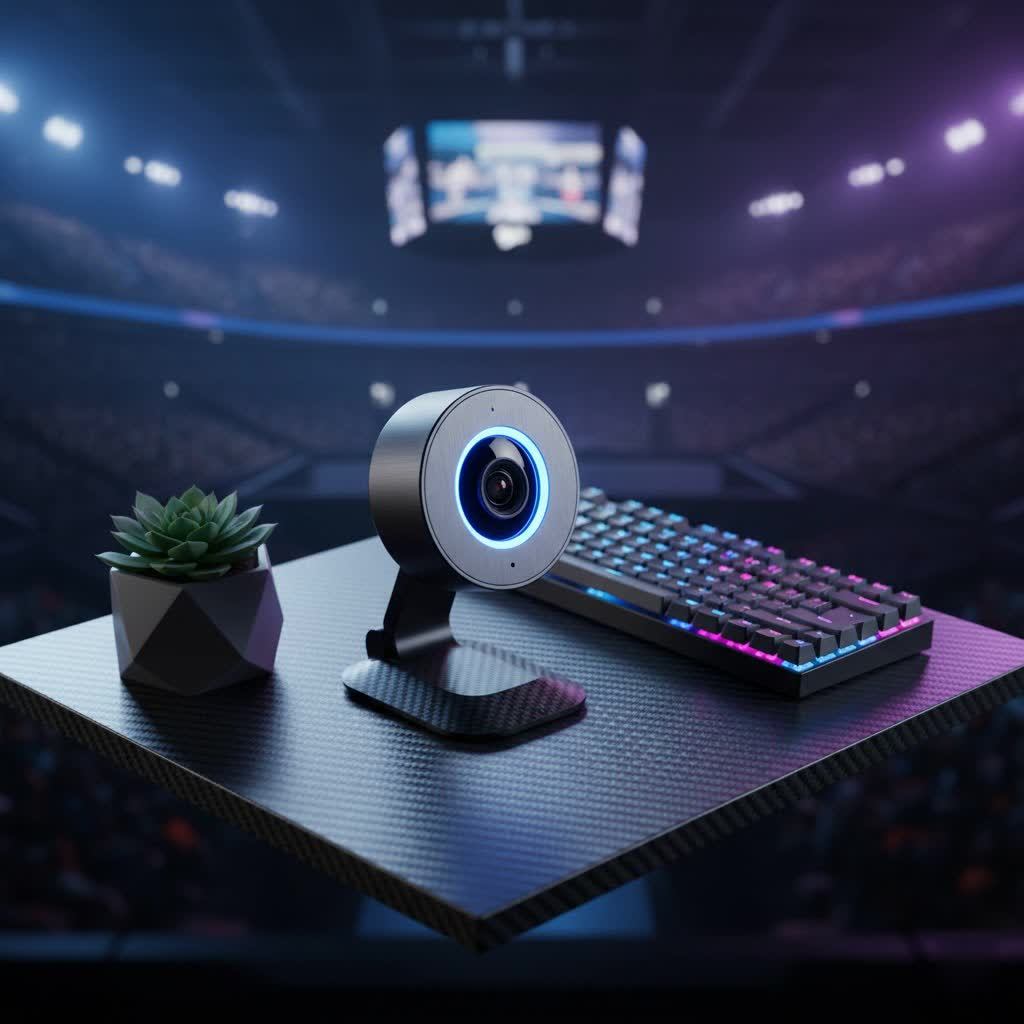
An external webcam is a standalone device that connects to your computer, typically via USB, offering a significant upgrade over your laptop’s built-in camera. Unlike the small, often low-resolution sensors and fixed angles of integrated cameras, external webcams are designed with superior optics, larger sensors, and a wider array of features to deliver crisp, clear, and vibrant video.
Consider situations like attending crucial online meetings, participating in virtual classrooms, live-streaming gaming sessions, or creating engaging video content for platforms like YouTube or Twitch. In these scenarios, the limitations of a built-in camera—such as poor low-light performance, grainy images, limited field of view, and subpar audio—become immediately apparent. An external webcam addresses these issues, providing a more flattering angle, better lighting correction, and vastly improved overall video and audio quality, ensuring you always make a great impression.
Types of External Webcams
While all external webcams connect to your computer, they can be broadly categorized by their primary design and intended use:
- Standard USB Webcams: These are the most common type, designed for general use such as video conferencing, online classes, and casual recording. They typically offer 1080p resolution at 30fps and come with integrated microphones. Brands like Logitech C920 are popular in this category.
- High-End/Professional Webcams: Geared towards content creators, streamers, and business professionals, these webcams boast higher resolutions (2K, 4K), faster frame rates (60fps), advanced autofocus, superior low-light performance, and often come with specialized software for fine-tuning image settings. Examples include the Insta360 Link and Elgato Facecam MK.2.
- Specialty Webcams: This category includes devices with unique features like AI-powered tracking (e.g., OBSBOT Tiny 2), wider fields of view for group meetings, or those optimized for specific conditions like low-light environments (e.g., Razer Kiyo Pro).
Each type offers a different balance of price, performance, and features, allowing you to choose one that aligns with your specific demands. The primary advantage of an external webcam, regardless of its type, is its ability to surpass the technical and cost limitations of built-in laptop cameras, which are often basic due to space constraints and competitive pricing.
Key Factors When Choosing an External Webcam
Selecting the right external webcam involves considering several technical specifications and features to ensure it meets your particular needs.
- Resolution: This defines the clarity and detail of your video.
- 720p (HD): Offers a basic standard, suitable for casual video calls.
- 1080p (Full HD): The most common and recommended resolution for general use, providing clear and sharp video for most online platforms. Many streaming services, like YouTube and Twitch, will often downscale 4K video to 1080p.
- 2K/QHD (1440p): Provides enhanced detail, ideal for more demanding applications or if you want some room for digital zoom.
- 4K (Ultra HD): Offers the highest level of detail and is perfect for professional content creation, high-quality streaming, or if you need to crop and zoom without losing significant quality.
- Frame Rate (FPS – Frames Per Second): This determines the smoothness of your video.
- 30fps: Standard for most webcams and sufficient for video conferencing and online classes.
- 60fps: Delivers smoother, more fluid motion, which is crucial for fast-paced content like gaming streams or recording dynamic presentations.
- Field of View (FOV): Measured in degrees, this indicates how much of the scene the camera can capture.
- 60-70 degrees: Ideal for single users, focusing on your face.
- 78-90 degrees: Suitable for including two people or showing a wider background, like a whiteboard. Wider FOVs are also great for giving you more flexibility in framing your shot.
- Microphone Quality: Most external webcams include built-in microphones. Look for models with stereo microphones and noise-cancellation features to ensure clear, high-quality audio that minimizes background distractions. While some high-end webcams like the Dell UltraSharp don’t include a microphone, this is often an exception for users who prefer dedicated external audio setups.
- Additional Features:
- Autofocus: Automatically adjusts the lens to keep you sharp and in focus, even if you move.
- Automatic Light Correction: Adjusts exposure to ensure you are well-lit, especially in challenging lighting conditions or low-light environments.
- Privacy Shutter: A physical cover that slides over the lens, providing peace of mind against accidental or unwanted recording.
- Lens Material: Glass lenses typically offer superior image clarity and durability compared to less expensive plastic lenses.
- Software Support: Companion software allows for granular control over settings like zoom, exposure, white balance, and color correction.
- Mounting Options: Check for versatile clips that securely attach to various monitors, and importantly, a tripod mount for greater positioning flexibility.
Top Picks: Popular External Webcam Models for 2024
When it comes to choosing an external webcam, several models consistently receive high praise from users and experts alike, catering to different needs and budgets.
| Model | Resolution | FPS (Max) | FOV | Key Features | Best For |
|---|---|---|---|---|---|
| Insta360 Link | 4K | 30 | 79° | AI Tracking, Gimbal, Autofocus, Low Light | Professionals, Streamers, Content Creators |
| Elgato Facecam MK.2 | 1080p | 60 | 84° | Uncompressed Video, Sony STARVIS Sensor, Software | Gamers, Streamers, High-Quality Calls |
| OBSBOT Tiny 2 | 4K | 30 | 90° | AI Tracking & Auto-Framing, Gesture Control | Presenters, Teachers, Dynamic Video |
| Anker PowerConf C300 | 1080p | 60 | 115° | AI Framing, Autofocus, Wide FOV, Privacy Shutter | Meetings, Wide Group Shots, Remote Work |
| Logitech C920 | 1080p | 30 | 78° | Affordable, Reliable, Autofocus, Stereo Mics | Budget-Friendly, General Use, Basic Calls |
| Razer Kiyo Pro | 1080p | 60 | 103° | Excellent Low-Light Performance, Uncompressed Video | Low Light Environments, Streaming |
| Dell UltraSharp Webcam | 4K | 30 | 90° | 4K Clarity, HDR Support, No Built-in Mic | 4K Video Recording, Professionals (with separate mic) |
For most users, the Logitech C920 remains a solid, affordable choice, offering reliable 1080p video quality. If you’re looking for a significant upgrade in image quality and advanced features like AI tracking, the Insta360 Link or OBSBOT Tiny 2 are excellent, albeit pricier, options. Gamers and streamers will appreciate the uncompressed 1080p 60fps video and superior image quality of the Elgato Facecam MK.2. For those frequently in video conferences, the Anker PowerConf C300 with its AI framing and wide FOV provides great value.
External Webcam Buying Guide
Making an informed decision on your next external webcam involves a structured approach:
- Define Your Needs: What will you primarily use the webcam for? (e.g., daily virtual meetings, high-quality streaming, online teaching, casual chats). Your use case will determine the necessary resolution, frame rate, and specific features.
- Set Your Budget: Webcam prices vary widely. Determine how much you’re willing to spend. While cheaper webcams exist, investing a bit more often yields significantly better quality and longevity.
- Research Brands: Reputable brands like Logitech, Anker, Razer, Elgato, and OBSBOT are known for quality and support. Avoid no-name brands if possible.
- Read Reviews: Look for unbiased reviews and comparisons, paying attention to real-world performance in different lighting conditions and software compatibility.
- Check Compatibility: Ensure the webcam is compatible with your operating system (Windows, macOS, Linux) and the applications you plan to use (Zoom, Microsoft Teams, OBS Studio, etc.).
- Consider Lens Quality: Opt for webcams with glass lenses over plastic for sharper images and better durability.
- Evaluate Microphone Quality: If you don’t plan on using a separate microphone, a webcam with stereo and noise-canceling capabilities is a must.
- Look for a Privacy Shutter: This small feature offers great peace of mind.
- Purchase from Reputable Retailers: Whether online or in-store, buying from trusted sources ensures product authenticity and easier returns if needed.
Tips for Using and Maintaining Your External Webcam
Once you have your external webcam, a few simple tips can help you maximize its performance and lifespan:
- Proper Placement: Position your webcam at eye level to create a more natural and engaging connection with your audience. Avoid placing it too low, which can result in an unflattering “up-the-nose” angle. If your webcam has a flexible mount or tripod option, experiment to find the optimal angle.
- Lighting is Key: Even the best webcam can’t compensate for poor lighting. Ensure you have adequate front lighting (e.g., a ring light or a lamp in front of you) and avoid strong backlighting, which can make you appear as a silhouette. Natural light from a window in front of you works wonderfully.
- Adjust Settings: Utilize any accompanying software to fine-tune your webcam’s settings. Adjust brightness, contrast, white balance, and zoom to optimize your image for the specific environment.
- Keep it Clean: Dust and fingerprints on the lens can significantly degrade image quality. Gently clean the lens with a microfiber cloth regularly.
- Firmware Updates: Periodically check for firmware updates from the manufacturer. These updates often improve performance, add new features, or fix bugs.
- Cable Management: Ensure your USB cable is not strained or tangled to prevent damage and maintain a stable connection. If you move your setup frequently, consider a webcam with a detachable cable for easier storage.
Conclusion
Choosing an external webcam is a strategic decision that can dramatically enhance your virtual presence, whether for professional meetings, educational pursuits, or creative content creation. By understanding the core features like resolution, frame rate, field of view, and microphone quality, alongside considering innovative models and practical usage tips, you are well-equipped to select a device that not only meets but exceeds your expectations. An external webcam isn’t just an accessory; it’s an investment in clearer communication and a more impactful digital footprint.
What features do you prioritize most in an external webcam, and how has it transformed your online interactions?
Frequently Asked Questions
Why is an external webcam better than a built-in laptop camera?
|
Our Picks for the Best Computer Webcam in 2026
As an Amazon Associate I earn from qualifying purchases.
|
||
| Num | Product | Action |
|---|---|---|
| 1 | NexiGo N60 1080P Webcam with Microphone, Software Control & Privacy Cover, USB HD Computer Web Camera, Plug and Play, for Zoom/Skype/Teams, Conferencing and Video Calling |

|
| 2 | TRAUSI 1080P Webcam with Active Light Correction, Privacy Cover, Plug and Play USB Webcam for PC/Desktop/Laptop |
|
| 3 | Logitech C920x HD Pro PC Webcam, Full HD 1080p/30fps Video, Clear Audio, HD Light Correction, Works with Microsoft Teams, Google Meet, Zoom, Nintendo Switch 2’s New GameChat Mode, Mac/Tablet- Black |
|
| 4 | Logitech C270 HD Webcam, 720p, Widescreen HD Video Calling, Light Correction, Noise-Reducing Mic, Works with Zoom, Nintendo Switch 2’s New GameChat Mode, PC/Mac/Laptop/MacBook/Tablet - Black |
|
| 5 | Gohero Full HD 1080P Video Webcam, Noise Cancellation, Privacy Cover, Wide-Angle Lens, Auto Light Correction, Plug & Play USB Webcam for Laptop, Desktop, PC, Mac, Zoom, Skype Pro Series |
|
| 6 | Shcngqio 1080P HD Webcam with Microphone, Noise Cancellation, Privacy Cover, Wide-Angle Lens, Auto Light Correction, Plug & Play USB Webcam for Laptop, Desktop, PC, Mac, Zoom, Skype, Streaming (Black) |
|
| 7 | EMEET 1080P Webcam with Microphone, C960 Web Cam, 2 Mics, 90° FOV, USB Type-A & A-to-C Adapter, Plug&Play Computer Camera for Online Calling, Zoom/Teams/Facetime, Switch 2 Camera Support, 2025 Version |
|
| 8 | Logitech Brio 101 Full HD 1080p Webcam for Meetings, Streaming, Desktop, Laptop, PC - Built-in Mic, Shutter, Works with Zoom, Microsoft Teams, Nintendo Switch 2’s New GameChat Mode, USB-A,-Black |
|
| 9 | Logitech C920e HD 1080p Mic-Enabled Webcam, Certified for Zoom, Microsoft Teams Compatible, TAA Compliant |
|
| 10 | RUWBY Full HD 1080P Webcam with Built-in Dual Mics, Wide-Angle Lens, Privacy Cover, Tripod Stand, Autofocus Computer Camera, Plug and Play for Desktop PC or Laptop |
|
External webcams generally offer superior image and audio quality due to larger sensors, better lenses (often glass), and more advanced features like higher resolutions (1080p, 4K), faster frame rates, advanced autofocus, and noise-canceling microphones. They also provide greater flexibility in positioning, allowing for better angles and framing compared to a fixed laptop camera.
What resolution is best for an external webcam?
For most users, a 1080p (Full HD) webcam is ideal, offering excellent clarity for video calls, streaming, and content creation without excessive file sizes. While 4K webcams provide the highest detail, many streaming platforms downscale video to 1080p, making 4K overkill unless you require extreme detail for specific professional applications or significant digital zoom.
Do external webcams come with microphones?
Yes, most external webcams include built-in microphones. For the best audio quality, look for models with stereo microphones and noise-cancellation technology, which can significantly improve voice clarity by filtering out background distractions.
Can I use an external webcam with any computer?
Most external webcams connect via USB and are compatible with Windows PCs and macOS computers. It’s always wise to check the product specifications for specific operating system compatibility, especially if you use Linux or an older system. They are typically plug-and-play, but some advanced models may require driver or software installation.
What is “Field of View” and why does it matter?
Field of View (FOV) measures how wide an area your webcam can capture, expressed in degrees. A narrower FOV (around 60-70 degrees) is good for focusing on a single person, while a wider FOV (78-90+ degrees) is beneficial for including multiple people, showing a whiteboard, or providing a broader view of your surroundings during a presentation or group call.
