In today’s hyper-connected world, a reliable camera for your desktop is no longer a luxury but a necessity. Whether you’re navigating the complexities of remote work, attending virtual classes, connecting with loved ones across distances, or diving into the world of live streaming, a high-quality Computer Webcam ensures you’re seen and heard with clarity and professionalism. The days of grainy, pixelated video are over; modern desktop cameras offer impressive resolutions and features that can transform your online presence. This comprehensive guide will walk you through everything you need to know, from understanding the basics to selecting, setting up, and maintaining the perfect camera for your desktop setup.
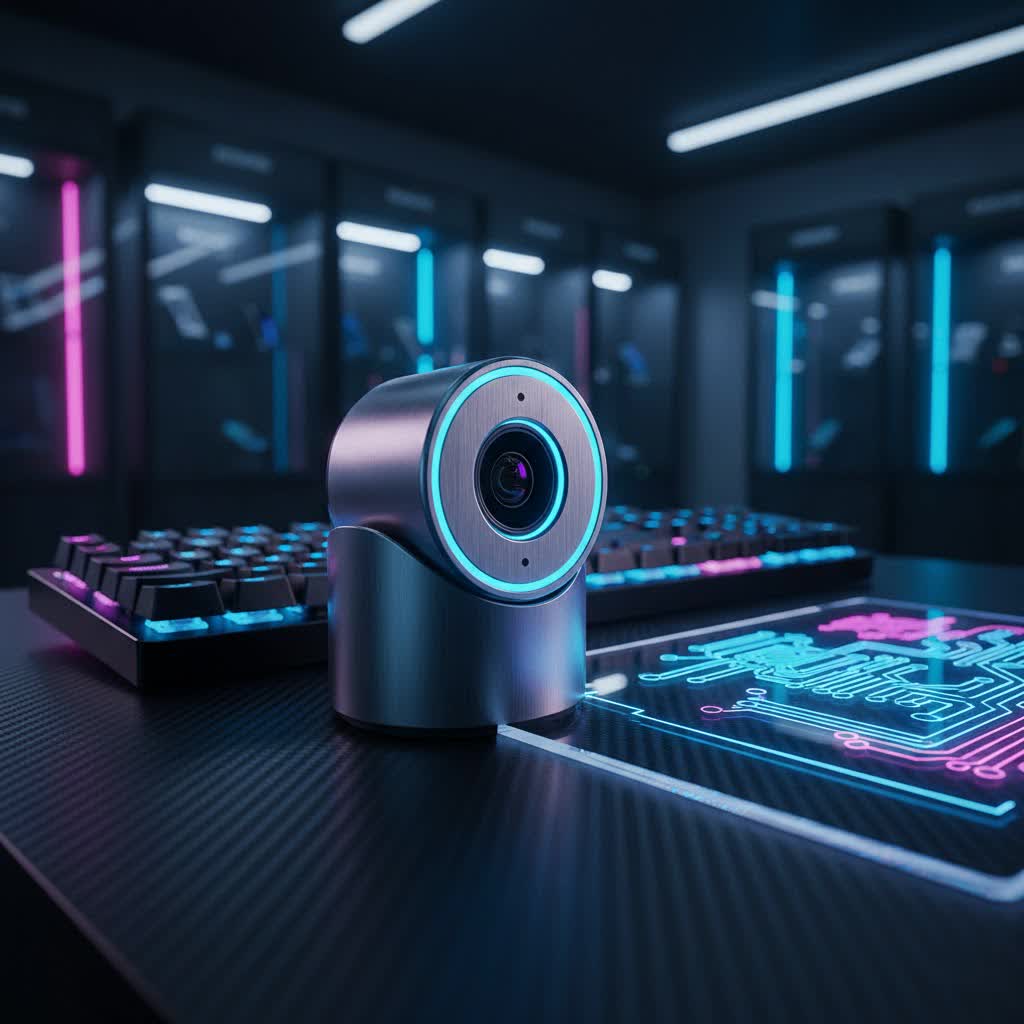
Webcam: What is it and Why Do You Need One?
A webcam, short for “web camera,” is essentially a video camera that feeds its images in real-time to a computer or computer network. It serves as your eyes and voice in the digital realm, enabling visual communication and content creation directly from your desktop. While many laptops come with integrated cameras, these often fall short in terms of image quality and features, and dedicated desktop computers rarely include a built-in option.
The utility of a good desktop camera extends across numerous aspects of daily life and work. For students, it’s crucial for participating in online lectures and group projects. For professionals, it facilitates crystal-clear video conferences, client presentations, and team collaborations. Content creators and streamers rely on high-performance webcams to engage their audiences with professional-grade video. Beyond these, a quality Computer Webcam simply makes virtual social interactions more personal and enjoyable, bridging distances with vibrant, clear imagery. The benefits of upgrading to a dedicated webcam are undeniable: superior image and audio quality, better low-light performance, and advanced features that enhance your overall digital communication experience.
Types of Cameras for Your Desktop
When considering a camera for your desktop, it’s helpful to understand the different types available, each with its own set of advantages and limitations. The primary distinction lies between integrated and external solutions.
- Integrated Cameras: These are typically found built into laptops or, less commonly, all-in-one desktop monitors. While convenient, their small size often compromises sensor quality, leading to poorer performance in challenging lighting conditions and lower overall resolution compared to external options. They are “plug-and-play” but offer minimal flexibility.
- External USB Webcams: The most popular choice for desktop users, these cameras connect via a USB port and typically clip onto the top of your monitor or stand on your desk. They offer significantly better image and audio quality, a wider range of features, and greater flexibility in positioning. External webcams come in various resolutions and price points, catering to different needs and budgets.
- Specialized Streaming Cameras: Designed for content creators, these webcams push the boundaries with features like 4K resolution, high frame rates (60fps), advanced low-light sensors, AI-powered tracking, and professional-grade software. While often more expensive, they provide unparalleled quality for live streaming and video production. Some mirrorless or DSLR cameras can also be adapted for this purpose with capture cards, offering the highest quality but at a much greater cost and complexity.
Each type serves a specific purpose, and understanding their differences is the first step toward finding the perfect camera for your desktop.
Key Factors When Choosing a Camera on Desktop
Selecting the right camera for your desktop involves evaluating several technical specifications and features to match your specific needs. Focusing on these elements ensures you invest in a device that genuinely enhances your digital interactions.
- Resolution: This is arguably the most critical factor, dictating the sharpness and detail of your video.
- 720p (HD): Offers a basic standard, suitable for casual video calls.
- 1080p (Full HD): The current sweet spot for most users, providing clear, crisp video for professional meetings and general use. Many online platforms default to 1080p.
- 4K (Ultra HD): Delivers exceptional detail, ideal for content creators, streamers, and those demanding the absolute best quality. Keep in mind that 4K requires more bandwidth and processing power.
- Frame Rate (FPS): Measured in frames per second, FPS determines the fluidity of your video.
- 30 FPS: Standard for most webcams and sufficient for typical video conferencing, providing a smooth enough motion.
- 60 FPS: Offers significantly smoother video, crucial for fast-paced movements, gaming streams, or creating high-quality content where motion clarity is paramount.
- Field of View (FoV): This specifies how much of the scene the camera captures, measured in degrees.
- Narrow FoV (60-78 degrees): Best for individual users, focusing solely on you and minimizing background distractions.
- Wide FoV (80-90+ degrees): Suitable for capturing multiple people or showcasing more of your environment, ideal for group meetings or educational settings.
- Microphone: Most desktop cameras come with built-in microphones. While convenient, their quality can vary significantly.
- Look for models with noise-cancellation and echo-reduction features for clearer audio.
- For critical applications like podcasting or professional streaming, an external microphone often provides superior sound quality.
- Additional Features: Modern webcams are packed with smart functionalities.
- Autofocus: Ensures you remain sharp even if you move within the frame.
- Automatic Light Correction: Adjusts exposure to ensure you’re well-lit, even in dim conditions.
- Privacy Shutter: A physical cover for the lens, offering peace of mind when the camera is not in use.
- AI Tracking/Auto-Framing: Keeps you centered in the frame, particularly useful if you move around during presentations.
- Lens Type: A glass lens generally provides superior optical quality, producing sharper images with more accurate colors and better low-light performance than a plastic lens.
- Connectivity & Mounting: Ensure the webcam’s USB connector (USB-A or USB-C) is compatible with your desktop. Check its mounting options; most clip onto monitors, but some offer tripod threads or freestanding bases for versatile placement.
> “The resolution and frame rate are the foundational pillars of video quality, but don’t overlook the microphone. Great video with poor audio is a common pitfall in virtual communication.” – Alex Chen, Lead Product Reviewer, TechInsights
Comparison Table: Top Desktop Cameras (Webcams) Today
To help you navigate the myriad options, here’s a comparison of some of the best desktop cameras available, catering to various budgets and needs.
| Model | Resolution | Frame Rate | Field of View | Key Features | Price Range (USD) | Pros | Cons | Best For |
|---|---|---|---|---|---|---|---|---|
| Logitech C920 | 1080p | 30fps | 78° | Autofocus, stereo mics | $60-$80 | Excellent value, reliable, widely compatible | Basic features, 30fps max | Everyday use, budget-conscious users |
| Obsbot Tiny 2 | 4K | 30fps (4K), 60fps (1080p) | 85.5° | AI tracking, gesture control, mechanical pan/tilt | $300-$350 | Superior 4K video, advanced AI features, voice control | Premium price, may be overkill for casual use | Content creators, professionals, streamers |
| Insta360 Link 2 | 4K | 30fps | 79-85° (adjustable) | AI tracking, desk mode, gimbal design, noise-cancelling mics | $290-$320 | DSLR-like quality, innovative modes, excellent software | High price, “Desk Mode” can be fiddly | High-end professionals, educators, streamers |
| Elgato Facecam MK.2 | 1080p | 60fps | 84° | Uncompressed video, Sony STARVIS sensor, software control | $150-$180 | Fantastic picture quality, great for streaming, durable build | No 4K, relies on external audio | Gamers, streamers, content creators |
| Anker PowerConf C200 | 2K (QHD) | 30fps | 78°, 90°, 110° | Autofocus, privacy shutter, stereo mics, light correction | $70-$100 | Great low-light performance, flexible FoV, good value | Not 4K, 30fps max | Mid-range users, dim offices, small groups |
Buying Guide: How to Purchase the Right Desktop Camera
Purchasing a camera for your desktop should be a well-informed decision. Follow these steps to ensure you pick the perfect device for your unique requirements.
- Identify Your Needs: Begin by clearly defining how you’ll primarily use the camera. Are you looking for a basic solution for occasional video calls, a professional-grade device for daily remote work, or a high-performance camera for streaming and content creation? Your main purpose will dictate the necessary features and budget.
- Set a Budget: Webcam prices range from under $50 to over $300. Having a budget in mind helps narrow down your options quickly. Remember, a higher price often correlates with advanced features and better quality, but excellent value can be found at all price points. For most users, a 1080p webcam around the $70-$150 mark offers a great balance of performance and affordability.
- Research Brands: Stick with reputable brands known for quality and customer support, such as Logitech, Obsbot, Insta360, Elgato, Razer, and Anker. These brands often provide reliable drivers, software, and firmware updates.
- Consider Retailers: You can purchase desktop cameras from major electronics retailers (Best Buy, Amazon, Newegg), directly from manufacturer websites, or through specialized online stores. Read customer reviews and check return policies before buying.
- Check Compatibility and Requirements: Ensure the webcam is compatible with your operating system (Windows, macOS, Linux) and the specific video conferencing or streaming software you plan to use (Zoom, Microsoft Teams, OBS Studio). Also, verify your computer has adequate USB ports (USB 2.0, 3.0, or USB-C) and processing power, especially for 4K cameras.
- Read Reviews and Watch Demos: Before making a final decision, consult professional reviews and watch video demonstrations of the specific models you’re considering. Pay attention to feedback on video quality in different lighting, audio performance, and software usability.
> “Always consider your environment. A fantastic 4K webcam won’t perform optimally if your lighting is poor or your internet connection is unstable.” – Dr. Emily R. Hayes, Digital Media Consultant
Top Picks: Most Popular Desktop Cameras
Let’s dive deeper into a few standout models that consistently receive high marks from users and experts alike, offering solutions for different user profiles.
Logitech C920: The Reliable Workhorse
|
Our Picks for the Best Computer Webcam in 2026
As an Amazon Associate I earn from qualifying purchases.
|
||
| Num | Product | Action |
|---|---|---|
| 1 | Logitech Brio 101 Full HD 1080p Webcam for Meetings, Streaming, Desktop, Laptop, PC - Built-in Mic, Shutter, Works with Zoom, Microsoft Teams, Nintendo Switch 2’s New GameChat Mode, USB-A,-Black |

|
| 2 | EMEET 1080P Webcam with Microphone, C960 Web Cam, 2 Mics, 90° FOV, USB Type-A & A-to-C Adapter, Plug&Play Computer Camera for Online Calling, Zoom/Teams/Facetime, Switch 2 Camera Support, 2025 Version |
|
| 3 | NexiGo N60 1080P Webcam with Microphone, Software Control & Privacy Cover, USB HD Computer Web Camera, Plug and Play, for Zoom/Skype/Teams, Conferencing and Video Calling |
|
| 4 | Logitech C920e HD 1080p Mic-Enabled Webcam, Certified for Zoom, Microsoft Teams Compatible, TAA Compliant |
|
| 5 | Shcngqio 1080P HD Webcam with Microphone, Noise Cancellation, Privacy Cover, Wide-Angle Lens, Auto Light Correction, Plug & Play USB Webcam for Laptop, Desktop, PC, Mac, Zoom, Skype, Streaming (Black) |
|
| 6 | Logitech C920x HD Pro PC Webcam, Full HD 1080p/30fps Video, Clear Audio, HD Light Correction, Works with Microsoft Teams, Google Meet, Zoom, Nintendo Switch 2’s New GameChat Mode, Mac/Tablet- Black |
|
| 7 | TRAUSI 1080P Webcam with Active Light Correction, Privacy Cover, Plug and Play USB Webcam for PC/Desktop/Laptop |
|
| 8 | Logitech C270 HD Webcam, 720p, Widescreen HD Video Calling, Light Correction, Noise-Reducing Mic, Works with Zoom, Nintendo Switch 2’s New GameChat Mode, PC/Mac/Laptop/MacBook/Tablet - Black |
|
| 9 | Gohero Full HD 1080P Video Webcam, Noise Cancellation, Privacy Cover, Wide-Angle Lens, Auto Light Correction, Plug & Play USB Webcam for Laptop, Desktop, PC, Mac, Zoom, Skype Pro Series |
|
| 10 | RUWBY Full HD 1080P Webcam with Built-in Dual Mics, Wide-Angle Lens, Privacy Cover, Tripod Stand, Autofocus Computer Camera, Plug and Play for Desktop PC or Laptop |
|
The Logitech C920 has been a staple in the webcam market for years, and for good reason. It offers excellent 1080p video at 30fps, autofocus, and decent stereo microphones, all at a very accessible price point. Its image quality consistently outperforms most built-in laptop cameras, making it an ideal upgrade for remote workers, students, and casual video callers. It’s a true plug-and-play device that works seamlessly with virtually all video conferencing platforms. While it lacks 4K resolution or advanced AI features, its reliability and value are unmatched for everyday use.
Obsbot Tiny 2: The Smart Innovator
For those seeking cutting-edge technology, the Obsbot Tiny 2 is a game-changer. This 4K webcam features a mechanical gimbal for smooth pan and tilt, coupled with advanced AI-powered auto-tracking that keeps you perfectly framed even if you move. Gesture control and voice commands add to its futuristic appeal. Its large 1/2-inch sensor delivers superb low-light performance and dynamic range. While it comes with a premium price tag, the Tiny 2 is an investment for professionals, educators, and content creators who need superior image quality and intelligent framing without constantly adjusting their camera.
Elgato Facecam MK.2: For Serious Streamers and Creators
The Elgato Facecam MK.2 is engineered specifically for content creators and streamers. It focuses on delivering uncompressed 1080p video at a smooth 60 frames per second, crucial for fluid, artifact-free live broadcasts. Equipped with a high-quality Sony STARVIS sensor, it excels in various lighting conditions. While it doesn’t offer 4K, its optimized 1080p/60fps output is exactly what most streaming platforms handle best. It’s built with a robust, fixed-focus glass lens and powerful software control for granular image adjustments, making it a top choice for dedicated online personalities.
Tips for Using and Maintaining Your Desktop Camera
Once you’ve chosen your ideal camera on desktop, proper setup and care can significantly enhance its performance and longevity.
Installation and Configuration
- Plug-and-Play: Most modern webcams are plug-and-play. Simply connect the USB cable to an available port on your desktop. Your operating system should automatically detect and install the necessary drivers.
- Driver Software: If auto-installation doesn’t occur, or if your camera has advanced features, visit the manufacturer’s website to download the latest drivers and companion software. Install these to unlock full functionality.
- Disable Built-in Cameras: If your desktop monitor or laptop has an integrated camera, remember to disable it in your system settings (e.g., Windows Settings > Bluetooth & devices > Cameras or macOS System Preferences > Security & Privacy > Camera) to ensure your new external camera is used as the default.
- Test and Adjust: Use your operating system’s camera app or a video conferencing tool to test your webcam. Adjust settings like resolution, frame rate, brightness, contrast, and microphone levels within the camera’s software or your application’s settings.
Optimizing Your Environment
- Lighting is Key: Position yourself facing a light source (like a window or a ring light) rather than having it behind you. Good, even front lighting dramatically improves image quality.
- Background Matters: Choose a clean, uncluttered background. If privacy is a concern, many video conferencing apps offer virtual backgrounds or background blur features.
- Camera Angle: Position your camera at eye level or slightly above. This creates a more flattering and engaging perspective. Avoid looking up or down at the camera.
Maintenance
- Clean the Lens: Gently wipe the lens with a microfiber cloth to remove dust and smudges, which can degrade image quality. Avoid harsh chemicals.
- Software Updates: Regularly check for firmware and software updates from the manufacturer. These often provide performance improvements, bug fixes, and new features.
- Proper Storage: When not in use, especially for portable models, store your Computer Webcam in a protective pouch to prevent scratches and damage.
Conclusion
Choosing the right camera for your desktop is an investment in clearer communication, more engaging content, and a more professional online presence. By understanding the different types of webcams, focusing on key features like resolution and frame rate, and following practical buying and usage tips, you can confidently select a device that perfectly aligns with your needs. From basic video calls to high-stakes streaming, a quality Computer Webcam empowers you to connect with confidence and clarity.
What are your primary goals for your next desktop camera, and what feature do you value most?
Frequently Asked Questions
How do I connect an external camera to my desktop computer?
Most external cameras connect via a USB port (USB-A or USB-C). Simply plug the camera’s USB cable into an available port on your desktop. Your operating system will typically recognize it as a “plug-and-play” device and install the necessary drivers automatically.
What resolution is best for a desktop camera?
For most users, 1080p (Full HD) offers an excellent balance of quality and performance, suitable for video calls and casual streaming. If you’re a professional content creator or streamer, a 4K camera will provide the highest detail, but requires more bandwidth and computing power.
Do I need to install drivers for my new webcam?
Modern operating systems often install generic drivers automatically when you plug in a new webcam. However, to access all advanced features and ensure optimal performance, it’s usually best to download and install the specific driver software from the camera manufacturer’s official website.
Can I use a desktop camera for live streaming?
Yes, many desktop cameras are excellent for live streaming. Look for models with high resolution (1080p or 4K) and a fast frame rate (60fps) for the smoothest, most professional-looking streams. Features like low-light correction and advanced autofocus are also beneficial for live content.
How can I improve my webcam’s video quality?
Improving lighting is paramount; position a light source in front of you. Ensure your background is clean and uncluttered. Adjust your camera’s settings like brightness, contrast, and white balance in its accompanying software. Finally, keep your camera lens clean with a microfiber cloth.
What is “Field of View” in a webcam, and why does it matter?
Field of View (FoV) refers to how much of the scene your camera captures, measured in degrees. A narrower FoV (e.g., 60-78°) focuses on a single person, minimizing background. A wider FoV (e.g., 90°+) is better for showing more of your environment or including multiple people in the shot, like for group meetings.
