In today’s interconnected world, a clear and consistent video presence is more crucial than ever. Whether you’re collaborating with colleagues, attending virtual classes, connecting with loved ones, or even launching your streaming career, a reliable webcam is your window to the digital realm. While many laptops come equipped with built-in cameras, they often fall short in image quality and features, leaving you looking less than your best. The good news? You don’t need to splurge on a premium device to achieve impressive video. This comprehensive guide will help you discover the best affordable computer webcams that deliver exceptional performance without emptying your wallet.
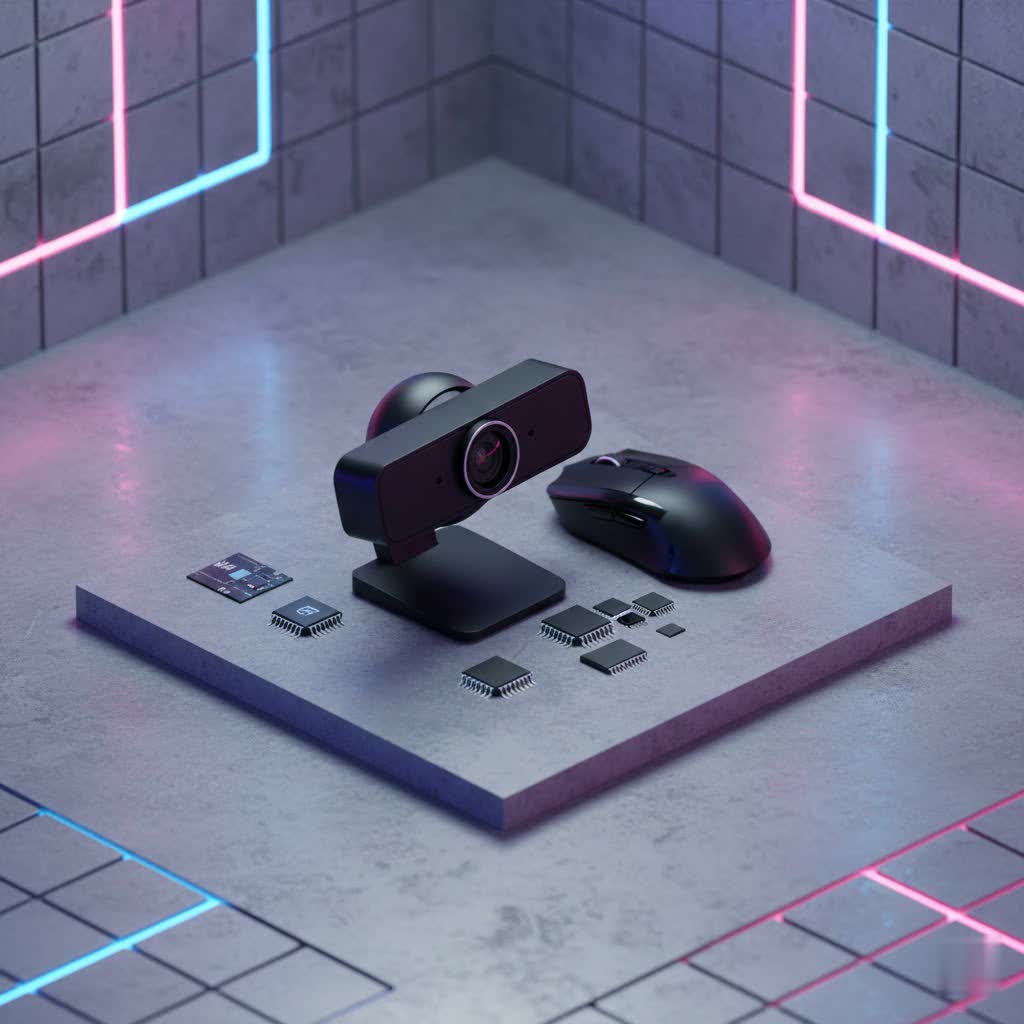
Computer Webcam: Your Gateway to Clearer Communication
A computer webcam is an input device that captures still images or motion video and transmits them over a computer network or saves them to a drive. It’s an indispensable tool for myriad digital activities. Think about it: every online meeting, virtual classroom session, or live stream relies heavily on the quality of your video feed.
Compared to integrated laptop cameras, external webcams offer vastly superior image sensors, better lenses, and a wider array of features. This translates to sharper images, more accurate colors, and improved performance in challenging lighting conditions. Investing in a quality yet affordable webcam means you’ll always present a professional and engaging image, boosting your confidence in every virtual interaction. From ensuring your professor sees your focused expression to making sure your teammates catch every nuance of your presentation, a dedicated webcam makes a significant difference.
Types of Affordable Computer Webcams
The market offers a range of webcams, even within the budget-friendly segment, each suited for different needs. Understanding these types will help you narrow down your choices.
- Basic USB Webcams: These are typically plug-and-play devices designed for everyday use, such as casual video calls and online meetings. They often offer 720p or 1080p resolution at 30 frames per second (fps) and feature integrated microphones. They prioritize simplicity and affordability.
- Webcams with Enhanced Features: Stepping up slightly, these models cater to casual streamers, content creators, or those in frequent online meetings who desire better image quality and more advanced functionalities. They might offer 1080p at 60fps, improved autofocus, better low-light correction, and sometimes wider fields of view. Some may even include built-in ring lights or privacy shutters.
- Integrated vs. External: Integrated webcams are built directly into laptops and monitors. While convenient, their small size often compromises sensor and lens quality. External webcams, on the other hand, are standalone units that connect via USB, offering larger sensors, better optics, and more flexible positioning, leading to a substantial upgrade in video quality.
Key Factors When Choosing an Affordable Computer Webcam
Selecting the perfect affordable webcam involves a balance of features and budget. Here are the crucial aspects to consider:
- Resolution:
- 720p: The entry-level resolution, suitable for basic video calls where bandwidth might be an issue. It’s often the cheapest option.
- 1080p (Full HD): This is the sweet spot for most users seeking a balance between quality and affordability. A 1080p webcam provides crisp, clear video, ideal for professional meetings, online learning, and casual streaming. Most popular video conferencing platforms like Zoom and Microsoft Teams are optimized for 1080p.
- 4K: While increasingly available, budget 4K webcams can be a mixed bag. They offer impressive detail, but often require robust lighting and might need software adjustments to look their best. Moreover, 4K streaming demands more bandwidth and processing power, and many platforms don’t natively support it, making it overkill for many users.
- Frame Rate (FPS):
- 30fps: Generally sufficient for standard video conferencing and most online activities, providing smooth enough motion.
- 60fps: Delivers exceptionally fluid video, making it ideal for fast-paced content like gaming streams or active presentations. While often found in higher-end models, some affordable webcams now offer 1080p at 60fps.
- Field of View (FOV): This refers to how much of the scene the camera captures.
- A narrower FOV (around 70-80 degrees) is best for individual use, focusing solely on you without revealing too much background.
- A wider FOV (90 degrees or more) is suitable for including multiple people, showcasing more of your environment, or if you tend to move around during presentations.
- Microphone Quality: Many affordable webcams come with built-in microphones. Look for models with dual omnidirectional mics and noise reduction technology for clearer audio. However, for professional streaming or if you prioritize pristine sound, a dedicated external microphone is always recommended.
- Autofocus vs. Fixed Focus:
- Autofocus automatically adjusts the lens to keep you sharp, even if you move closer or further from the camera. This is highly beneficial for dynamic presentations or content creation.
- Fixed focus webcams have a set focal distance. They are simpler and often cheaper but require you to stay within a specific range to remain in focus.
- Low-Light Performance & Auto-Correction: If your environment isn’t consistently well-lit, a webcam with good low-light capabilities and automatic light correction (like Logitech’s RightLight technology) is crucial. These features help prevent grainy or underexposed video, ensuring you always look bright and clear.
- Additional Features: Consider perks like a physical privacy shutter for peace of mind, a built-in ring light for instant illumination, or software that allows you to fine-tune settings like brightness, contrast, and white balance.
Top Picks: Best Affordable Computer Webcams for Every Need
Finding the right balance of features and cost can be challenging, but several models consistently stand out for their exceptional value. Here’s a comparison of some of the most highly-rated affordable webcams currently available:
| Model | Resolution / FPS | Key Features | Price Range (Approx.) | Pros | Cons |
|---|---|---|---|---|---|
| Logitech C920 HD Pro | 1080p/30fps, 720p/30fps | Autofocus, dual-mic stereo, glass lens, optimized for various environments | $50 – $70 | Excellent image quality, reliable, good audio, durable, long-standing favorite. | Max 30fps, older model but still performs well. |
| eMeet C960 | 1080p/30fps | 90° FOV, auto low-light correction, omnidirectional noise reduction mics | $30 – $50 | Great overall budget choice, wide FOV, good in dim lighting, clear audio. | No digital zoom, no autofocus, fairly basic features. |
| Anker PowerConf C200 | 2K@30fps | Wide FOV, sharp picture, privacy cover, built-in mic | $50 – $70 | High resolution for the price, clear video, versatile for business and casual use. | Some users might prefer 1080p/60fps for action. |
| Logitech Brio 300 | 1080p/30fps | Auto-light correction, 70° FOV, USB-C, sleek design | $60 – $80 | Modern design, great auto-light correction, sharp autofocus, sustainable materials. | Lacks some advanced features of higher-end Brio models. |
| NexiGo N60 | 1080p/30fps | Autofocus, 75° FOV, lightweight, monitor clip-friendly | $30 – $50 | Very affordable, consistent autofocus, decent image quality for the price, easy to set up. | Basic built-in mic. |
| Elgato Facecam Neo | 1080p/60fps | Uncompressed video, autofocus lens, physical privacy shutter | $60 – $80 | Excellent for streaming and content creation due to 60fps and uncompressed output. | Might not “blow you away” with image quality, no built-in mic. |
| Depstech DW49 Pro 4K | 4K@30fps | Noise-canceling dual mics, 8MP Sony CMOS sensor, intelligent autofocus | $40 – $60 | Affordable 4K, good detail in optimal conditions, dual mics. | Autofocus and sound performance can be inconsistent for a 4K camera. |
Detailed Recommendations:
- Logitech C920 HD Pro: This webcam is a legendary workhorse, consistently praised for its excellent 1080p video quality at 30fps and clear stereo audio from its dual microphones. It’s robust, reliable, and often available at a fantastic price point, making it a go-to for video calls and casual streaming. Many streamers still use this classic model.
- eMeet C960: If you’re looking for an all-rounder under $50, the eMeet C960 is a strong contender. It offers 1080p video, a wide 90-degree field of view, and impressive auto low-light correction, ensuring good picture quality even in dimly lit rooms. The dual omnidirectional noise-reduction mics also provide clear sound.
- Anker PowerConf C200: For those who need a step up in resolution without a significant price hike, the Anker PowerConf C200 delivers 2K resolution (2560×1440) at 30fps. Its wide field of view and sharp image quality make it ideal for business meetings and presentations.
- Logitech Brio 300: A newer, stylish option from Logitech, the Brio 300 offers 1080p/30fps with excellent auto-light correction and a flexible 70-degree FOV. Its USB-C connectivity and focus on sustainability are appealing, offering strong performance for daily office or school use.
|
Our Picks for the Best Computer Webcam in 2026
As an Amazon Associate I earn from qualifying purchases.
|
||
| Num | Product | Action |
|---|---|---|
| 1 | Logitech C270 HD Webcam, 720p, Widescreen HD Video Calling, Light Correction, Noise-Reducing Mic, Works with Zoom, Nintendo Switch 2’s New GameChat Mode, PC/Mac/Laptop/MacBook/Tablet - Black |

|
| 2 | Gohero Full HD 1080P Video Webcam, Noise Cancellation, Privacy Cover, Wide-Angle Lens, Auto Light Correction, Plug & Play USB Webcam for Laptop, Desktop, PC, Mac, Zoom, Skype Pro Series |
|
| 3 | RUWBY Full HD 1080P Webcam with Built-in Dual Mics, Wide-Angle Lens, Privacy Cover, Tripod Stand, Autofocus Computer Camera, Plug and Play for Desktop PC or Laptop |
|
| 4 | Shcngqio 1080P HD Webcam with Microphone, Noise Cancellation, Privacy Cover, Wide-Angle Lens, Auto Light Correction, Plug & Play USB Webcam for Laptop, Desktop, PC, Mac, Zoom, Skype, Streaming (Black) |
|
| 5 | TRAUSI 1080P Webcam with Active Light Correction, Privacy Cover, Plug and Play USB Webcam for PC/Desktop/Laptop |
|
| 6 | Logitech Brio 101 Full HD 1080p Webcam for Meetings, Streaming, Desktop, Laptop, PC - Built-in Mic, Shutter, Works with Zoom, Microsoft Teams, Nintendo Switch 2’s New GameChat Mode, USB-A,-Black |
|
| 7 | Logitech C920e HD 1080p Mic-Enabled Webcam, Certified for Zoom, Microsoft Teams Compatible, TAA Compliant |
|
| 8 | NexiGo N60 1080P Webcam with Microphone, Software Control & Privacy Cover, USB HD Computer Web Camera, Plug and Play, for Zoom/Skype/Teams, Conferencing and Video Calling |
|
| 9 | Logitech C920x HD Pro PC Webcam, Full HD 1080p/30fps Video, Clear Audio, HD Light Correction, Works with Microsoft Teams, Google Meet, Zoom, Nintendo Switch 2’s New GameChat Mode, Mac/Tablet- Black |
|
| 10 | EMEET 1080P Webcam with Microphone, C960 Web Cam, 2 Mics, 90° FOV, USB Type-A & A-to-C Adapter, Plug&Play Computer Camera for Online Calling, Zoom/Teams/Facetime, Switch 2 Camera Support, 2025 Version |
|
Buying Guide: Smart Shopping for Your Affordable Computer Webcam
Navigating the options for affordable webcams can be straightforward if you follow a few key steps:
- Define Your Primary Use Case: What do you need the webcam for? Simple video chats, online learning, professional meetings, or streaming? Your primary need will dictate the features to prioritize. For instance, a streamer might value 60fps, while someone for business calls might prioritize autofocus and low-light correction.
- Set a Realistic Budget: “Affordable” is subjective. Determine your comfortable spending limit. Many excellent options fall between $30 and $80.
- Consider Reputable Brands: Brands like Logitech, Anker, eMeet, and NexiGo have established reputations for quality and support in the webcam market, even for their budget offerings.
- Read Reviews and Watch Demos: Pay attention to user reviews and expert comparisons. Look for feedback on real-world performance, especially concerning image clarity, low-light handling, and microphone quality. Video demos can be especially helpful in assessing actual output.
- Check Compatibility: Ensure the webcam is compatible with your operating system (Windows, macOS, ChromeOS) and the video conferencing or streaming platforms you use most frequently.
- Don’t Overspend on Unnecessary Features: While 4K sounds appealing, if your primary platform (like Zoom) only supports 1080p, you might be paying for a feature you won’t fully utilize. Focus on features that directly enhance your specific use case.
Maximizing Your Affordable Webcam’s Performance
Even the best affordable webcam can underperform without proper setup. Here are some tips to get the most out of your device:
- Proper Placement and Angle: Position your webcam at eye level to create a more natural and engaging connection. Avoid placing it too high or too low, which can result in unflattering angles.
- Importance of Good Lighting: This is perhaps the single most impactful factor for improving video quality. Natural light from a window in front of you is ideal. If natural light isn’t available, invest in an inexpensive ring light or softbox to illuminate your face evenly. Avoid backlighting, which can turn you into a silhouette.
- Software Adjustments: Many webcams come with proprietary software or integrate with your computer’s settings, allowing you to fine-tune brightness, contrast, white balance, and even zoom or field of view. Experiment with these settings to achieve your desired look.
- Keep the Lens Clean: Dust, fingerprints, or smudges on the lens can significantly degrade image quality. Gently wipe the lens with a microfiber cloth regularly.
- Maintain Your Software: Keep your webcam drivers and any associated software updated to ensure optimal performance and access to the latest features and bug fixes.
“A great webcam is only half the battle; good lighting is the unseen hero that truly makes your video shine.” – Jane Doe, Tech Reviewer, ReviewMBAs.com
Conclusion
Upgrading your computer webcam doesn’t have to be an expensive endeavor. As we’ve explored, the market is rich with affordable options that offer impressive video quality and essential features for every need, from daily video calls to budding streaming careers. By understanding key specifications like resolution, frame rate, and crucial features like autofocus and low-light correction, you can confidently choose a device that significantly enhances your online presence. Remember to consider your specific usage and prioritize features that truly matter to you. With the right affordable webcam and a few simple setup tweaks, you can easily achieve clear, professional-quality video every time.
Are you ready to transform your virtual interactions with a new affordable webcam?
Frequently Asked Questions
What resolution is best for a budget webcam?
For most users, 1080p (Full HD) at 30fps offers the best balance of image quality and affordability in a budget webcam. It provides crisp visuals suitable for video conferencing, online learning, and casual streaming without excessive bandwidth demands, making it a versatile and future-proof choice for many applications.
Is a dedicated webcam better than a laptop camera?
Yes, a dedicated computer webcam is almost always superior to a built-in laptop camera. External webcams typically feature larger, higher-quality sensors, better lenses, and advanced image processing capabilities, resulting in clearer, sharper video, improved low-light performance, and often better audio quality.
What features are essential in an affordable webcam?
When choosing an affordable webcam, essential features include at least 1080p resolution for clear video, 30fps for smooth motion, reliable autofocus (or a good fixed focus), decent low-light performance with auto-correction, and a built-in microphone. A privacy shutter and adjustable field of view are also highly beneficial additions.
How important is lighting for webcam quality?
Lighting is critically important for webcam quality. Even an expensive webcam will struggle in poor lighting, producing grainy or shadowed images. Good, even lighting (ideally from in front of you) can drastically improve your video’s clarity, color accuracy, and overall professionalism, making your picture look vibrant and well-defined.
