In today’s interconnected world, a reliable webcam is more than just an accessory—it’s your window to colleagues, clients, friends, and family. Whether you’re navigating the complexities of remote work, engaging in online learning, or broadcasting your passion to the world, the quality of your video feed makes an undeniable impact. While standard HD webcams have served us well, the leap to 4K Ultra HD Computer Webcam technology offers a level of detail and clarity that can transform your virtual presence from merely adequate to truly professional. This comprehensive guide will delve into everything you need to know about 4K webcams, helping you choose the perfect device to elevate your digital interactions.
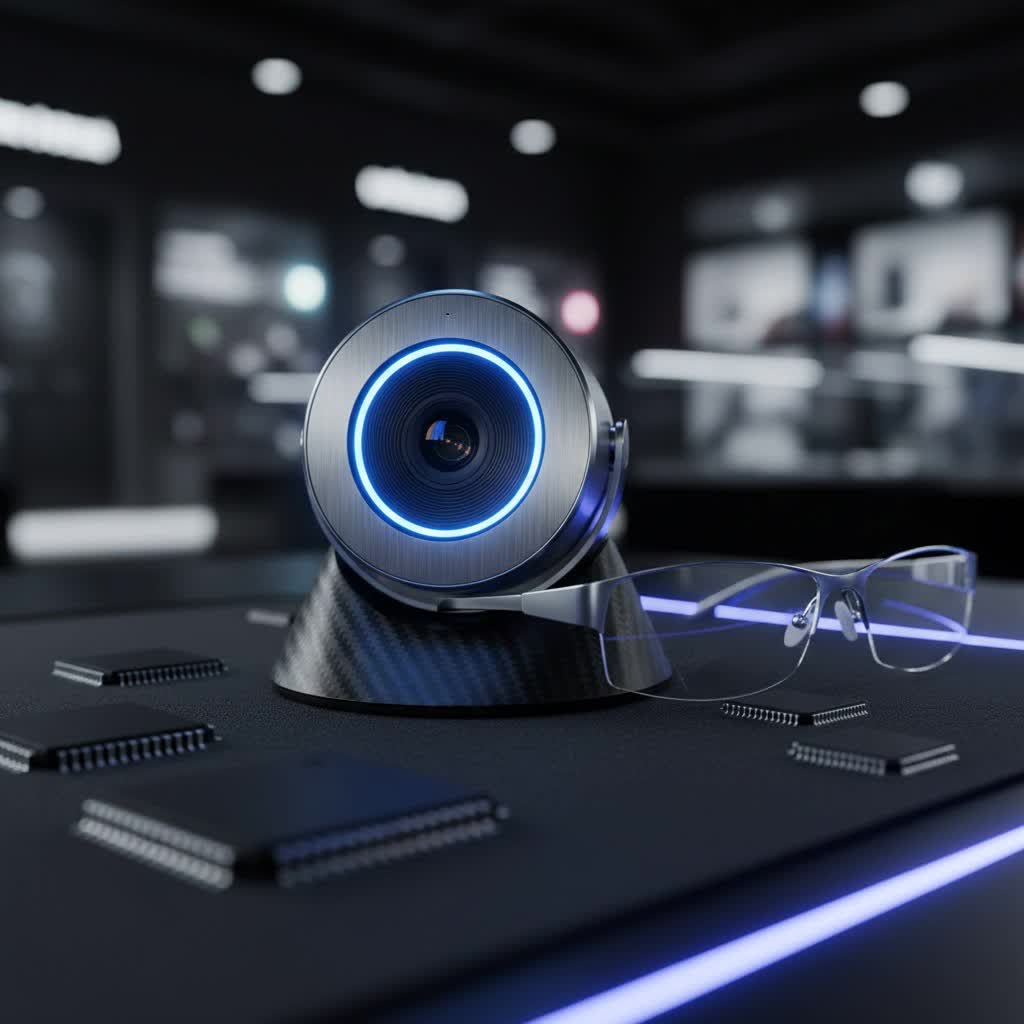
What is a Computer Webcam and Why Does a 4K One Matter?
A computer webcam is a digital video camera that connects to a computer, typically via USB, allowing it to capture and transmit video and often audio. These devices are indispensable for a myriad of activities, ranging from online meetings on platforms like Zoom, Google Meet, and Microsoft Teams, to virtual classrooms, live streaming on Twitch or YouTube, and simply staying connected with loved ones.
The significance of a 4K Computer Webcam, even if your primary output is 1080p, lies in its superior sensor and optics. A 4K sensor captures significantly more data and detail than a 1080p sensor. This abundance of information allows the webcam to produce a much sharper, clearer, and more vibrant 1080p image through downsampling, offering noticeable improvements in color accuracy, dynamic range, and low-light performance. Essentially, a 4K webcam provides a foundation for exceptional video quality, making your virtual presence more polished and professional.
Types of Computer Webcams
When considering a computer webcam, it’s helpful to understand the different categories available:
- Integrated Webcams: These are built directly into laptops and some monitors. While convenient, they often compromise on image quality, featuring smaller sensors and lower resolutions due to space and cost constraints. They are generally sufficient for basic video calls but fall short for professional or streaming needs.
- External USB Webcams: The most common and versatile type, these connect via a USB cable. They offer a wide range of resolutions, features, and price points, from basic HD models to advanced 4K Ultra HD options. External webcams typically provide superior image quality, better low-light performance, and often include features like autofocus and improved microphones.
- Specialized Webcams: This category includes devices designed for specific uses, such as high-end streaming cameras with advanced AI tracking, mechanical gimbals for dynamic movement, or enterprise-grade webcams optimized for conference rooms. These often come with premium features and a higher price tag.
For those seeking the pinnacle of video quality, an external 4K Computer Webcam is undoubtedly the preferred choice, offering a substantial upgrade over integrated solutions.
Key Factors When Choosing the Best 4K Computer Webcam
Selecting the ideal 4K Computer Webcam requires careful consideration of several critical factors that impact performance and suitability for your specific needs:
- Resolution: While 4K (3840 x 2160 pixels) is the target, understanding its interaction with other resolutions is key. Even if your video conferencing software maxes out at 1080p, a 4K sensor delivers a significantly better-looking 1080p image due to the richer data it captures. Look for “4K Ultra HD” as a baseline.
- Frame Rate (FPS): This dictates the smoothness of your video.
- 30fps: Standard for most webcams and video calls, providing a natural look.
- 60fps: Ideal for fast-moving content, gaming streams, or anyone desiring ultra-smooth video. Some premium 4K webcams, like the Elgato Facecam Pro, offer 4K at 60fps.
- Field of View (FOV): Measured in degrees, FOV determines how much of your background is captured.
- Narrow (65-78 degrees): Good for individual close-ups, focusing on just you.
- Wide (90+ degrees): Suitable for showing more of your environment, group calls, or if you move around. Some advanced webcams allow you to adjust the FOV.
- Microphone Quality: While external microphones are always recommended for the best audio, a good integrated microphone can be sufficient for basic calls. Some 4K webcams boast excellent built-in mics, effectively reducing background noise. However, many still struggle in this area, so check reviews specifically for audio performance.
- Additional Features:
- Autofocus: Essential for maintaining sharp focus, especially if you move or present objects to the camera.
- Automatic Light Correction (HDR): High Dynamic Range (HDR) helps balance exposure in challenging lighting conditions, preventing overexposed bright areas and underexposed shadows. This is crucial for looking good in varied environments.
- AI Tracking & Gimbal: Features like those found in the Obsbot Tiny 2 or Insta360 Link allow the camera to automatically follow your movements, pan, tilt, and zoom to keep you perfectly framed. Ideal for dynamic presenters or content creators.
- Privacy Shutter: A physical or digital cover for the lens provides peace of mind when the webcam is not in use.
- Software: Dedicated software (e.g., Logitech G Hub, Razer Synapse) offers granular control over image settings, color profiles, and firmware updates.
- Sensor Size and Optics: Beyond mere resolution, the physical size of the sensor and the quality of the lens (optics) are paramount. A larger sensor can capture more light, leading to better low-light performance and less digital noise. Premium glass lenses further enhance sharpness and clarity.
Top Picks: A Comparison of the Best 4K Computer Webcams
Choosing the “best” 4K Computer Webcam often comes down to balancing features, performance, and budget for your specific use case. Here’s a comparison of some highly-rated models that consistently appear at the top of expert reviews:
| Model | Resolution | Max FPS | FOV | Key Features | Pros | Cons | Ideal For |
|---|---|---|---|---|---|---|---|
| Logitech MX Brio | 4K Ultra HD | 30 | 90/78/65° | HDR, Auto-light correction, AI face-based exposure, Dual beamforming mics | Excellent video/audio, premium build, adjustable FOV, privacy shutter | Pricey, no mechanical pan/tilt | Professionals, everyday users |
| Dell UltraSharp HDR 4K | 4K Ultra HD | 24/30 | 65/78/90° | Large Sony STARVIS sensor, HDR, AI Auto-Framing, Windows Hello | Superb image quality, AI framing, great in low light | No built-in microphone, expensive | Image quality purists, secure login |
| Obsbot Tiny 2 | 4K Ultra HD | 30 | 85.5° | AI Tracking (mechanical pan/tilt/zoom), Gesture/Voice control, large sensor | Best-in-class AI tracking, excellent 4K video, good mic, compact | Expensive, AI tracking can be too sensitive | Content creators, presenters, educators |
| Razer Kiyo Pro Ultra | 4K Ultra HD | 30 | 82-72° | Large 1/1.2″ sensor, f/1.7 aperture, advanced low-light, HDR | Exceptional image quality, best low-light performance, wide aperture | Pricey, noticeable barrel distortion (fisheye effect) | Streamers, low-light environments |
| Insta360 Link | 4K Ultra HD | 30 | 79.5° | 3-axis gimbal, AI tracking, advanced whiteboard mode, desk view, portrait mode | Versatile AI features, great color accuracy, innovative design | Pricey, geared towards specific creative uses | Content creators, educators |
| Elgato Facecam Pro | 4K Ultra HD | 60 | 90° | True 4K at 60fps, large prime lens, robust software control, uncompressed video | Unmatched 4K/60fps, excellent optics, pro-grade software, for enthusiasts | No built-in microphone, fixed focus, high price | Pro streamers, videographers |
> “The true power of a 4K webcam isn’t just in its pixel count, but in the larger sensors and advanced optics that allow it to capture more light and detail, resulting in a superior image even when downscaled to 1080p for most applications.” – Dr. Alex Chen, Tech Analyst at ReviewMBAs.com
The Ultimate Buying Guide for Your 4K Computer Webcam
Navigating the choices for a 4K Computer Webcam can be daunting, but a structured approach will lead you to the right purchase:
- Identify Your Primary Use:
- Professional Video Calls: Look for excellent image quality, reliable autofocus, and good low-light performance (e.g., Logitech MX Brio, Dell UltraSharp).
- Streaming/Content Creation: Prioritize high frame rates (Elgato Facecam Pro), advanced AI tracking (Obsbot Tiny 2, Insta360 Link), and superior low-light capabilities (Razer Kiyo Pro Ultra).
- Online Learning/Everyday Use: A balance of quality and features with ease of use (Logitech MX Brio) might be ideal.
- Set Your Budget: 4K webcams range from mid-tier to premium. Determine how much you’re willing to invest, keeping in mind that higher price points often correlate with better sensors, optics, and advanced features.
- Research Reputable Brands: Stick to well-known manufacturers with a proven track record in webcam technology. Brands like Logitech, Dell, Obsbot, Razer, Elgato, and Insta360 consistently produce high-quality devices.
- Read Reviews and Watch Demos: Beyond professional reviews, look at user testimonials and video comparisons on platforms like YouTube to see how webcams perform in real-world scenarios and various lighting conditions. Pay close attention to feedback on microphone quality, software stability, and ease of setup.
- Consider Your System Compatibility: Ensure the webcam’s requirements (e.g., USB port type, operating system) match your computer. While most are plug-and-play, some advanced features might require specific software or drivers.
- Decide on Purchasing Location: You can buy online for convenience and wider selection or in-store to physically inspect the product and potentially test its build quality. Always verify return policies before purchase.
Maximizing Your 4K Computer Webcam Experience: Tips and Maintenance
Once you’ve chosen your 4K Computer Webcam, these tips will help you get the most out of it and maintain its performance:
- Proper Setup and Configuration:
- Placement: Position your webcam at eye level to create a more engaging and natural appearance. A small tripod or monitor mount can help achieve this.
- Software Settings: Install any accompanying software. Take time to explore and adjust settings like white balance, exposure, contrast, and sharpness to fine-tune your image.
- Connectivity: Use a high-quality USB 3.0 or higher port for optimal bandwidth, especially for 4K video.
- Optimize Lighting and Camera Angle:
- Frontal Lighting: Position a light source (ring light, softbox, or even a window) in front of you, slightly above the webcam. Avoid backlighting, which can silhouette you.
- Minimize Shadows: Diffuse harsh light to eliminate distracting shadows on your face or background.
- Background: Keep your background clean, uncluttered, and well-lit. A shallow depth of field (a feature in some webcam software) can help blur the background.
- Angle: Experiment with slight angles to find your most flattering look.
- Regular Cleaning:
- Lens: Use a microfiber cloth specifically designed for optics to gently clean the lens. Avoid abrasive materials or harsh chemicals that could scratch the coating.
- Body: Wipe the body with a soft, damp cloth to remove dust and fingerprints.
- Proper Storage:
- When not in use, especially if it’s a portable webcam, store it in a protective pouch or case to prevent dust accumulation and physical damage.
- Utilize the privacy shutter (if available) to protect the lens and your privacy.
Conclusion
The pursuit of crystal-clear video quality for virtual interactions is more relevant than ever, and a 4K Computer Webcam stands as the pinnacle of personal video capture. By understanding the core technologies, evaluating key features like resolution, frame rate, and AI capabilities, and considering your specific use case, you can make an informed decision. The right 4K webcam not only enhances your appearance but also significantly improves your overall digital communication, transforming everyday calls into engaging, high-definition experiences. Are you ready to upgrade your virtual presence and unlock the full potential of 4K clarity?
Frequently Asked Questions
Is a 4K webcam worth it if my video conferencing software only supports 1080p?
|
Our Picks for the Best Computer Webcam in 2026
As an Amazon Associate I earn from qualifying purchases.
|
||
| Num | Product | Action |
|---|---|---|
| 1 | RUWBY Full HD 1080P Webcam with Built-in Dual Mics, Wide-Angle Lens, Privacy Cover, Tripod Stand, Autofocus Computer Camera, Plug and Play for Desktop PC or Laptop |

|
| 2 | Logitech C270 HD Webcam, 720p, Widescreen HD Video Calling, Light Correction, Noise-Reducing Mic, Works with Zoom, Nintendo Switch 2’s New GameChat Mode, PC/Mac/Laptop/MacBook/Tablet - Black |
|
| 3 | TRAUSI 1080P Webcam with Active Light Correction, Privacy Cover, Plug and Play USB Webcam for PC/Desktop/Laptop |
|
| 4 | Logitech C920x HD Pro PC Webcam, Full HD 1080p/30fps Video, Clear Audio, HD Light Correction, Works with Microsoft Teams, Google Meet, Zoom, Nintendo Switch 2’s New GameChat Mode, Mac/Tablet- Black |
|
| 5 | EMEET 1080P Webcam with Microphone, C960 Web Cam, 2 Mics, 90° FOV, USB Type-A & A-to-C Adapter, Plug&Play Computer Camera for Online Calling, Zoom/Teams/Facetime, Switch 2 Camera Support, 2025 Version |
|
| 6 | Shcngqio 1080P HD Webcam with Microphone, Noise Cancellation, Privacy Cover, Wide-Angle Lens, Auto Light Correction, Plug & Play USB Webcam for Laptop, Desktop, PC, Mac, Zoom, Skype, Streaming (Black) |
|
| 7 | NexiGo N60 1080P Webcam with Microphone, Software Control & Privacy Cover, USB HD Computer Web Camera, Plug and Play, for Zoom/Skype/Teams, Conferencing and Video Calling |
|
| 8 | Gohero Full HD 1080P Video Webcam, Noise Cancellation, Privacy Cover, Wide-Angle Lens, Auto Light Correction, Plug & Play USB Webcam for Laptop, Desktop, PC, Mac, Zoom, Skype Pro Series |
|
| 9 | Logitech Brio 101 Full HD 1080p Webcam for Meetings, Streaming, Desktop, Laptop, PC - Built-in Mic, Shutter, Works with Zoom, Microsoft Teams, Nintendo Switch 2’s New GameChat Mode, USB-A,-Black |
|
| 10 | Logitech C920e HD 1080p Mic-Enabled Webcam, Certified for Zoom, Microsoft Teams Compatible, TAA Compliant |
|
Absolutely. Even if your software caps output at 1080p, a 4K webcam’s larger, more advanced sensor captures significantly more detail and light. This raw data is then processed and downscaled, resulting in a much sharper, clearer, and more color-accurate 1080p image than a native 1080p webcam could achieve.
Do 4K webcams require a powerful computer?
While 4K video processing does demand more resources than 1080p, most modern computers (especially those with dedicated graphics cards or capable integrated GPUs) can handle 4K webcam feeds for recording or streaming at 30fps without significant issues. For 4K at 60fps, a more powerful CPU and GPU combination is generally recommended for optimal performance.
What is the difference between 4K and UHD?
The terms “4K” and “UHD” (Ultra High Definition) are often used interchangeably, but there’s a slight technical difference. True 4K refers to a resolution of 4096 x 2160 pixels, common in digital cinema. UHD, typically used in consumer electronics, has a resolution of 3840 x 2160 pixels. For webcams and general consumer use, “4K” almost always refers to UHD (3840 x 2160).
Can I use a 4K webcam for professional live streaming?
Yes, many 4K webcams are excellent choices for professional live streaming. Their high resolution provides incredible detail, while features like advanced low-light performance, HDR, and AI tracking can significantly enhance production value. Pairing a high-quality 4K webcam with good lighting and an external microphone can create a very professional stream.
