In today’s interconnected world, a reliable computer webcam is no longer a luxury but a necessity for work, education, and staying in touch with loved ones. While high-end models boast premium features, you don’t need to spend a fortune to get a clear, consistent image. This comprehensive guide will explore the best inexpensive computer webcams, helping you navigate the options and find a high-quality device that fits your budget without compromising on essential performance.
What is a Computer Webcam and Why Do You Need One?
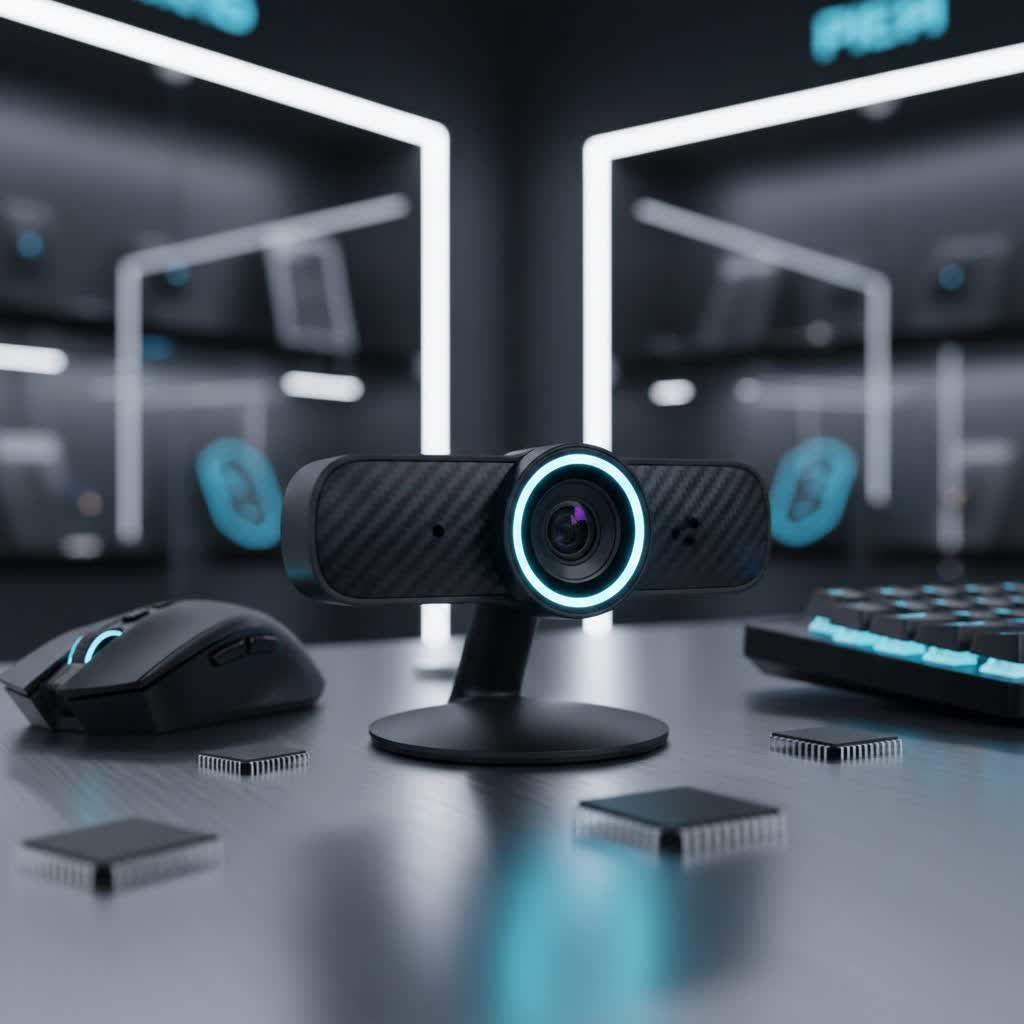
A computer webcam is a digital camera that connects to your computer, enabling you to capture and transmit video and often audio. While many laptops come with integrated webcams, external USB webcams typically offer superior image quality, better low-light performance, and more advanced features. They are essential tools for a variety of modern activities, from online learning and remote work meetings to casual video chats with family and even basic live streaming.
Using a dedicated webcam, even an inexpensive one, significantly enhances your virtual presence. It provides sharper video, clearer audio, and often better lighting correction than most built-in laptop cameras, ensuring you always look and sound your best. This can boost your professionalism in virtual meetings or improve the overall experience of connecting with friends and family.
Types of Computer Webcams
When considering a computer webcam, you’ll primarily encounter a few types, each with distinct advantages.
- Integrated Laptop Webcams: These are built directly into your laptop’s screen bezel. While convenient, they often suffer from poor resolution, weak low-light performance, and limited field of view, making them a common reason users seek external alternatives.
- External USB Webcams: These are the focus for budget buyers. They connect via a USB port and offer a vast range of features and price points. Even inexpensive models provide a significant upgrade over integrated cameras.
- Specialized Webcams: Designed for specific uses like professional streaming or high-end content creation, these typically come with features like 4K resolution, advanced autofocus, ring lights, and extensive software controls. While some budget options touch on these, true specialized webcams fall outside the “inexpensive” category.
For most users, an external USB webcam strikes the perfect balance between performance, versatility, and cost, offering superior image and sound quality for everyday needs.
Key Factors When Choosing an Inexpensive Computer Webcam
Selecting the best inexpensive computer webcam requires understanding which features deliver the most value for your money. Prioritizing these elements will ensure you get a device that meets your needs without unnecessary expense.
- Resolution: This defines the clarity and detail of your video.
- 720p (HD): The basic standard, sufficient for casual chats, but can appear soft.
- 1080p (Full HD): The sweet spot for inexpensive webcams, offering crisp video ideal for most video calls and entry-level streaming. Most major platforms cap video resolution at 1080p, making higher resolutions overkill for many.
- 2K/4K (UHD): While impressive, 4K resolution is less common in truly inexpensive models. If found, ensure your internet connection and computer can handle the extra data. Often, these models may have trade-offs in other areas like frame rate or autofocus at lower price points.
- Frame Rate (FPS): This indicates how many still images are displayed per second, impacting video smoothness.
- 30fps: Standard and perfectly adequate for most video conferencing and general use, providing a fluid experience.
- 60fps: Offers noticeably smoother motion, desirable for fast-paced gaming streams or dynamic presentations, though rarer in budget models at higher resolutions.
- Field of View (FOV): This determines how much of your surroundings the camera captures.
- Narrow FOV (e.g., 60-70 degrees): Ideal for individual use, focusing tightly on your face.
- Wide FOV (e.g., 90-110 degrees): Better for showing more of your environment, group calls, or if you tend to move around.
- Microphone: An integrated microphone is a common feature. Look for models with noise-cancelling capabilities or dual microphones for clearer audio pickup. While a dedicated external microphone will always offer superior sound, a good built-in mic is crucial for an all-in-one budget solution.
- Focus Type:
- Autofocus: Automatically adjusts to keep you sharp, even if you move. Highly recommended for convenience and dynamic users.
- Fixed Focus: Stays at a predetermined focal distance. Simpler and cheaper to implement, but requires you to stay within a specific range for optimal clarity.
- Low-Light Performance: The ability of the webcam to produce a clear image in dim lighting conditions without excessive graininess is a significant advantage, especially for home users who may not have professional lighting setups. Look for auto low-light correction features.
- Additional Features: Consider privacy shutters (a physical cover for the lens), which offer peace of mind. Some webcams also come with tripod mounts for flexible placement.
Top Inexpensive Computer Webcams Compared
Finding the best value often means comparing features across different budget-friendly models. Here’s a look at some of the most recommended inexpensive webcams, highlighting their key specifications and ideal use cases.
| Model | Resolution | FPS | FOV | Focus | Microphone | Notable Features | Price Range (Approx.) |
|---|---|---|---|---|---|---|---|
| Logitech HD Pro C920 | 1080p Full HD | 30 | 78° | Autofocus | Integrated Stereo | Auto low-light correction, universal compatibility | $50 – $70 |
| Anker PowerConf C200 | 2K Ultra-Clear | 30 | 65°-95° | Autofocus | Dual AI Noise-Cancelling | Low light correction, privacy cover | $40 – $50 |
| Nexigo N60 | 1080p Full HD | 30 | 110° | Fixed Focus | Built-in Noise-Cancelling | Privacy cover, plug-and-play | $25 – $35 |
| Creative Live! Sync 4K | 4K UHD | 25 (4K), 40 (1080p) | 95° | Manual Focus | Built-in | Privacy cover, excellent resolution for price | $45 – $60 |
| Razer Kiyo X | 1080p / 720p | 30 (1080p), 60 (720p) | 74° | Autofocus | Integrated | Razer Synapse software customization | $40 – $50 |
| Logitech Brio 101 | 1080p Full HD | 30 | Narrow | Fixed Focus | Integrated | Good low-light performance, natural image | $30 – $40 |
- Logitech HD Pro C920: This is often cited as the gold standard for budget webcams. While sometimes slightly above the $50 mark, its consistent 1080p video, reliable autofocus, and dual stereo microphones make it an exceptional value for professionals and casual users alike. Its auto low-light correction helps maintain image quality in varied lighting conditions.
- Anker PowerConf C200: A standout for those seeking higher resolution on a budget, offering 2K clarity. Its adjustable field of view and AI noise-cancelling dual microphones make it versatile for professional settings, ensuring clear visuals and audio in different environments.
- Nexigo N60: The ultimate budget champion, providing solid 1080p video at a remarkably low price. It’s a plug-and-play device with a wide 110-degree lens and a built-in noise-cancelling microphone, though its fixed focus requires users to remain within a specific range for optimal sharpness.
- Creative Live! Sync 4K: For users prioritizing resolution, this webcam delivers 4K UHD video at an incredibly affordable price. The trade-off is often a manual focus and a lower frame rate at 4K, but it’s a compelling option for vivid videography if you can manage those aspects.
- Razer Kiyo X: Geared towards gamers and streamers on a budget, it offers flexible resolution/frame rate options (1080p at 30fps or 720p at 60fps) and reliable autofocus, allowing for smooth motion. Its compatibility with Razer Synapse software provides customization options, though it lacks the built-in ring light of its more expensive sibling.
- Logitech Brio 101: A newer entrant that offers 1080p with a natural image and surprisingly decent low-light performance for its price point. It’s a straightforward, reliable option for daily video calls.
Buying Guide: How to Choose Your Best Inexpensive Computer Webcam
Navigating the market for an inexpensive webcam can feel overwhelming. Follow these steps to make an informed decision and ensure your purchase meets your expectations.
- Identify Your Primary Need: What will you use the webcam for most often?
- Basic Video Calls (Zoom, Google Meet, Teams): 1080p at 30fps with a decent built-in microphone is usually more than sufficient. Models like the Nexigo N60 or Logitech Brio 101 are excellent.
- Online Classes/Remote Work: Prioritize clear audio and good low-light performance. The Anker PowerConf C200 or Logitech C920 are strong contenders.
- Casual Streaming/Content Creation: Look for autofocus, a higher frame rate (if possible within budget), and good low-light capabilities. The Razer Kiyo X or Logitech C920 could be suitable.
- Set Your Budget: “Inexpensive” can vary. Are you aiming strictly under $30, under $50, or are you willing to stretch to $70 for a significantly better experience like the Logitech C920 often provides? Defining your limit helps narrow down choices.
- Prioritize Key Features: Based on your needs, decide which features are non-negotiable. Is 1080p a must? Do you need autofocus? How important is a wide field of view? If you already have a good external microphone, the webcam’s mic quality might be less critical.
- Consider Brand Reputation: Reputable brands like Logitech and Anker often provide better driver support, software, and customer service, even for their budget offerings.
- Check Where to Buy: Online retailers like Amazon are typically the best places to find competitive pricing and deals on inexpensive webcams. Keep an eye out for sales.
- Read User Reviews: While specifications are important, real-world user experiences can highlight practical pros and cons, such as how well autofocus performs or the actual quality of the built-in microphone in various conditions.
Top Picks: Recommended Inexpensive Computer Webcams
Based on extensive research and user feedback, here are some of the most highly regarded inexpensive computer webcams that consistently deliver quality without breaking the bank.
-
Logitech HD Pro C920: The Logitech C920 consistently earns its title as the best overall inexpensive webcam. Despite being an older model, its 1080p/30fps resolution provides sharp, clear video, complemented by reliable autofocus and stereo microphones. It adapts well to different lighting conditions thanks to automatic light correction and boasts broad compatibility across operating systems. Many users find its performance punches above its price point, making it a perennial favorite for general use, remote work, and basic streaming.
-
Anker PowerConf C200: For those who desire a step up in clarity, the Anker PowerConf C200 offers impressive 2K resolution. It stands out with its adjustable field of view, allowing you to tailor your shot from a tight focus to a wider group setting. Its dual AI noise-cancelling microphones ensure your voice is heard clearly, minimizing background distractions, which is a huge benefit for professional calls. Coupled with low-light correction and a built-in privacy cover, it’s a robust choice for a professional experience on a budget.
-
Nexigo N60: If affordability is your absolute top priority, the Nexigo N60 is an excellent choice. This webcam delivers respectable 1080p Full HD video at 30fps with a remarkably wide 110-degree field of view, making it great for showing more of your space or for group video calls. It features a built-in noise-cancelling microphone and a privacy cover for security. While it uses fixed focus, meaning you need to stay within its optimal range for sharpness, its plug-and-play simplicity and extremely budget-friendly price make it a strong contender for students or anyone needing a reliable, no-frills webcam.
-
Creative Live! Sync 4K: Breaking the mold for budget webcams, the Creative Live! Sync 4K delivers stunning 4K UHD resolution. This is a rare find in the inexpensive category and offers exceptional detail for professional videography or if you simply want the crispest image possible. It also offers 1080p at a smoother 40 frames per second. While it uses manual focus, which may require occasional adjustment, its privacy cover and wide 95-degree lens make it a compelling option for content creators who prioritize visual fidelity above all else on a tight budget.
Tips for Using and Maintaining Your Inexpensive Computer Webcam
Even the best inexpensive webcam can perform poorly without proper setup and care. Follow these tips to maximize your camera’s potential and extend its lifespan.
- Proper Placement: Position your webcam at eye level to create a more natural and engaging viewing experience. Avoid placing it too low or too high, which can result in unflattering angles.
- Optimize Lighting: Good lighting is paramount. Position yourself facing a window or a soft light source. Avoid strong backlighting, which can silhouette you, and overhead lights that cast harsh shadows. Even a simple desk lamp can dramatically improve image quality.
- Adjust Software Settings: Many webcams come with basic software or are compatible with third-party tools that allow you to fine-tune brightness, contrast, white balance, and exposure. Experiment with these settings to get the best picture for your environment.
- Keep it Clean: Dust and smudges on the lens can significantly degrade image quality. Gently clean the lens with a microfiber cloth designed for optics. For persistent smudges, a specialized lens cleaning solution can be used.
- Secure When Not in Use: If your webcam has a privacy shutter, use it. Otherwise, consider unplugging it or turning it away when not needed for privacy and to prevent accidental activation.
- Cable Management: Ensure your USB cable isn’t strained or tangled to prevent damage to the cable or the port.
Conclusion
Choosing an inexpensive computer webcam doesn’t mean sacrificing quality. With careful consideration of your needs and the key features available, you can find a device that delivers clear video and audio for all your virtual interactions. From the dependable Logitech C920 series to innovative options like the Anker PowerConf C200 and the ultra-affordable Nexigo N60, there are fantastic budget-friendly webcams designed to help you look your best without stretching your wallet. A quality webcam is an investment in your digital presence, proving that excellent performance can indeed be accessible to everyone.
What inexpensive webcam has impressed you the most, and why?
FAQ
Can a cheap webcam be good for streaming?
|
Our Picks for the Best Computer Webcam in 2026
As an Amazon Associate I earn from qualifying purchases.
|
||
| Num | Product | Action |
|---|---|---|
| 1 | Logitech C920e HD 1080p Mic-Enabled Webcam, Certified for Zoom, Microsoft Teams Compatible, TAA Compliant |

|
| 2 | Gohero Full HD 1080P Video Webcam, Noise Cancellation, Privacy Cover, Wide-Angle Lens, Auto Light Correction, Plug & Play USB Webcam for Laptop, Desktop, PC, Mac, Zoom, Skype Pro Series |
|
| 3 | RUWBY Full HD 1080P Webcam with Built-in Dual Mics, Wide-Angle Lens, Privacy Cover, Tripod Stand, Autofocus Computer Camera, Plug and Play for Desktop PC or Laptop |
|
| 4 | Logitech C270 HD Webcam, 720p, Widescreen HD Video Calling, Light Correction, Noise-Reducing Mic, Works with Zoom, Nintendo Switch 2’s New GameChat Mode, PC/Mac/Laptop/MacBook/Tablet - Black |
|
| 5 | NexiGo N60 1080P Webcam with Microphone, Software Control & Privacy Cover, USB HD Computer Web Camera, Plug and Play, for Zoom/Skype/Teams, Conferencing and Video Calling |
|
| 6 | Shcngqio 1080P HD Webcam with Microphone, Noise Cancellation, Privacy Cover, Wide-Angle Lens, Auto Light Correction, Plug & Play USB Webcam for Laptop, Desktop, PC, Mac, Zoom, Skype, Streaming (Black) |
|
| 7 | Logitech C920x HD Pro PC Webcam, Full HD 1080p/30fps Video, Clear Audio, HD Light Correction, Works with Microsoft Teams, Google Meet, Zoom, Nintendo Switch 2’s New GameChat Mode, Mac/Tablet- Black |
|
| 8 | Logitech Brio 101 Full HD 1080p Webcam for Meetings, Streaming, Desktop, Laptop, PC - Built-in Mic, Shutter, Works with Zoom, Microsoft Teams, Nintendo Switch 2’s New GameChat Mode, USB-A,-Black |
|
| 9 | EMEET 1080P Webcam with Microphone, C960 Web Cam, 2 Mics, 90° FOV, USB Type-A & A-to-C Adapter, Plug&Play Computer Camera for Online Calling, Zoom/Teams/Facetime, Switch 2 Camera Support, 2025 Version |
|
| 10 | TRAUSI 1080P Webcam with Active Light Correction, Privacy Cover, Plug and Play USB Webcam for PC/Desktop/Laptop |
|
Yes, absolutely. Many inexpensive webcams, particularly those offering 1080p resolution at 30 frames per second, are perfectly suitable for casual streaming on platforms like Twitch or YouTube. While they may lack advanced features of high-end models, they provide clear enough video for engaging with your audience without a significant financial outlay.
What resolution is enough for most video calls?
For the vast majority of video calls on platforms like Zoom, Google Meet, and Microsoft Teams, 1080p (Full HD) resolution is more than sufficient. These platforms often optimize video streams for bandwidth, so even if you have a 4K webcam, the video will likely be downscaled to 1080p or even 720p for optimal performance.
Do inexpensive webcams have good microphones?
The quality of built-in microphones in inexpensive webcams can vary. Many budget models now include basic noise-cancelling features or dual microphones to improve clarity. While generally not as good as a dedicated external microphone, several inexpensive webcams offer integrated audio that is perfectly adequate for clear communication in most video conferencing scenarios.
What’s the difference between fixed focus and autofocus in budget webcams?
Fixed focus webcams maintain a set focal distance, meaning you need to stay within a specific range for a sharp image. They are simpler and more affordable. Autofocus webcams, even in budget categories, automatically adjust the lens to keep you in sharp focus as you move, offering greater convenience and flexibility, particularly for dynamic users or if you frequently change your distance from the camera.
