In today’s interconnected world, a reliable computer camera is more than just an accessory—it’s an essential tool for communication, collaboration, and creation. Whether you’re navigating remote work, attending online classes, or engaging in the vibrant world of content creation and streaming, a high-quality webcam ensures you look and sound your best. Among the myriad of options available, Logitech computer cameras have consistently stood out for their blend of innovation, performance, and user-friendly design.
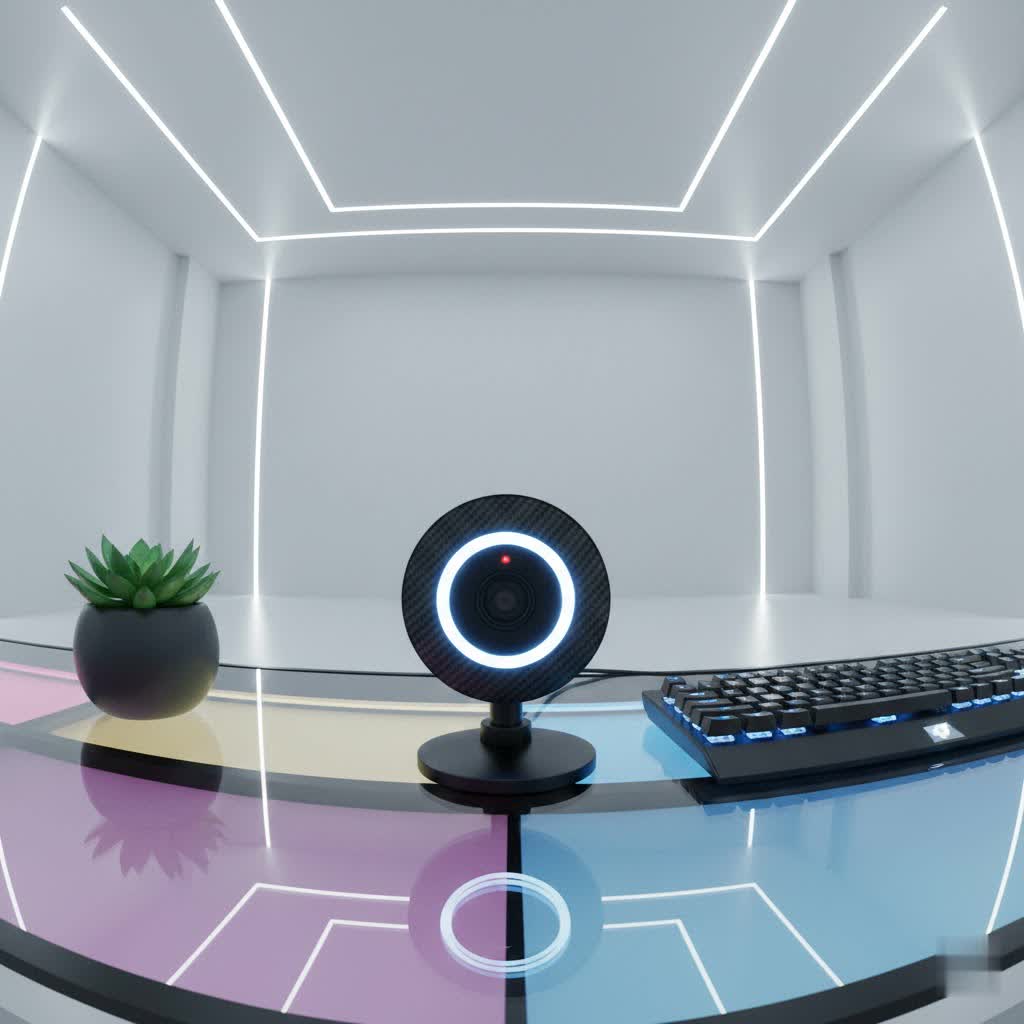
Logitech has carved out a reputation as a leader in computer peripherals, and their range of webcams is a testament to this legacy. From basic models perfect for casual video calls to advanced 4K cameras for professional broadcasting, Logitech offers solutions tailored to virtually every need and budget. This comprehensive guide will delve into the world of Logitech computer cameras, helping you understand their features, compare popular models, and ultimately find the perfect device to elevate your digital presence.
What is a Computer Webcam and Why Choose Logitech?
A computer webcam is a digital camera designed to capture still images or motion video, which can then be streamed or recorded via a computer. Unlike integrated laptop cameras, external webcams typically offer superior image quality, advanced features, and greater flexibility in positioning. They have become indispensable for various activities, including participating in online meetings, distance learning, remote job interviews, live streaming on platforms like Twitch and YouTube, and simply staying connected with friends and family.
Choosing a Logitech computer camera brings several distinct advantages. The brand is synonymous with superior video quality, offering resolutions from Full HD (1080p) up to stunning 4K, ensuring crisp and vibrant visuals. Many Logitech models feature advanced autofocus capabilities, keeping you sharp and clear even if you move. Their proprietary RightLight™ technology automatically adjusts exposure and contrast to compensate for challenging lighting conditions, making you look great even in dim or backlit environments. Furthermore, Logitech webcams often include integrated dual microphones with noise reduction, capturing natural-sounding audio while minimizing distracting background sounds. They are renowned for their wide compatibility with Windows, macOS, and ChromeOS, along with seamless integration with popular video conferencing applications like Zoom, Microsoft Teams, and Google Meet. Finally, Logitech products are known for their durable design and plug-and-play convenience, ensuring reliable performance for years to come.
Popular Logitech Computer Camera Models
Logitech offers a diverse lineup of computer cameras, each designed with specific users and use cases in mind. Here’s a look at some of their most popular models:
- Logitech C920s Pro HD: Often hailed as the best overall webcam, the C920s delivers sharp 1080p video at 30 frames per second (fps) with excellent autofocus and automatic light correction. It’s a versatile choice for office meetings, online classes, and general use, enhanced by a privacy shutter. The Logitech C920 has remained a staple for over a decade due to its reliability and ease of use.
- Logitech StreamCam: Designed specifically for content creators and live streamers, the StreamCam offers 1080p video at a smooth 60fps. It features smart autofocus, intelligent exposure, and can be mounted horizontally or vertically, making it ideal for various streaming setups.
- Logitech MX Brio / Brio 4K Ultra HD: For those demanding the highest quality, the MX Brio and Brio 4K models provide stunning 4K Ultra HD video at 30fps or 1080p at 60fps, complete with HDR (High Dynamic Range) for vibrant colors and exceptional detail. These cameras are perfect for professional streaming, high-stakes presentations, and capturing intricate visual content. The MX Brio, in particular, has been lauded for its peerless picture quality.
- Logitech Brio 500: A newer addition, the Brio 500 offers 1080p at 30fps with a flexible 90-degree field of view and advanced RightLight 4 technology. It’s praised for producing impressive, exposure-balanced images right out of the box and features an innovative “Show Mode” that allows you to tilt the camera down to present objects on your desk.
- Logitech C925e Business Webcam: Geared towards business professionals, the C925e offers 1080p HD video with a 78-degree field of view, ensuring you’re perfectly framed for virtual meetings. It includes an integrated privacy shutter and advanced autofocus, making it a reliable choice for corporate environments.
- Logitech C270 Webcam: If you’re on a budget and need a simple, reliable solution, the C270 offers 720p HD video at 30fps. While it lacks some advanced features like autofocus, it’s incredibly easy to use and provides sufficient quality for casual video chats.
Key Factors When Choosing Your Logitech Computer Camera
Selecting the ideal Logitech computer camera involves considering several technical specifications and features to match your specific needs.
Resolution & Frame Rate
These two factors largely determine the clarity and smoothness of your video:
- Resolution: Measured in pixels (e.g., 720p, 1080p, 4K). Higher resolution means sharper, more detailed images.
- 720p (HD): Suitable for basic video calls. The Logitech C270 is an example.
- 1080p (Full HD): The standard for most professional and personal use, offering clear visuals. Models like the C920s and StreamCam excel here.
- 4K (Ultra HD): Provides exceptional detail and allows for digital zooming without significant loss of quality. Best for content creation, high-fidelity streaming, and large conference rooms, as seen in the Logitech Brio 4K and MX Brio.
- Frame Rate (FPS): The number of still images displayed per second, affecting video smoothness.
- 30fps: Standard for most video calls and provides a natural look.
- 60fps: Essential for fast-paced content like gaming streams or when you need ultra-smooth motion. The StreamCam and some Brio models offer 60fps at 1080p.
|
Our Picks for the Best Computer Webcam in 2026
As an Amazon Associate I earn from qualifying purchases.
|
||
| Num | Product | Action |
|---|---|---|
| 1 | NexiGo N60 1080P Webcam with Microphone, Software Control & Privacy Cover, USB HD Computer Web Camera, Plug and Play, for Zoom/Skype/Teams, Conferencing and Video Calling |

|
| 2 | Logitech Brio 101 Full HD 1080p Webcam for Meetings, Streaming, Desktop, Laptop, PC - Built-in Mic, Shutter, Works with Zoom, Microsoft Teams, Nintendo Switch 2’s New GameChat Mode, USB-A,-Black |
|
| 3 | Logitech C920x HD Pro PC Webcam, Full HD 1080p/30fps Video, Clear Audio, HD Light Correction, Works with Microsoft Teams, Google Meet, Zoom, Nintendo Switch 2’s New GameChat Mode, Mac/Tablet- Black |
|
| 4 | RUWBY Full HD 1080P Webcam with Built-in Dual Mics, Wide-Angle Lens, Privacy Cover, Tripod Stand, Autofocus Computer Camera, Plug and Play for Desktop PC or Laptop |
|
| 5 | EMEET 1080P Webcam with Microphone, C960 Web Cam, 2 Mics, 90° FOV, USB Type-A & A-to-C Adapter, Plug&Play Computer Camera for Online Calling, Zoom/Teams/Facetime, Switch 2 Camera Support, 2025 Version |
|
| 6 | Gohero Full HD 1080P Video Webcam, Noise Cancellation, Privacy Cover, Wide-Angle Lens, Auto Light Correction, Plug & Play USB Webcam for Laptop, Desktop, PC, Mac, Zoom, Skype Pro Series |
|
| 7 | Logitech C270 HD Webcam, 720p, Widescreen HD Video Calling, Light Correction, Noise-Reducing Mic, Works with Zoom, Nintendo Switch 2’s New GameChat Mode, PC/Mac/Laptop/MacBook/Tablet - Black |
|
| 8 | Shcngqio 1080P HD Webcam with Microphone, Noise Cancellation, Privacy Cover, Wide-Angle Lens, Auto Light Correction, Plug & Play USB Webcam for Laptop, Desktop, PC, Mac, Zoom, Skype, Streaming (Black) |
|
| 9 | Logitech C920e HD 1080p Mic-Enabled Webcam, Certified for Zoom, Microsoft Teams Compatible, TAA Compliant |
|
| 10 | TRAUSI 1080P Webcam with Active Light Correction, Privacy Cover, Plug and Play USB Webcam for PC/Desktop/Laptop |
|
Field of View (FOV)
FOV determines how much of your surroundings the camera captures. Logitech webcams often offer adjustable FOV settings:
- Narrow (65 degrees): Ideal for single-person, head-and-shoulders shots, minimizing background distractions.
- Medium (78 degrees): A balanced view, suitable for individual calls or small group discussions. Many popular models like the C920s feature this FOV.
- Wide (90 degrees or more): Great for showcasing more of your environment, group meetings, or presentations where you need to move around. The Logitech Brio series often provides these wider options.
Microphone Quality
While external microphones offer superior audio, many Logitech webcams feature respectable built-in options:
- Dual Omnidirectional Microphones: Found in models like the C920s and Brio, these capture sound from all directions, making them good for individual or small group settings.
- Noise Reduction: Many Logitech mics incorporate technology to filter out background noise, ensuring your voice is clear.
Auto-Focus & Light Correction
Logitech excels in these areas:
- Autofocus: Automatically adjusts the lens to keep you sharp, even if you move closer or further from the camera. Fixed-focus cameras, like the C270, require you to be within a specific range.
- RightLight™ Technology: Logitech’s intelligent light correction system (RightLight 2, 3, or 4) automatically optimizes brightness, contrast, and color balance. RightLight 3 with HDR (High Dynamic Range) in the Brio series ensures excellent performance even in challenging lighting conditions, such as backlighting.
Connectivity & Software
- USB Connection: Most Logitech webcams connect via USB. Newer models might use USB-C for faster data transfer, while older or budget models often use USB-A. Ensure compatibility with your computer’s ports.
- Logitech Software (Logi Tune, Logitech Capture, G HUB): These applications unlock advanced controls, allowing you to fine-tune image settings (brightness, contrast, saturation, white balance), apply filters, zoom, pan, tilt, and even manage multiple camera profiles. Logi Tune is often used for video conferencing devices, while Logitech Capture offers more extensive tools for content creation and streaming.
Privacy Features
An integrated privacy shutter, like that found on the C920s or Brio models, offers a physical barrier to block the camera lens when not in use, providing peace of mind against accidental activation or unwanted viewing.
Comparison Table: Top Logitech Computer Camera Models
| Model | Resolution/FPS | Field of View (FOV) | Microphone Setup | Autofocus | Price Range (approx.) | Ideal Use | Key Differentiating Feature |
|---|---|---|---|---|---|---|---|
| C920s Pro HD | 1080p/30fps | 78° | Dual Omnidirectional | Yes | $60 – $80 | General use, office meetings, online learning | Excellent balance of quality, features, and price with privacy shutter. |
| StreamCam | 1080p/60fps | 78° | Dual Front-facing | Yes | $100 – $170 | Live streaming, content creation | Smooth 60fps video, vertical video support, smart auto-tracking. |
| MX Brio / Brio 4K | 4K/30fps, 1080p/60fps | 65°, 78°, 90° | Dual Omnidirectional | Yes | $170 – $200 | Professional streaming, high-end video calls | Unrivaled 4K clarity, HDR, flexible FOV, advanced RightLight 3. |
| Brio 500 | 1080p/30fps | 90° | Dual Beamforming | Yes | $100 – $130 | Most people, hybrid work, creative expression | RightLight 4, Show Mode, integrated privacy shutter, USB-C. |
| C925e Business | 1080p/30fps | 78° | Dual Omnidirectional | Yes | $80 – $120 | Business video conferencing | Optimized for professional environments, integrated privacy shutter. |
| C270 | 720p/30fps | 55° | Mono | No (fixed) | $30 – $40 | Basic video calls, budget-conscious users | Highly affordable, simple plug-and-play functionality. |
Buying Guide: Finding the Perfect Logitech Computer Camera
Navigating the options for a Logitech computer camera can be straightforward if you consider your primary needs and budget.
-
Identify Your Usage:
- Casual Chats/Online Learning: For informal video calls with family or online classes, models like the Logitech C270 or C920s are more than sufficient.
- Professional Meetings/Remote Work: Reliability, clear audio, and good low-light performance are key. The C920s, C925e, or Brio 500 are excellent choices.
- Content Creation/Streaming: You’ll want high resolution, smooth frame rates, and advanced image control. The StreamCam, MX Brio, or Brio 4K are designed for this purpose.
- Group Conferences: Wider fields of view and robust microphone arrays are important. The Logitech MeetUp (while typically a conference room solution, it highlights advanced features) or Brio 4K with a wide FOV are suitable.
-
Set Your Budget: Logitech offers webcams across a wide price spectrum. Budget-friendly options provide basic functionality, while premium models offer advanced features like 4K resolution, HDR, and AI enhancements. Determine how much you’re willing to invest based on your usage frequency and required quality.
-
Prioritize Key Features: Do you need 4K clarity, or is 1080p sufficient? Is 60fps crucial for smooth motion, or is 30fps acceptable? Will you be in challenging lighting, necessitating advanced RightLight technology? Do you require a wide FOV to include others or showcase your background? Make a list of your must-have features.
-
Consider Your System & Connectivity: Ensure the webcam’s USB connector (USB-A or USB-C) is compatible with your computer. While most modern operating systems handle drivers automatically, some users might benefit from downloading Logitech’s dedicated software for enhanced control.
-
Read Reviews: While this guide provides a general overview, consulting recent reviews for specific models can offer insights into real-world performance and user satisfaction.
Setting Up and Optimizing Your Logitech Computer Camera
Getting your Logitech computer camera up and running is typically a seamless experience, thanks to their plug-and-play design. However, a few steps can help you achieve optimal performance.
Plug-and-Play Installation
Most Logitech webcams are designed for instant use. Simply connect the USB cable from your webcam to an available USB port on your computer. Your operating system (Windows, macOS, ChromeOS) will usually detect the device and automatically install the necessary drivers. Within moments, your webcam should be ready for use with your preferred video applications.
Installing Logitech Software
While not always mandatory, installing Logitech’s dedicated software can unlock a suite of advanced controls and features:
- Logitech Capture: Ideal for content creators, it allows you to record from multiple sources, add text overlays, transitions, and fine-tune video settings like zoom, pan, tilt, exposure, and color.
- Logi Tune: Primarily designed for video conferencing devices, Logi Tune offers an intuitive interface to manage webcam settings, including field of view, autofocus, and RightLight technology, along with firmware updates.
- Logitech G HUB: For some gaming-focused webcams, G HUB provides similar customization options alongside other Logitech gaming peripherals.
These applications empower you to tailor your video feed beyond the basic controls offered by your operating system or video conferencing platform.
Adjusting Settings for Optimal Performance
Once installed, you can fine-tune your webcam settings:
- Brightness, Contrast, Saturation: Adjust these to achieve natural-looking visuals.
- White Balance: Ensures accurate color reproduction, preventing your image from looking too warm or too cool.
- Zoom, Pan, Tilt: Use these controls to frame yourself perfectly, especially if your webcam has a wider FOV.
- HDR Mode: If your camera supports it (like the Brio 4K), enabling HDR can provide better detail in both bright and dark areas of your image.
- AI Enhancements: Newer models, like the MX Brio, may offer AI-based image noise reduction, background blur, or automatic facial detail enhancement via Logi Tune.
Placement and Lighting Tips
Even the best webcam can struggle with poor lighting and placement:
- Eye Level Placement: Position your camera at eye level, just above your monitor, to create a natural and engaging line of sight.
- Natural Lighting: Face a window or a primary light source. Avoid strong backlighting, which can silhouette you.
- Add Supplemental Lighting: A ring light or a softbox positioned in front of you can dramatically improve your image quality, making you look more vibrant and professional.
- Clean Background: Ensure your background is tidy and uncluttered, or utilize software-based background blur or replacement features.
Troubleshooting Common Issues
If you encounter problems, here are quick fixes:
- Camera Not Detected:
- Ensure the USB cable is firmly connected.
- Try a different USB port, ideally directly on your computer, not a USB hub.
- Restart your computer.
- Check Device Manager (Windows) or System Report (macOS) to see if the camera is listed.
- Poor Video Quality:
- Check your lighting.
- Adjust settings in Logitech software or your video app.
- Ensure no other applications are using the camera simultaneously.
- Clean the lens gently with a microfiber cloth.
Tips for Maximizing Your Logitech Computer Camera Experience
To truly get the most out of your Logitech computer camera, consider these expert tips:
- Regular Lens Cleaning: Dust, fingerprints, and smudges can significantly degrade image quality. Gently wipe your webcam’s lens with a microfiber cloth periodically to maintain crystal-clear visuals.
- Keep Software and Firmware Updated: Logitech frequently releases software and firmware updates that can enhance performance, add new features, and resolve bugs. Regularly check Logi Tune or G HUB for available updates.
- Optimize for Different Platforms: While Logitech webcams work universally, you might find specific settings work better for Zoom, Microsoft Teams, Google Meet, or streaming software like OBS. Experiment with the webcam’s settings within each application to find your ideal configuration.
- Utilize Accessories: For more flexibility, consider mounting your webcam on a small tripod. A dedicated ring light or LED panel can provide consistent, flattering illumination, especially in varied environments.
- Experiment with Advanced Features: Dive into Logitech Capture or Logi Tune to explore features like custom camera profiles, picture-in-picture modes, or green screen effects if your setup allows.
Conclusion
Logitech computer cameras offer an unparalleled combination of quality, features, and reliability, making them a top choice for anyone looking to enhance their digital communication. From the dependable 1080p performance of the C920s to the cutting-edge 4K capabilities of the MX Brio, there’s a Logitech webcam perfectly suited to every need and budget. By understanding the key factors like resolution, frame rate, field of view, and utilizing Logitech’s intuitive software, you can confidently select and optimize a computer camera that empowers you to look and sound your best in any virtual setting.
So, are you ready to transform your online presence with a Logitech computer camera?
