In today’s interconnected world, a reliable computer webcam is no longer just an accessory; it’s a vital tool for professional and personal communication. Whether you’re navigating online meetings, delivering virtual presentations, or connecting with loved ones, a high-quality webcam ensures you look and sound your best, transforming mundane video calls into engaging interactions. This comprehensive guide will walk you through everything you need to know about choosing, using, and maintaining the perfect webcam for your video conferencing needs.
What is a Computer Webcam and Why Do You Need One?
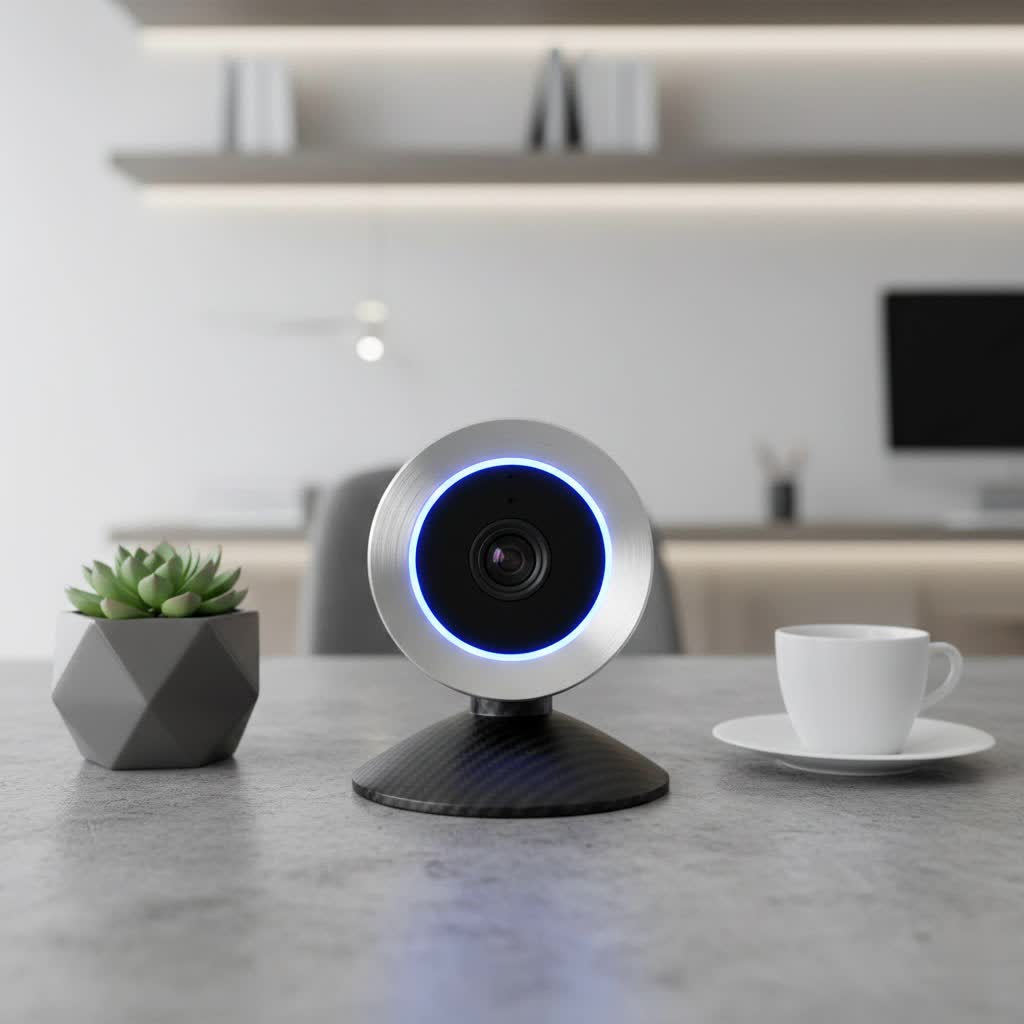
A computer webcam is a digital camera that connects to a computer or is integrated directly into a device, primarily designed to capture and transmit video and images in real-time. While many laptops come with built-in webcams, external models typically offer superior quality and more advanced features.
The primary use cases for a computer webcam in video conferencing include online learning, virtual meetings on platforms like Zoom, Microsoft Teams, and Google Meet, and live streaming. A high-quality webcam offers numerous benefits, such as clearer video, better low-light performance, and improved audio, which collectively enhance your professional image and the overall effectiveness of your virtual interactions. It helps ensure that your expressions are visible and your message is conveyed clearly, making you appear more engaged and professional.
Common Types of Computer Webcams
When exploring computer webcams, you’ll generally encounter a few main types, each with its own set of advantages and disadvantages.
- Integrated Webcams: These are built directly into laptops and some monitors. They offer convenience and portability, making them suitable for on-the-go use. However, they often come with lower resolution, poorer low-light performance, and less advanced features compared to external options.
- External (USB) Webcams: These independent devices clip onto your monitor or sit on your desk and connect via USB. They typically provide optimized picture standards, greater versatility, and a wider range of supplementary features. This category includes models designed for individual use in home offices as well as more robust options for small meeting rooms.
- Specialized Webcams: This category encompasses devices designed for specific purposes, such as professional live streaming or larger conference rooms. These webcams often feature advanced capabilities like AI tracking, wider fields of view, and higher-end sensors to accommodate multiple participants or dynamic presentations.
Key Factors When Choosing a Computer Webcam
Selecting the ideal computer webcam involves considering several crucial technical specifications and features that directly impact your video conferencing experience.
- Resolution: The resolution determines the clarity and sharpness of your video. While 720p offers decent quality for basic use, 1080p (Full HD) is considered the baseline standard for professional video calls, providing sharp and polished images. Many popular video conferencing platforms like Zoom and Microsoft Teams compress video streams, meaning that while 4K resolution offers exceptional detail, its full benefits may not always be visible in real-time meetings. However, 4K can be advantageous for cropping or if platforms eventually support higher uncompressed resolutions.
- Frame Rate (FPS): Frame rate impacts the smoothness and fluidity of your video. A webcam with 30 frames per second (fps) is generally sufficient for most video conferencing needs, ensuring smooth motion. For more dynamic presentations or smoother action, a webcam offering 60fps is preferable. It’s worth noting that some 4K webcams may be limited to 30fps at their highest resolution, requiring a choice between sharper picture and smoother motion.
- Field of View (FoV): The field of view refers to how much of the scene the camera can capture. A narrow FoV (40-50 degrees) is ideal for individual use, focusing on your face and minimizing background distractions. A wide FoV (80-120 degrees) is better suited for capturing multiple participants in a small meeting room or if you need to show more of your environment. A common middle ground is 78 degrees.
- Microphone Quality: While most webcams include built-in microphones, their quality can vary. For optimal audio clarity, especially in noisy environments, consider a webcam with noise-canceling features or invest in an external USB microphone or headset.
- Low-Light Performance: If you frequently work in dimly lit or variable lighting conditions, a webcam with strong low-light performance is essential. Look for models with larger sensors, good aperture (lower f-number), HDR (High Dynamic Range), or advanced image processing technology to maintain clarity and avoid grainy video.
- Autofocus and Image Stabilization: Autofocus ensures your image remains sharp even if you move within the frame, which is highly beneficial for dynamic presentations or simply shifting in your chair. Some advanced webcams feature AI autofocus that combines autofocus with digital zoom to keep you centered as you move. Image stabilization can help reduce blur from minor camera shakes.
- Additional Features: Modern webcams offer a range of extra features, including automatic light adjustment for optimal exposure, physical privacy shutters for peace of mind, AI tracking to keep you perfectly framed, and gesture or voice control for hands-free operation.
Comparison Table: Top Computer Webcams for Video Conferencing
To help you navigate the myriad options, here’s a comparison of some highly-rated computer webcams suitable for various video conferencing needs, based on recent reviews.
| Webcam Model | Resolution / Frame Rate | Field of View (FoV) | Microphone Features | Key Features & Best Use Case | Price (Approx.) | Pros | Cons |
|---|---|---|---|---|---|---|---|
| OBSBOT Tiny 2 4K | 4K@30fps, 1080p@60fps | ~79.4° diag | Dual omni mics | AI PTZ tracking, presentations, moving around | $179 | Excellent 4K video, powerful AI tracking, gesture/voice control, compact | Expensive, average microphone quality |
| Logitech MX Brio 4K | 4K@30fps, 1080p@60fps | Adjustable | Dual beamforming mics | Professional meetings, high-quality calls, “Show Mode” | $199 | Crisp 4K video, strong low-light, app customization, deep focal plane | Mediocre microphone, tricky “Show Mode” positioning |
| Anker PowerConf C300 | 1080p@60fps | 78°, 90°, 115° | Dual noise-cancelling mics | Most people, smart AI framing, autofocus | $129 | Excellent AI features, great image quality, privacy shutter | No 4K option |
| Logitech C920x HD Pro | 1080p@30fps | 78° | Dual stereo mics | Everyday calls, budget-friendly, reliable | $69 | Full HD video, reliable autofocus, good stereo mics, affordable | Not as sharp as 4K, 30fps only |
| Insta360 Link 2C | 4K@30fps | Flexible | Built-in mic | Mixed use (meetings + streaming), low-light, flexible stand | $149 | Clear 4K video (Sony Starlight sensor), good low-light, physical privacy shutter, magnetic stand | Built-in mic can be limited, expensive |
| Razer Kiyo Pro Ultra | 1080p–4K (various) | 82° | Built-in mic | Low-light rooms, home offices, best picture quality | $199.99 | Fantastic video quality, genuine bokeh, strong low-light performance | Expensive, narrow focus plane, mediocre microphone |
| Dell Pro Webcam | 2K QHD | 78° | Built-in mic | Budget shoppers needing more than 1080p | $110.99 | Sharp 2K video, clear audio, reasonable price | Noisier than expected, sluggish auto framing |
| Anker PowerConf C200 | 2K | 65°/78°/95° | Dual noise-cancelling mics | Portable meetings, remote work, adjustable FoV | $59 | Portable, good 2K picture, adjustable FoV, noise-canceling mics, affordable | Not 4K, fast movements might blur slightly |
| OBSBOT Tiny SE | 1080p | 78° | Built-in mic | Best 1080p webcam, mechanical pan & tilt | $99 | Mechanical pan & tilt, auto-framing, bright/sharp 1080p, powerful software, inexpensive | Gimbal a little slow, no voice controls |
| Creative Live! Cam Sync 1080p V2 | 1080p | 77° | Built-in mic | Ultra-affordable, basic video calls | $34.99 | Inexpensive, bright picture, loud/clear sound, privacy filter | Noisy video, audio not particularly clean |
Computer Webcam Buying Guide
Choosing the right computer webcam involves a structured approach to ensure it meets your specific requirements.
- Identify Your Needs: Start by defining your primary use. Is it for daily professional meetings, casual family calls, content creation, or group conference rooms? Your purpose will dictate the necessary features like resolution, FoV, and advanced tracking.
- Set Your Budget: Webcams range from under $50 to over $200. Determine how much you’re willing to invest, keeping in mind that higher quality often comes with a higher price tag. A reliable 1080p webcam can be found for under $100-$150, while 4K options typically start from $140 and go upwards.
- Research Brands and Models: Stick to reputable brands known for quality and customer support, such as Logitech, Anker, OBSBOT, and Razer. Consult reviews and comparison tables (like the one above) to narrow down your choices.
- Check Compatibility: Ensure the webcam is compatible with your operating system (Windows, macOS, ChromeOS) and your preferred video conferencing software (Zoom, Teams, Google Meet, Skype). Most modern webcams are plug-and-play via USB.
- Consider Buying Online vs. Offline: Online retailers often offer a wider selection and competitive prices, but buying from a physical store allows you to potentially see the product and ask questions in person.
- Read User Reviews: Pay attention to feedback regarding video and audio quality, ease of use, and durability from actual users. This can provide valuable insights beyond technical specifications.
Top Picks: Most Popular Computer Webcams
Based on expert reviews and user feedback, here are some of the most popular and highly-regarded computer webcams for video conferencing:
- OBSBOT Tiny 2 4K Webcam: Often cited as one of the best overall webcams, the Tiny 2 stands out with its 4K resolution, mechanical pan and tilt, and advanced AI movement tracking, making it perfect for presenters and professionals who move during calls. Its gesture and voice controls add to its versatility.
- Logitech MX Brio 4K Webcam: This high-end 4K webcam delivers crisp visuals and strong low-light performance. It’s a favorite for professional meetings and high-quality calls, offering excellent auto-exposure and color balance, plus a unique “Show Mode” for desk presentations.
- Anker PowerConf C300: For most users seeking a robust 1080p solution, the Anker PowerConf C300 is a top contender. It features AI-powered framing, autofocus, and adjustable fields of view, ensuring you’re always centered and clear in your video calls.
- Logitech C920x HD Pro Webcam: A long-standing favorite for its reliability and value, the C920x offers excellent 1080p video at 30fps with reliable autofocus and decent stereo microphones. It’s an ideal budget-friendly option for everyday video calls, home office work, and online learning.
- Insta360 Link 2C Webcam: This webcam is praised for its 4K video quality, excellent low-light performance (thanks to its Sony Starlight sensor), and a flexible magnetic stand. It’s a great choice for hybrid users who blend video calls with content creation or streaming.
- Razer Kiyo Pro Ultra: If pristine image quality, even in challenging lighting, is your top priority, the Razer Kiyo Pro Ultra excels. It boasts a large sensor, a wide f/1.7 aperture for natural background blur (bokeh), and superb 4K detail, making it ideal for artists and professionals requiring exceptional visuals.
- Anker PowerConf C200 Webcam: This 2K webcam is highly recommended for professionals who travel frequently. Its portable and lightweight design, coupled with adjustable FoV and noise-canceling microphones, makes it a reliable choice for high-quality meetings on the go.
Tips for Using and Maintaining Your Computer Webcam
Optimizing your webcam setup and practicing good habits can significantly improve your video conferencing experience.
- Installation and Configuration: Most external webcams are plug-and-play via a USB cable. Modern operating systems usually detect the device automatically. Place your webcam at eye level using a monitor mount, stand, or even a stack of books to ensure a flattering and professional angle.
- Lighting is Key: Position yourself facing a soft, diffused light source, such as a window (but avoid direct backlighting, which can make you appear silhouetted). A ring light or LED panel can provide consistent, flattering illumination, especially in dim rooms.
- Background Management: Choose a clean, uncluttered background. A simple wall, a neatly arranged bookshelf, or a virtual background can help maintain a professional appearance and minimize distractions.
- Optimal Audio: While webcam microphones are improving, using an external headset or USB microphone often provides superior audio quality, reducing background noise and ensuring your voice is clear and crisp.
- Eye Contact: Make a conscious effort to look directly into the camera lens, rather than at your screen, to create a more direct and engaging connection with your audience.
- Minimize Distractions: Silence phone and computer notifications, close unnecessary browser tabs, and inform others in your household when you’re on a call. This ensures you remain focused and engaged.
- Regular Cleaning: Gently wipe your webcam lens with a microfiber cloth to remove dust and smudges, which can degrade image quality. Store it properly when not in use to protect the lens.
- Software Updates: Keep your webcam’s drivers and any accompanying software updated to ensure optimal performance and access to the latest features.
Conclusion
Choosing the right computer webcam for video conferencing can profoundly impact your virtual presence, allowing you to connect professionally and personally with clarity and confidence. By understanding the different types of webcams, focusing on key features like resolution, frame rate, and microphone quality, and implementing best practices for setup and use, you can significantly enhance your video conferencing experience. Whether you prioritize cutting-edge 4K quality with AI tracking or a reliable 1080p option on a budget, there’s a perfect webcam out there to meet your needs and help you shine in every virtual interaction.
Ready to upgrade your virtual presence? Which of these webcam features is most important for your daily meetings?
Frequently Asked Questions
What is the best resolution for a video conferencing webcam?
|
Our Picks for the Best Computer Webcam in 2026
As an Amazon Associate I earn from qualifying purchases.
|
||
| Num | Product | Action |
|---|---|---|
| 1 | RUWBY Full HD 1080P Webcam with Built-in Dual Mics, Wide-Angle Lens, Privacy Cover, Tripod Stand, Autofocus Computer Camera, Plug and Play for Desktop PC or Laptop |

|
| 2 | TRAUSI 1080P Webcam with Active Light Correction, Privacy Cover, Plug and Play USB Webcam for PC/Desktop/Laptop |
|
| 3 | Logitech C920e HD 1080p Mic-Enabled Webcam, Certified for Zoom, Microsoft Teams Compatible, TAA Compliant |
|
| 4 | EMEET 1080P Webcam with Microphone, C960 Web Cam, 2 Mics, 90° FOV, USB Type-A & A-to-C Adapter, Plug&Play Computer Camera for Online Calling, Zoom/Teams/Facetime, Switch 2 Camera Support, 2025 Version |
|
| 5 | Logitech C920x HD Pro PC Webcam, Full HD 1080p/30fps Video, Clear Audio, HD Light Correction, Works with Microsoft Teams, Google Meet, Zoom, Nintendo Switch 2’s New GameChat Mode, Mac/Tablet- Black |
|
| 6 | Shcngqio 1080P HD Webcam with Microphone, Noise Cancellation, Privacy Cover, Wide-Angle Lens, Auto Light Correction, Plug & Play USB Webcam for Laptop, Desktop, PC, Mac, Zoom, Skype, Streaming (Black) |
|
| 7 | Logitech Brio 101 Full HD 1080p Webcam for Meetings, Streaming, Desktop, Laptop, PC - Built-in Mic, Shutter, Works with Zoom, Microsoft Teams, Nintendo Switch 2’s New GameChat Mode, USB-A,-Black |
|
| 8 | NexiGo N60 1080P Webcam with Microphone, Software Control & Privacy Cover, USB HD Computer Web Camera, Plug and Play, for Zoom/Skype/Teams, Conferencing and Video Calling |
|
| 9 | Gohero Full HD 1080P Video Webcam, Noise Cancellation, Privacy Cover, Wide-Angle Lens, Auto Light Correction, Plug & Play USB Webcam for Laptop, Desktop, PC, Mac, Zoom, Skype Pro Series |
|
| 10 | Logitech C270 HD Webcam, 720p, Widescreen HD Video Calling, Light Correction, Noise-Reducing Mic, Works with Zoom, Nintendo Switch 2’s New GameChat Mode, PC/Mac/Laptop/MacBook/Tablet - Black |
|
For professional video conferencing, 1080p (Full HD) is generally the recommended resolution, offering a sharp and clear image. While 4K webcams provide even greater detail, most popular platforms compress video to 1080p, so 4K may not always translate to a noticeable quality improvement during real-time meetings.
Do I need a webcam with a built-in microphone?
While webcams often include built-in microphones for convenience, an external USB microphone or a good quality headset typically offers superior audio performance. This is especially true in noisy environments, as dedicated microphones often provide better noise cancellation and clearer voice pickup.
Is a wide field of view webcam better for video conferencing?
A wide field of view (FoV) webcam, typically 80-120 degrees, is beneficial if you need to capture multiple people in a meeting room or show more of your background. For individual use, a narrower FoV (40-50 degrees) or a standard 78-degree FoV is often preferred to keep the focus tightly on you and minimize distractions.
What is AI tracking in a webcam, and is it useful?
AI tracking in a webcam uses artificial intelligence to automatically follow your face or body, keeping you centered in the frame as you move. This feature is highly useful for presenters, teachers, or anyone who tends to move around during video calls, as it eliminates the need for manual camera adjustments.
How important is low-light performance for a webcam?
Low-light performance is very important if you frequently take video calls in dimly lit rooms or environments with inconsistent lighting. Webcams with good low-light capabilities, often featuring larger sensors and advanced image processing, can prevent your video from appearing grainy, dark, or washed out.
