In today’s interconnected world, high-quality video communication has become indispensable, whether for professional meetings, online learning, or staying connected with loved ones. While most laptops come with integrated cameras, a dedicated USB desktop camera offers a significant upgrade, transforming your digital presence with superior clarity, flexibility, and features. Choosing the right external camera can dramatically enhance your video calls, live streams, and content creation, making every interaction more engaging and professional.
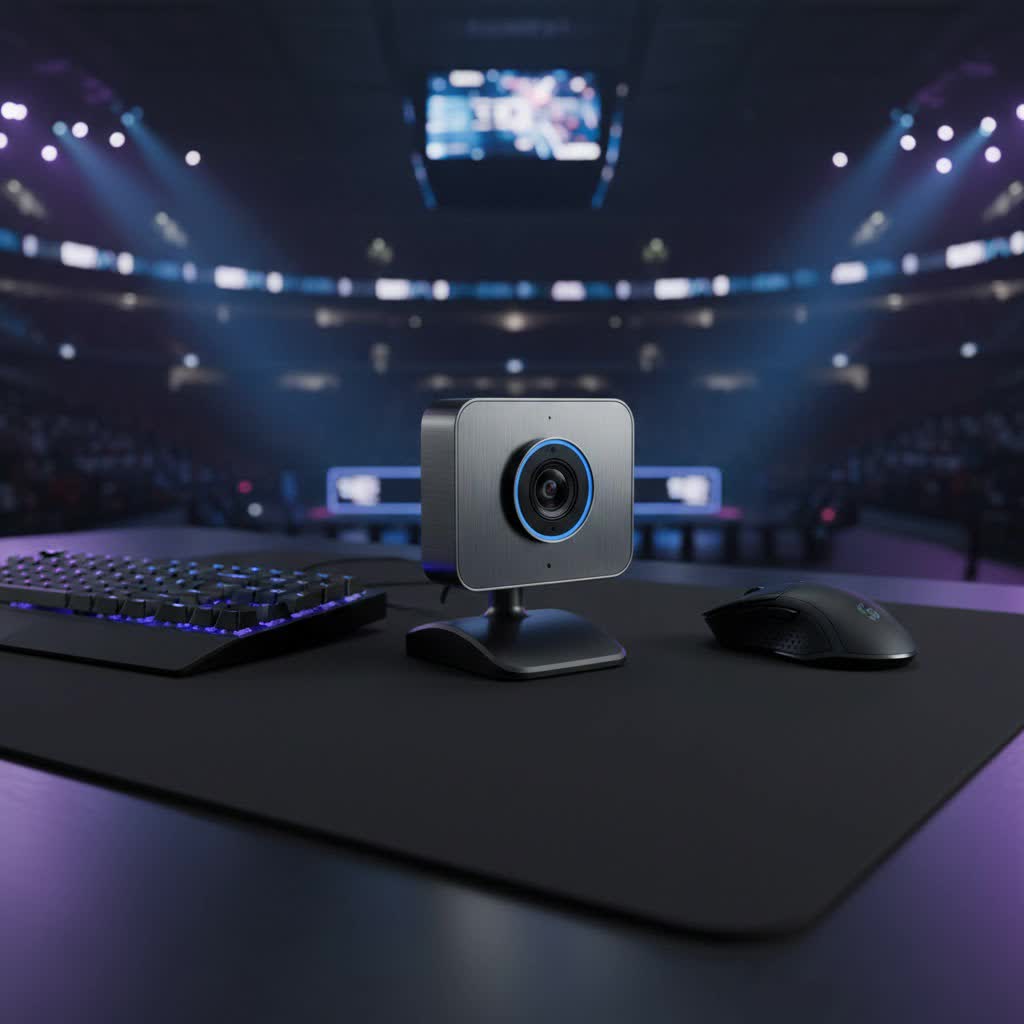
This comprehensive guide will navigate you through the world of USB desktop cameras, helping you understand their benefits, key features, and the best options available to find the perfect device for your needs.
What is a USB Desktop Camera and Why Do You Need One?
A USB desktop camera, often referred to as an external webcam, is a standalone video camera that connects to your computer via a USB port. Unlike the integrated cameras found in laptops, which are typically designed for basic functionality and often compromise on quality due to space constraints, external webcams are built with higher-quality components and offer greater flexibility. They deliver clearer video, better audio, and more advanced features, making them a crucial tool for a variety of modern applications.
You need a high-quality USB desktop camera for several compelling reasons:
- Enhanced Video Quality: External webcams often boast higher resolutions (1080p, 2K, 4K) and larger sensors, leading to sharper images and better low-light performance compared to their built-in counterparts.
- Improved Flexibility and Positioning: Detached from your screen, a USB camera can be adjusted, tilted, or rotated to achieve the perfect angle, whether you’re presenting, demonstrating, or simply engaging in a conversation. Many also come with tripod mounts for even greater versatility.
- Superior Audio: While not all external webcams feature excellent microphones, many offer significantly better noise reduction and sound clarity than integrated laptop mics, sometimes even including dual stereo microphones for a richer audio experience.
- Professionalism: For remote work, online interviews, or client meetings, a clear, stable, and well-framed video feed projects a more professional image.
- Specialized Features: Many USB desktop cameras come equipped with advanced functionalities like autofocus, automatic light correction, privacy shutters, and even AI-powered tracking, which are rarely found in built-in cameras.
- Reliability and Durability: External cameras are generally more robust and easier to troubleshoot or replace if issues arise, unlike integrated components.
Types of USB Desktop Cameras
The market for USB desktop cameras is diverse, with options catering to various needs and budgets:
- Standard Consumer Webcams: These are typically 1080p Full HD cameras designed for everyday use like video calls, online classes, and casual streaming. They are generally plug-and-play, affordable, and offer a noticeable upgrade over most laptop cameras.
- High-End/Professional Webcams: Aimed at content creators, serious streamers, and professionals who demand top-tier performance, these cameras often feature 4K resolution, higher frame rates (60fps), larger sensors for superior low-light performance, and advanced software for granular control over image settings.
- AI-Powered Webcams: A newer category, these cameras incorporate artificial intelligence for features like auto-framing, gesture control, and intelligent tracking, ensuring you always stay in focus and perfectly framed, even if you move around. Examples include OBSBOT models.
- Specialized Webcams: Some cameras are designed for specific purposes, such as document cameras for overhead views or those with advanced optical zoom for detailed presentations.
Key Factors to Consider When Choosing a USB Desktop Camera
Selecting the ideal USB desktop camera involves balancing performance, features, and budget with your specific usage requirements.
Resolution: 720p, 1080p, 2K, 4K – Which to Choose?
Resolution dictates the sharpness and detail of your video.
- 720p (HD): While still available, 720p is generally considered the minimum for basic video calls.
- 1080p (Full HD): This is the current standard, offering excellent clarity for most video conferencing, online teaching, and casual streaming. Many streaming platforms cap resolution at 1080p, making it a perfectly viable choice.
- 2K (1440p): Providing sharper detail than 1080p, 2K webcams are ideal if you want a noticeable clarity improvement without the higher cost and bandwidth demands of 4K. They are great for professionals and students seeking enhanced visuals.
- 4K (Ultra HD): For content creators, serious streamers, or anyone who demands the absolute best image quality, 4K offers unparalleled detail. Keep in mind that 4K requires more bandwidth and processing power from your computer, and its full benefits might only be apparent on larger displays or if you plan to zoom in or crop your video.
|
Our Picks for the Best Computer Webcam in 2026
As an Amazon Associate I earn from qualifying purchases.
|
||
| Num | Product | Action |
|---|---|---|
| 1 | RUWBY Full HD 1080P Webcam with Built-in Dual Mics, Wide-Angle Lens, Privacy Cover, Tripod Stand, Autofocus Computer Camera, Plug and Play for Desktop PC or Laptop |

|
| 2 | Shcngqio 1080P HD Webcam with Microphone, Noise Cancellation, Privacy Cover, Wide-Angle Lens, Auto Light Correction, Plug & Play USB Webcam for Laptop, Desktop, PC, Mac, Zoom, Skype, Streaming (Black) |
|
| 3 | Logitech C920e HD 1080p Mic-Enabled Webcam, Certified for Zoom, Microsoft Teams Compatible, TAA Compliant |
|
| 4 | Logitech C920x HD Pro PC Webcam, Full HD 1080p/30fps Video, Clear Audio, HD Light Correction, Works with Microsoft Teams, Google Meet, Zoom, Nintendo Switch 2’s New GameChat Mode, Mac/Tablet- Black |
|
| 5 | NexiGo N60 1080P Webcam with Microphone, Software Control & Privacy Cover, USB HD Computer Web Camera, Plug and Play, for Zoom/Skype/Teams, Conferencing and Video Calling |
|
| 6 | Logitech Brio 101 Full HD 1080p Webcam for Meetings, Streaming, Desktop, Laptop, PC - Built-in Mic, Shutter, Works with Zoom, Microsoft Teams, Nintendo Switch 2’s New GameChat Mode, USB-A,-Black |
|
| 7 | TRAUSI 1080P Webcam with Active Light Correction, Privacy Cover, Plug and Play USB Webcam for PC/Desktop/Laptop |
|
| 8 | Logitech C270 HD Webcam, 720p, Widescreen HD Video Calling, Light Correction, Noise-Reducing Mic, Works with Zoom, Nintendo Switch 2’s New GameChat Mode, PC/Mac/Laptop/MacBook/Tablet - Black |
|
| 9 | EMEET 1080P Webcam with Microphone, C960 Web Cam, 2 Mics, 90° FOV, USB Type-A & A-to-C Adapter, Plug&Play Computer Camera for Online Calling, Zoom/Teams/Facetime, Switch 2 Camera Support, 2025 Version |
|
| 10 | Gohero Full HD 1080P Video Webcam, Noise Cancellation, Privacy Cover, Wide-Angle Lens, Auto Light Correction, Plug & Play USB Webcam for Laptop, Desktop, PC, Mac, Zoom, Skype Pro Series |
|
Frame Rate (FPS): How Does it Affect Video Smoothness?
Frame rate, measured in frames per second (FPS), determines how smooth your video appears.
- 30fps: Sufficient for most video calls and static presentations, providing a natural look.
- 60fps: Essential for smoother motion, making it ideal for gaming streams, dynamic presentations, or content where fluid movement is critical. Some cameras offer 1080p at 60fps or 4K at 30fps.
Field of View (FOV): Wide or Narrow?
Field of view refers to how much of the scene your camera captures.
- Narrow FOV (60-70 degrees): Ideal for capturing a single person directly in front of the camera, focusing on your face.
- Wide FOV (78-90 degrees or more): Suitable for including multiple people, showcasing a whiteboard, or capturing more of your environment, often preferred for group meetings or presentations. Some advanced cameras offer adjustable FOV.
Microphone Quality: Is the Built-in Mic Good Enough?
Most external webcams include a built-in microphone. While they are generally better than laptop mics, dedicated external microphones (like a USB mic or headset) often provide superior audio quality, especially for streaming or professional recordings where pristine sound is crucial. Many webcams feature noise-reducing microphones for clearer voice capture.
Additional Features
- Autofocus vs. Fixed Focus: Autofocus automatically adjusts to keep you sharp, even if you move. Fixed focus cameras require you to set the focus once, which can be sufficient if you remain stationary.
- Low-Light Performance: Cameras with larger sensors and advanced image processing (like HDR) perform better in dim environments, automatically adjusting color and brightness.
- Privacy Shutter: A physical cover for the lens provides peace of mind when the camera is not in use.
- AI Framing & Gesture Control: Advanced features that automatically keep you centered and allow hands-free control.
- Connectivity: Most USB desktop cameras are plug-and-play via USB-A or USB-C, utilizing UVC (USB Video Class) for broad compatibility across Windows, macOS, Linux, and Chrome OS.
- Software Support: Some brands offer proprietary software for fine-tuning exposure, white balance, and other image settings, providing greater control over your video output.
Top Picks: Popular USB Desktop Cameras
Here’s a comparison of some highly-rated USB desktop cameras, catering to different needs and budgets:
| Model | Resolution | FPS (Max) | Key Features | Best For | Price (Approx.) |
|---|---|---|---|---|---|
| OBSBOT Meet SE | 1080p | 100fps | AI framing, gesture control, noise-reducing mic, ultra-smooth video | Everyday users, remote work | $69 |
| HP 325 FHD | 1080p | 30fps | Auto light correction, noise reduction mic, privacy shutter, plug-and-play | Basic video calls, budget-conscious | $39 |
| Anker PowerConf C200 | 2K (1296p) | 30fps | Autofocus, 90° FOV, HDR support, plug-and-play | Students, professionals, 2K upgrade | $59.99 |
| Logitech C920x | 1080p | 30fps | Dual stereo mics, reliable autofocus, auto light correction, privacy shutter | All-around general use, trusted brand | $69.99 |
| Elgato Facecam MK.2 | 1080p | 60fps | Large Sony sensor, advanced software (Elgato Camera Hub), fixed focus | Streamers, content creators | $139.99 |
| OBSBOT Tiny 2 Lite | 4K / 1080p | 30fps / 60fps | AI tracking with auto zoom, PDAF autofocus, dual noise-canceling mics, PTZ presets | Advanced streamers, online teachers | $159 |
| Logitech MX Brio | 4K | 30fps | AI-enhanced optics, HDR, high-fidelity dual mics, Windows Hello IR support | Professionals, premium quality | $199 |
Note: Prices are approximate and subject to change.
USB Desktop Camera Buying Guide: Making the Right Choice
Choosing the right USB desktop camera doesn’t have to be overwhelming. Follow these steps to ensure you make an informed decision:
-
Identify Your Primary Use Case:
- Casual Video Calls/Online Learning: A 1080p webcam with good auto-light correction and a decent built-in mic (like the HP 325 FHD or Logitech C920x) will suffice.
- Professional Meetings/Remote Work: Look for 1080p or 2K resolution, reliable autofocus, and clear audio. Features like a privacy shutter and compatible software (e.g., Logitech MX Brio for Zoom/Teams certification) are beneficial.
- Live Streaming/Content Creation: Prioritize higher resolution (1080p@60fps or 4K), excellent low-light performance, and potentially advanced features like AI tracking or dedicated software for image tuning (e.g., Elgato Facecam MK.2, OBSBOT Tiny 2 Lite).
-
Set a Realistic Budget: USB cameras range from under $50 to over $200. Determine how much you’re willing to spend, keeping in mind that higher prices generally equate to better image quality, advanced features, and more robust builds. Affordable models can still offer significant improvements over built-in options.
-
Check Compatibility: Ensure the camera is compatible with your operating system (Windows, macOS, Linux, Chrome OS) and the video conferencing or streaming software you use (Zoom, Teams, OBS Studio, etc.). Most modern USB cameras are widely compatible due to UVC support.
-
Read Reviews and Watch Comparisons: Look for independent reviews and hands-on comparisons to see how cameras perform in real-world scenarios. Pay attention to user feedback regarding image quality, audio, and ease of use.
-
Consider Your Environment: If you have poor lighting, prioritize cameras with good low-light performance or consider adding external lighting. If you often move during calls, autofocus or AI tracking features will be beneficial.
Tips for Optimizing Your USB Desktop Camera Experience
Once you have your USB desktop camera, a few simple adjustments can significantly enhance your video quality:
- Optimal Placement: Position your camera at eye level, ideally slightly above your monitor. This creates a more natural and engaging viewing experience for others. Use a tripod or a monitor clip to achieve the best height.
- Lighting is Key: Natural light from a window in front of you is ideal. If natural light isn’t sufficient, invest in a ring light or softbox to illuminate your face evenly. Avoid backlighting, which can make you appear as a silhouette.
- Background Matters: Choose a clean, uncluttered, and professional-looking background. You can also use virtual backgrounds offered by many video conferencing platforms.
- Adjust Software Settings: Most webcams come with companion software (or can be controlled via your video app’s settings) that allows you to adjust brightness, contrast, white balance, and exposure. Experiment with these settings to achieve the best image for your specific lighting conditions.
- Ensure Good Audio: While some webcam microphones are decent, consider using an external microphone or headset for the clearest audio, especially in noisy environments. Position your microphone correctly for optimal sound capture.
- Keep it Clean: Regularly wipe your camera lens with a microfiber cloth to prevent smudges and dust from degrading image quality.
Conclusion
Upgrading to a high-quality USB desktop camera is one of the most impactful ways to elevate your digital communication. Whether you’re aiming for crystal-clear video calls, seamless online learning, or professional-grade live streams, an external webcam offers superior performance, flexibility, and features that built-in laptop cameras simply cannot match. By considering factors like resolution, frame rate, field of view, and specialized features, you can confidently select a camera that perfectly aligns with your needs and budget. Invest in a quality USB desktop camera today and project your best self in every virtual interaction.
Ready to see yourself in a whole new light?
Frequently Asked Questions
Do I really need an external USB camera if my laptop has one?
Yes, an external USB camera almost always provides superior image quality, better low-light performance, more flexible positioning, and often clearer audio compared to a built-in laptop camera. This can significantly enhance your professionalism and overall experience in video calls and streaming.
What resolution is best for casual video calls?
For casual video calls and most online meetings, a 1080p (Full HD) USB desktop camera is more than sufficient. It offers excellent clarity and detail, and most video conferencing platforms don’t utilize 4K resolution to its full potential for real-time calls.
Are built-in webcam microphones good enough?
While built-in webcam microphones can be acceptable for basic calls, they often pick up more background noise and may lack the clarity of a dedicated external microphone or headset. For critical meetings, streaming, or content creation, an external mic is highly recommended for optimal audio quality.
How do I improve my webcam’s low-light performance?
To improve low-light performance, ensure you have adequate front-facing lighting (like a ring light or natural light). You can also adjust settings like brightness, contrast, and exposure in your webcam’s software or video application. Some webcams also feature HDR technology and larger sensors specifically designed for better low-light capture.
Can I use a USB desktop camera with my smart TV?
Some USB webcams may support standalone use with smart TVs or gaming consoles that have USB ports and camera functionality. However, most require a computer to process the video feed, especially for advanced features like autofocus and AI tracking. Always check the specific compatibility of your webcam and smart TV.
